Change Requests - List of all RFQs - Accessing
 Updated
Suggested Prior Reading
Change Requests - List of all RFQs - Overview
Accessing the List of all RFQs for all Change Requests
- If required, access the project, see Project - Accessing.
- Click on the Project Menu Options bar.
- From the Project Menu Options bar in the Job Costing section, click Change Requests.
Note* Depending on the size of the form and permissions for the user, the Project Menu Options bar may appear different.
The Change Requests List displays.Click here for more information on the Change Requests List display
The display of the Change Requests List differs depending on what view is set. See All Change Requests Lists - Views Examples to determine which view is set for the organization.
For the Grouped List View, see Change Requests List - Layout and Navigation (Grouped List View).
For the Simple List View, see Change Requests List - Layout and Navigation (Simple List View). - Click RFQs on the List Navigation Menu.
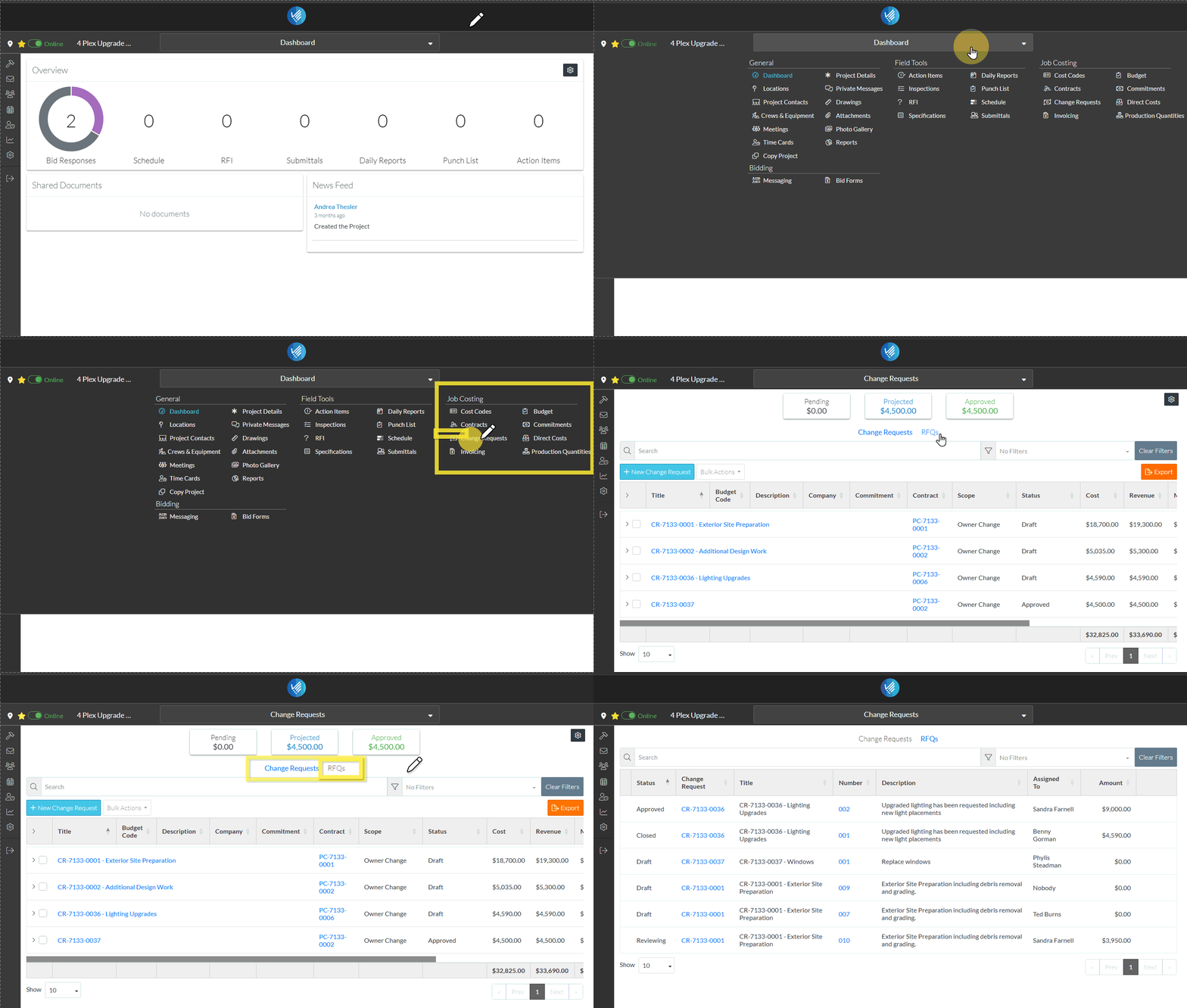
The list of all RFQs for all Change Requests are displayed. See Change Requests - List of all RFQs - Layout and Navigation if required.
Next Steps
Search and/or filter the list of all RFQs, see Change Requests - List of all RFQs - Search and Filter.
Sort the columns on the list of all RFQs, if required, see Change Requests - List of all RFQs - Sort Columns.
View an RFQ (to then edit it, update the status, submit a response or send to Vendors or Subcontractors), see Change Requests - List of all RFQs - View/Edit.
Delete an RFQ, see Change Requests - List of all RFQs - Delete.
