RFQ - View/Edit - Send Request

------ INSERT GIF WHEN BUG DONE - the company doesn't gertg saved
Suggested Prior Reading
Change Request Specific RFQs - View/Edit
OR
Change Requests - List of all RFQs - View/Edit
RFQ - View/Edit - Draft Status
Send Request
The Send Request function is available if the RFQ is in a Draft Status. See RFQ - View/Edit - Draft Status for more information.
A Draft RFQ is one that has not yet been sent to a Company/Contact.
To Send a request for a quote to the Company/Contact entered:
- View or Edit the RFQ, see the following for the appropriate list the view/edit is being invoked from:
Change Request Specific RFQs - View/Edit
OR
Change Requests - List of all RFQs - View/Edit
The RFQ - View/Edit form displays. See RFQ - View/Edit - Layout and Navigation - Draft Status for more information on the layout. - If not already entered, enter the Company/Contact, see RFQ - View/Edit - General Information.
- Click on the Send Request
 button.
A message is displayed indicating the RFQ was sent.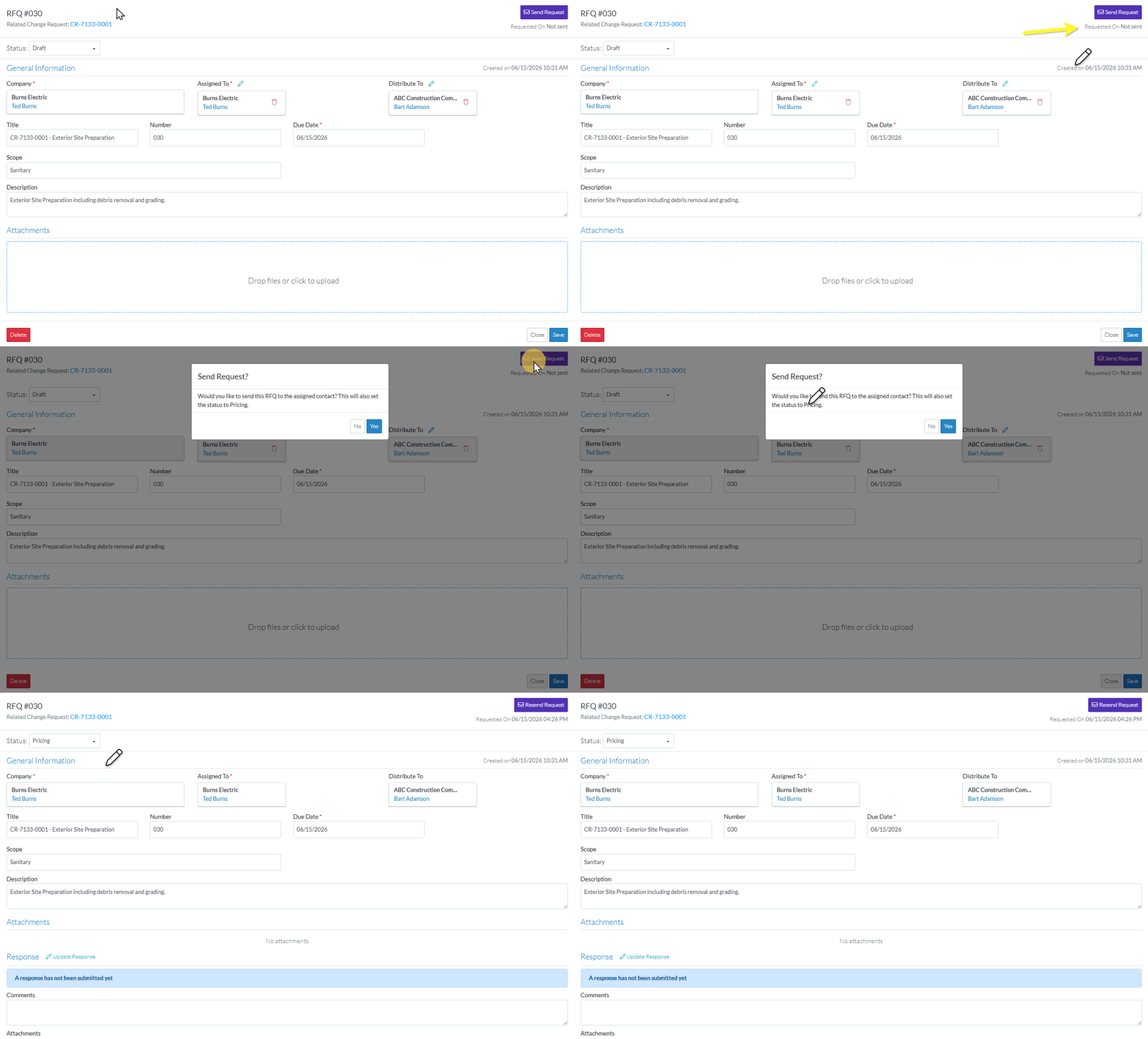
The form changes to the Pricing Layout, see RFQ - View/Edit - Layout and Navigation - Pricing Status. - Continue editing the RFQ, see More Information below.
OR
Click the Close button to close the RFQ form, see Next Steps below.
More Information
Manually set the Status of the RFQ to another Status
Set the Status to Draft, see RFQ - View/Edit - Edit Status to Draft
Set the Status to Reviewing, see RFQ - View/Edit - Edit Status to Reviewing
Set the Status to Revise, see RFQ - View/Edit - Edit Status to Revise
Set the Status to Approved, see RFQ - View/Edit - Edit Status to Approved
Set the Status to Closed, see RFQ - View/Edit - Edit Status to Closed
Delete the RFQ, see RFQ - Delete.
Next Steps
The list the View/Edit was invoked from displays.
- If it was invoked from the Change Request - View/Edit form via the RFQs component, see Change Request Specific RFQs - Overview.
- If it was invoked from the Change Requests on the Project Navigation Menu and via the RFQs in the Lists Navigation Menu, see Change Requests - List of all RFQs - Overview.
