RFQ - View/Edit - Edit Status to Approved
 Updated
Suggested Prior Reading
Change Request Specific RFQs - View/Edit
OR
Change Requests - List of all RFQs - View/Edit
Edit the Status of the RFQ to Approved
This is help for changing the status of an existing RFQ to the Approved Status (see RFQ – Status for more information).
An RFQ can only be changed to the Approved Status if a Response has been entered (see RFQ - View/Edit - Receive Response from Subcontractor/Vendor OR RFQ - View/Edit - Manually Enter Response).
The Status displays on the:
- List of RFQs specific to one Change Request (see Change Request Specific RFQs - Overview)
- The list of RFQs for all Change Requests (see Change Requests - List of all RFQs - Overview). This list can be filtered by Status and the Status can be searched for.
It also triggers auto status settings and functions, see RFQs -Automatic Status Settings and Functions.
To change the Status to Approved
- Initiate the edit of the RFQ. It can be invoked from the
List of RFQs for a specific Change Request, see Change Request Specific RFQs - View/Edit
OR
List of RFQs for all Change Requests, see Change Requests - List of all RFQs - View/Edit
The RFQ - View/Edit form displays. The layout and navigation of this form depends on what the current status of the RFQ is.Click here for more information on the Layout and Navigation of the form for each Status
For RFQs in a Draft Status, see RFQ - View/Edit - Layout and Navigation - Draft Status for more information.
For RFQs in a Pricing Status, see RFQ - View/Edit - Layout and Navigation - Pricing Status for more information.
For RFQs in a Reviewing Status, see RFQ - View/Edit - Layout and Navigation - Reviewing Status for more information.
For RFQs in a Revise Status, see RFQ - View/Edit - Layout and Navigation - Revise Status for more information.
For RFQs in a Closed Status, see RFQ - View/Edit - Layout and Navigation - Closed Status for more information. - Click in the Status drop down.
- Select the Approved Status.
Note* The following shows changing the Status from Reviewing to Approved but the steps are the same for whatever Status the RFQ is currently in (as long as the Response has been entered, otherwise the Approved Status will be grayed out and not selectable).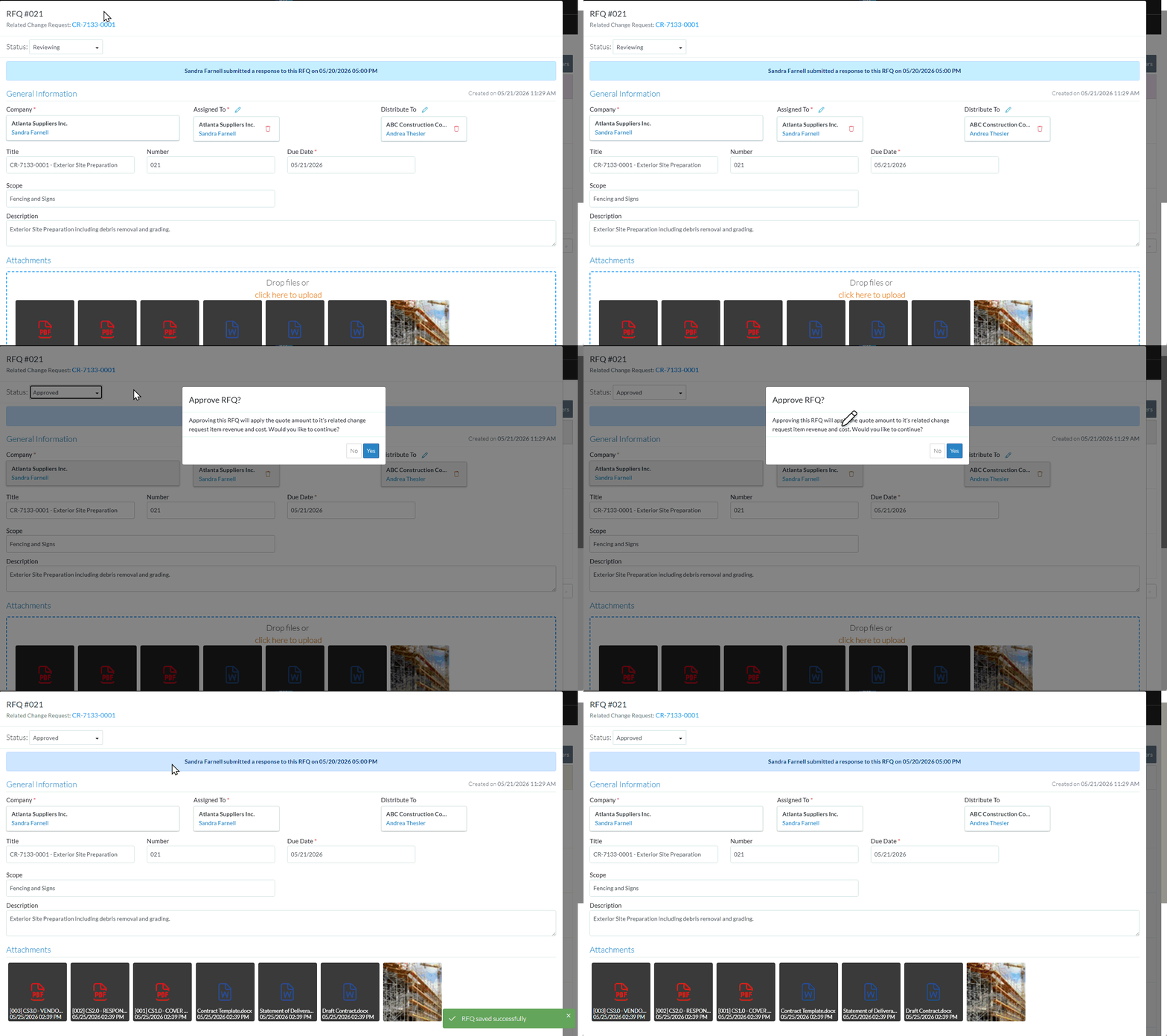
- A prompt appears indicating that approving the RFQ will apply the Quote amount to the related Change Request Line Item Revenue and Cost.
To be able to set the Status to Approved, this prompt must be answered Yes (otherwise the Status change to Approved will be cancelled). If yes is invoked:
The Cost on the Change Request Line Item will be updated with the Quote Amount. If the Change Request Schedule of Values Accounting Method is set to Unit-Qty based, the Quantity is set to 1 and the Unit Price is set to the Quote Amount (see Change Request - Schedule of Values - Accounting Method for more information).
If the Revenue Source for the Change Request is set to Cost, the Quote Amount will also be updated into the Change Request Line Item Revenue (see Change Request - Add/Edit/View - General Information for more details). Otherwise, if the Revenue Source is set to Manual, the Revenue Source will not be updated and must be updated manually.
If the Quote Amount is $0 or set to No Impact, neither the Cost nor the Revenue on the Change Request Line Item will be updated. It will be left set as what it was (see RFQ - View/Edit - Response for more information)
The Change Request Line Item Company will be updated with Company from the RFQ (regardless if the Quote Amount was set to $0 or set to No Cost).
If more than one RFQ was sent for the same Change Request Line Item, approving another RFQ will overwrite any previously approved RFQ information.- Click the Yes
 button to update the Cost Amount, the Company and Revenue (if applicable). If yes is selected, the form is saved with the Approved Status and the Layout and Navigation of the form changes to the Approved Layout. See RFQ - View/Edit - Layout and Navigation - Approved Status for more information. See Next Steps below.
OR - Click the No
 button to cancel the change to the Approved Status and the update to the Revenue and Cost Amount. The Status will remain as it was previously. See above for more information on the Layout and Navigation of the form for each Status.
- Click the Yes
Next Steps
See RFQ - View/Edit - Approved Status.
To update the Revenue Amount manually on the Change Request Schedule of Values Line Item, see Change Requests - Edit - Steps.
