RFQ Response - Update Response Entered
 Updated
Suggested Prior Reading
RFQ - View/Edit - Update Response
Response Submitted by Subcontractor/Vendor
This is help on the RFQ Response form, for updating a previously entered Response. This could be a Response entered directly by a Vendor/Subcontractor or a Project Manager/Estimator entering a response on behalf of a Vendor/Subcontractor (see RFQ - View/Edit - Update Response for more information).
Note* A Vendor/Subcontractor could also update the Response themselves if sent a request to revise the quote (see RFQ - View/Edit - Revise Response).
The display of the RFQ Response form will depend on whether or not the previous Response had a cost impact associated with the scope of this change or not.
In either case, it can be switched (no cost impact to a cost impact or vice versa).
If Costs were entered, they can also just be updated.
Update the Response Entered
- If not already displayed, display the RFQ Response form, see RFQ Response - Update Response Entered.
- To switch from no cost associated with the Scope change to a cost, see RFQ Response - Update Response Entered - Switch from no cost to cost.
OR
To switch from a cost associated with a Scope change to no cost, see RFQ Response - Update Response Entered - Switch from cost to no cost.
OR
Update the current Response with costs:- If required, enter or update the Quote Amount. This shouldn't include Taxes or Markups. It is the direct cost from the Subcontractor/Vendor.
- If required, enter or update Comments.
- If required, upload or delete Attachments.
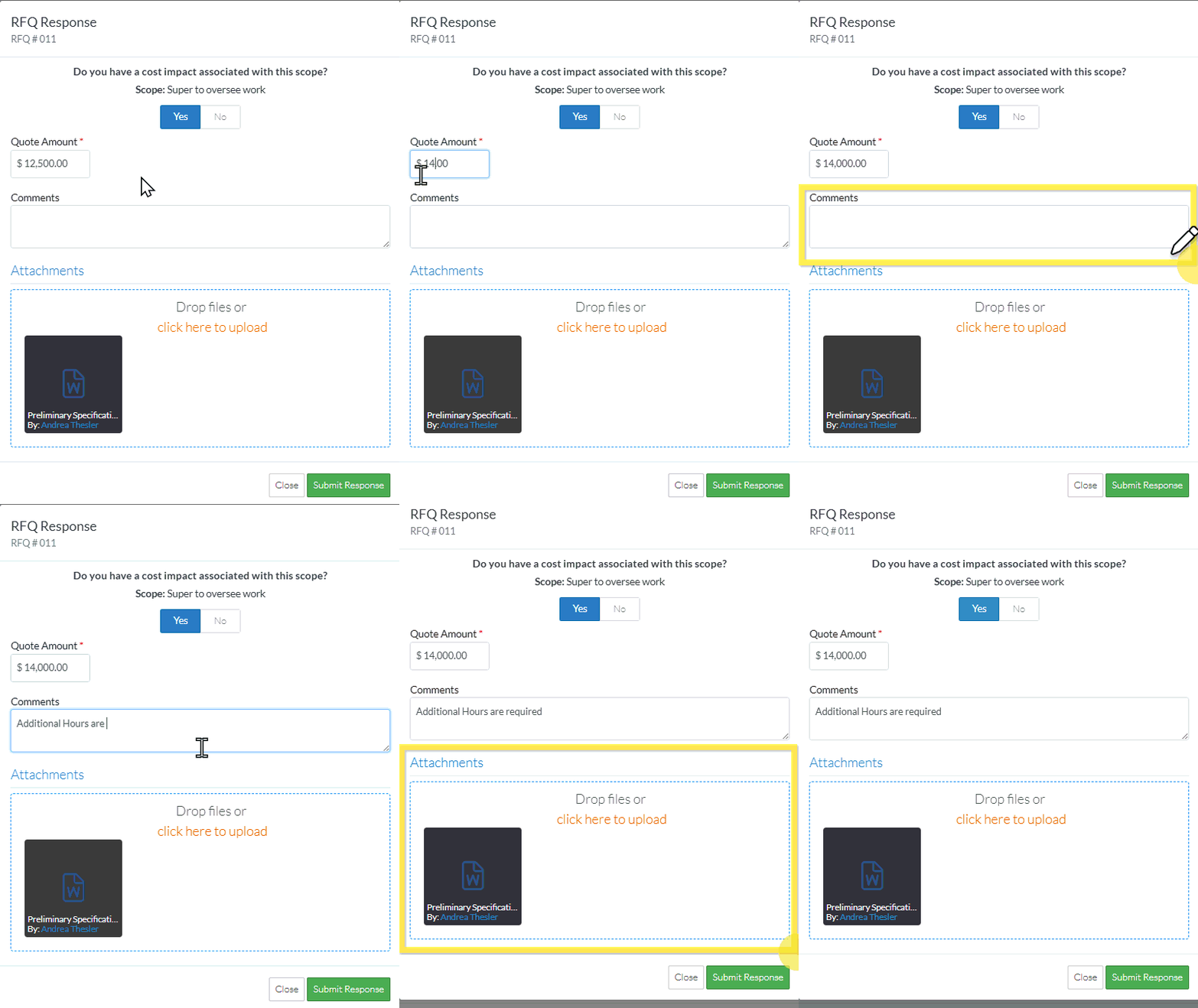
- Click Submit Response
 button to submit the Response to do the RFQ scope for additional costs. The RFQ is saved with the Response information (it doesn't have to be saved again).
The RFQ - View/Edit form displays. (See RFQ - View/Edit - Layout and Navigation - Reviewing Status for more information).
The Status will be automatically set to Reviewing.
The Response displays the Quote Amount, Comments and Attachments entered.
See RFQ - View/Edit - Reviewing Status for next steps.
OR
Click the Close button to cancel updating of the Response.
Click here for more information on the Close function
If the Close button is invoked, a message displays confirming that the response or changes to the Response should be cancelled.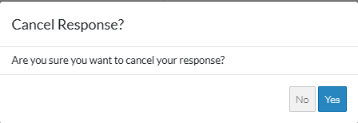
Click the No button to return to entering or updating the Response. See RFQ Response - Update Response Entered.
OR
Click the Yes button to cancel entering or updating the Response. See Next Steps below.
Next Steps
Click here for more information on the Next Steps depending on the Status the RFP
For RFQs in a Draft Status, see RFQ - View/Edit - Draft Status for more information.
For RFQs in a Pricing Status, see RFQ - View/Edit - Pricing Status for more information.
For RFQs in a Reviewing Status, see RFQ - View/Edit - Reviewing Status for more information.
For RFQs in a Revise Status, see RFQ - View/Edit - Revise Status for more information.
For RFQs in an Approved Status, see RFQ - View/Edit - Approved Status for more information.
For RFQs in a Closed Status, see RFQ - View/Edit - Closed Status for more information.
