RFQ - View/Edit - Revise Response
 Updated
Suggested Prior Reading
Change Request Specific RFQs - View/Edit
OR
Change Requests - List of all RFQs - View/Edit
RFQ - View/Edit - Reviewing Status
Response Submitted by Subcontractor/Vendor
A Response can be revised. This is used for a more formal revision that could include scope changes or adding of additional information that could change the work (such as specifications or requirements).
This works by setting the RFQ Status to Revise. Optionally, a formal RFQ Revision Request can be sent to the Subcontractor/Vendor, from which they can directly update the Response.
Note* To informally update a response i.e. to make minor corrections without changing the Status, see RFQ - View/Edit - Update Response.
To revise a response
- View or Edit the RFQ, see the following for the appropriate list the view/edit is being invoked from:
Change Request Specific RFQs - View/Edit
OR
Change Requests - List of all RFQs - View/Edit
The RFQ - View/Edit form displays. The layout and navigation of the form will depend on the Status of the RFQ.The following example is for an RFQ in a Reviewing Status but the steps will be the same for any Status.Click here for more information on the Layout and Navigation of the form for each Status
For RFQs in a Draft status, see RFQ - View/Edit - Layout and Navigation - Draft Status for more information.
For RFQs in a Pricing status, see RFQ - View/Edit - Layout and Navigation - Pricing Status for more information.
For RFQs in a Reviewing Status, see RFQ - View/Edit - Layout and Navigation - Reviewing Status for more information.
For RFQs in an Approved Status, see RFQ - View/Edit - Layout and Navigation - Approved Status for more information.
For RFQs in a Closed Status, see RFQ - View/Edit - Layout and Navigation - Closed Status for more information. - To change the Status to Revise, click on the Status drop down.
- Click on Revise
A question prompt appears, asking if the RFQ should be sent to the assigned Company/Contact.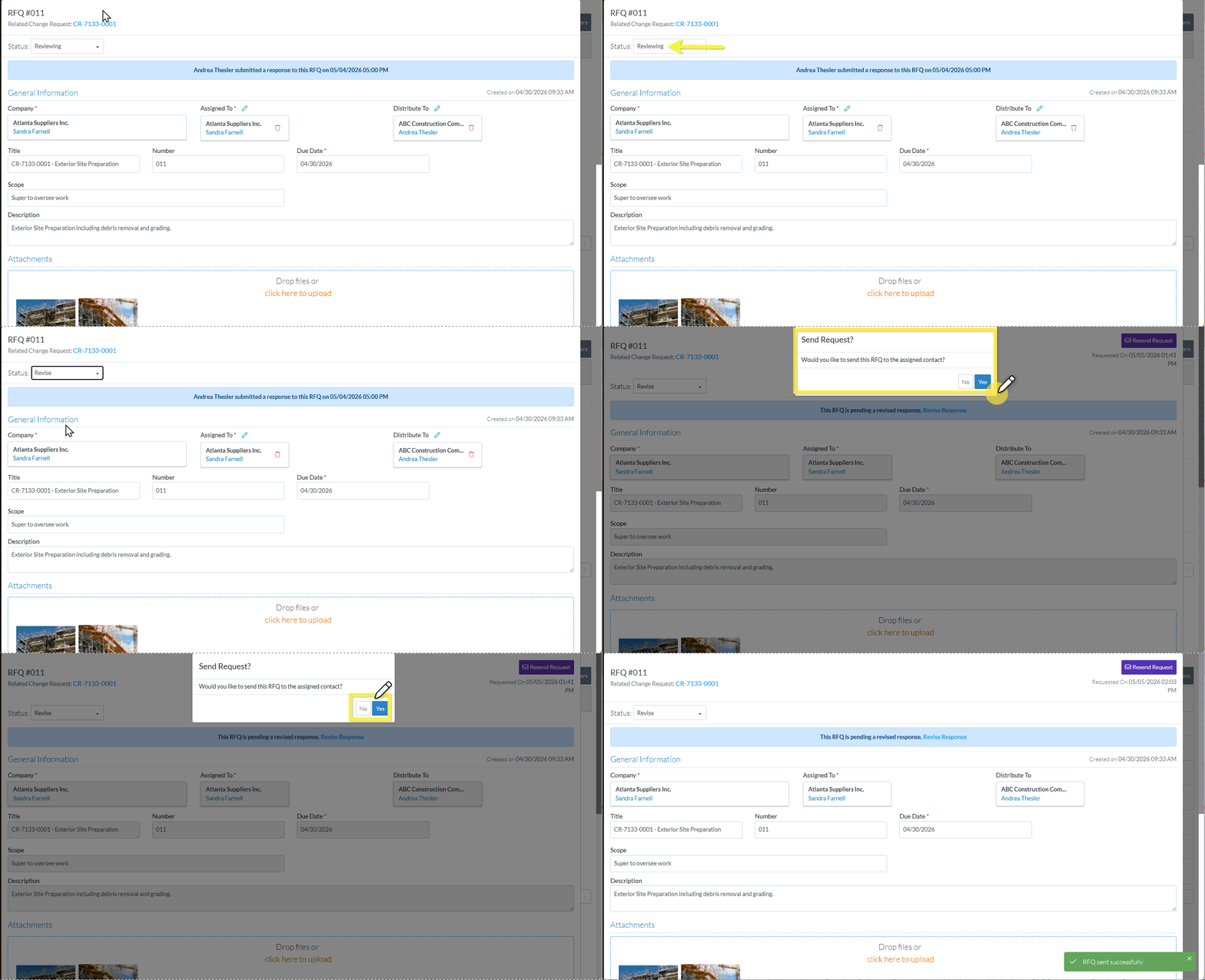
- Click Yes
 to send a Revision Request to the Company/Contact. See RFQ Emails - Revision Requested for an example of the email sent.
OR
Click No to cancel the status change.
The RFQ - View/Edit form displays. The function and layout of the form displayed depends on the Status of the RFQ. See More Information below. - Continue editing the RFQ, see More Information below.
OR
Click the Close button to close the RFQ form, see Next Steps below.
More Information
Click here for more information on the View/Edit functions depending on the Status
For RFQs in a Draft status, see RFQ - View/Edit - Draft Status for more information.
For RFQs in a Pricing status, see RFQ - View/Edit - Pricing Status for more information.
For RFQs in a Reviewing Status, see RFQ - View/Edit - Reviewing Status for more information.
For RFQs in an Approved Status, see RFQ - View/Edit - Approved Status for more information.
For RFQs in a Closed Status, see RFQ - View/Edit - Closed Status for more information.
View/Update the revised response received, see RFQ - View/Edit - Update Revised Response.
Delete the RFQ, see RFQ - Delete.
Next Steps
The list the View/Edit was invoked from displays.
- If it was invoked from the Change Request - View/Edit form via the RFQs component, see Change Request Specific RFQs - Overview.
- If it was invoked from the Change Requests on the Project Navigation Menu and via the RFQs in the Lists Navigation Menu, see Change Requests - List of all RFQs - Overview.
