RFQ - View/Edit - Update Response
 Updated
Suggested Prior Reading
Change Request Specific RFQs - View/Edit
OR
Change Requests - List of all RFQs - View/Edit
Click here for more information on the View/Edit form depending on the Status
For RFQs in a Draft Status, see RFQ - View/Edit - Draft Status for more information.
For RFQs in a Pricing Status, see RFQ - View/Edit - Pricing Status for more information.
For RFQs in a Reviewing Status, see RFQ - View/Edit - Reviewing Status for more information.
For RFQs in a Revise Status, see RFQ - View/Edit - Revise Status for more information.
For RFQs in an Approved Status, see RFQ - View/Edit - Approved Status for more information.
For RFQs in a Closed Status, see RFQ - View/Edit - Closed Status for more information.
Manually update the Quote Submitted by Subcontractor/Vendor
This is help for manually updating a Response to a quote. This could occur when changing a Response that was submitted previously (either by the Subcontractor or Vendor or was manually entered by the Project Manager/Estimator).
Note* This is used for more of an informal update of a response i.e. there are minor corrections. There is another function to formally revise a quote; by setting the Status to Revise and optionally sending a revision request to the Subcontractor/Vendor which they can then update. This is used for a more formal revision that could include scope changes or adding of additional information (such as specifications or requirements). See RFQ - View/Edit - Revise Response for more information on the more formal revision process.
To view Responses submitted directly by a Subcontractor/Vendor, see RFQ - View/Edit - Receive Response from Subcontractor/Vendor.
To manually update the Quote submitted
- View or Edit the RFQ, see the following for the appropriate list the view/edit is being invoked from:
Change Request Specific RFQs - View/Edit
OR
Change Requests - List of all RFQs - View/Edit
The RFQ - View/Edit form displays. The layout and navigation of the form will depend on the Status of the RFQ.The following example is for an RFQ in a Reviewing Status but the steps will be the same for any Status.Click here for more information on the Layout and Navigation of the form for each Status
For RFQs in a Pricing status, see RFQ - View/Edit - Layout and Navigation - Pricing Status for more information.
For RFQs in a Reviewing Status, see RFQ - View/Edit - Layout and Navigation - Reviewing Status for more information.
For RFQs in a Revise Status, see RFQ - View/Edit - Layout and Navigation - Revise Status for more information. - Scroll to the Response section.
- Click the Update Response blue text.
The RFQ Response form displays. The RFQ Response form displays differently depending on whether or not a Cost was associated with the Change.Click here for the steps and the RFQ Response form when there was a Cost Impact
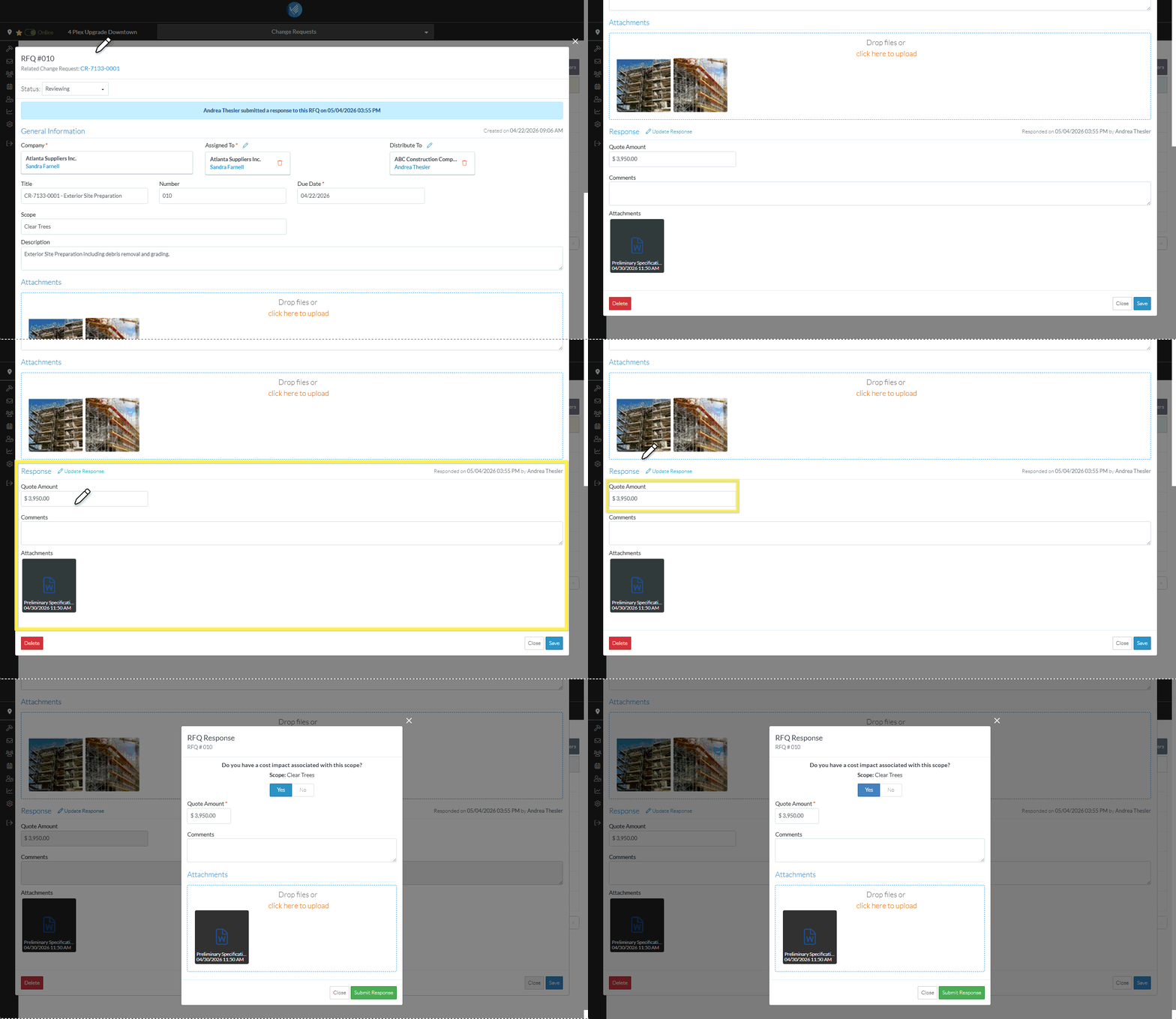
Click here for the steps and the RFQ Response form when there was no Cost Impact
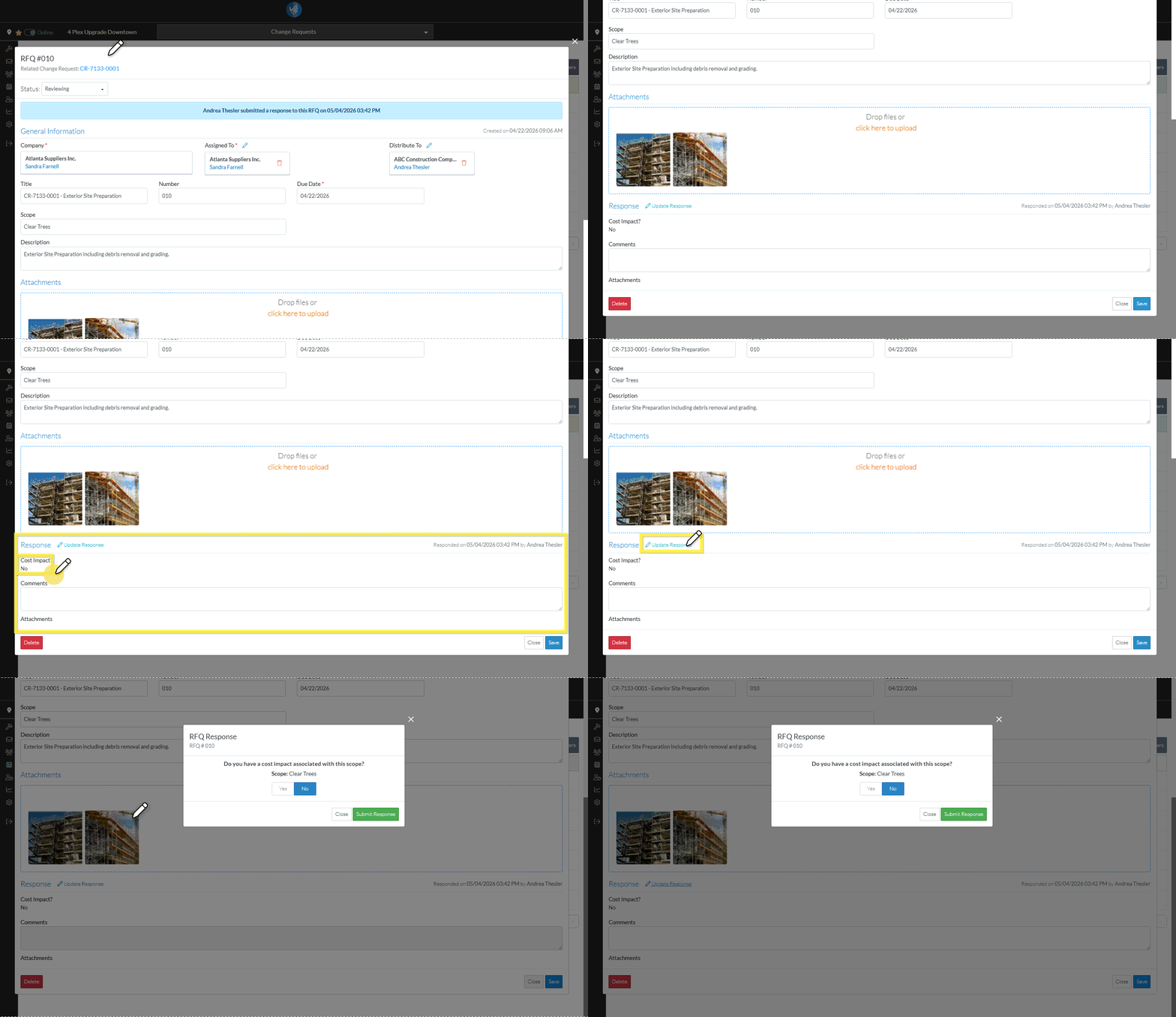
Next Steps
Enter/Update the RFQ Response, see RFQ Response - Update Response Entered.
