'--- Can't complete because can't add Subcontract 20261019-05. Done except for GIF
Suggested Prior Reading
Click here for more information on invoking the add of a new Subcontract
The process to create a new Subcontract differs depending on whether or not both Subcontracts and Purchase Orders can be created in the system (or just one or the other). See Adding New Commitments for more information.
The Subcontract Status is used to manage the Subcontract throughout its Life Cycle.
The Subcontract Statuses are built into the system and can not be changed. For more information on each Subcontract Status, the definition and the associated functionality, see Subcontract – Status.
During the creation of a New Subcontract, the Subcontract Status defaults to Draft. This is usually the appropriate status to use during the initial add while information is being entered and details haven't been finalized.
The Status along with the User Permissions will dictate what information on the Subcontract is editable and if the Subcontract can be deleted (see New Subcontract - Form Layout for more information).
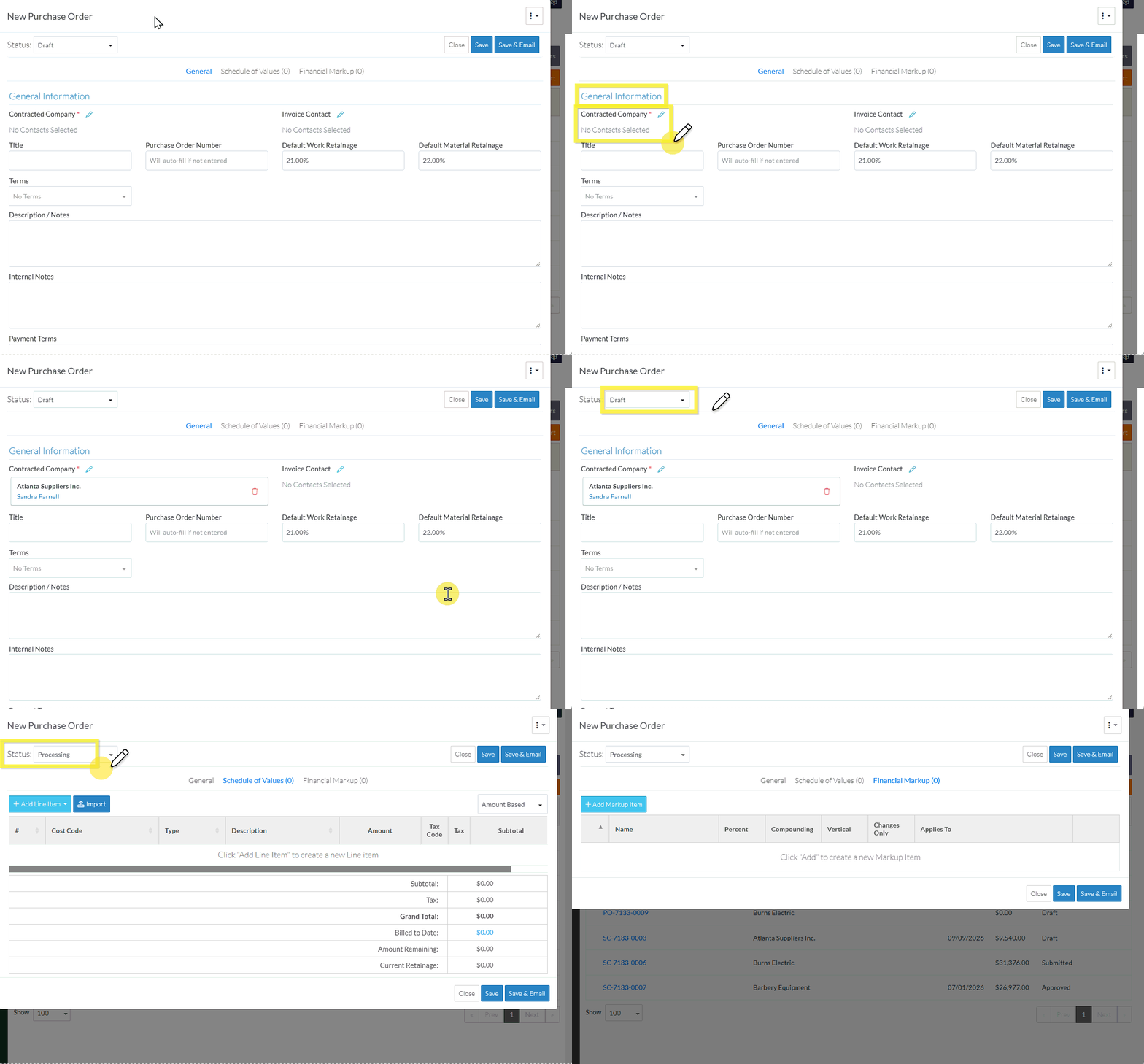
To change the Status
If the user has Admin permissions on Commitments, to change the Status:
Initiate the add of a new Subcontract if not already initiated. See the Suggested Prior Reading above.
Enter the Contracted Company. Before being able to change the Status during the Add, the Contracted Company on the General component must be entered first as it is a required field. See Subcontract - General - General Information - Contracted Company for more information on entering the Contracted Company.
Enter any other data required by the Organization. An admin user with permissions on Settings for Commitments can set what Subcontract fields are required for the Organization (in addition to the Contracted Company). Enter this information as required before changing the Status during the Add. REF:20260929-05
From the New Subcontract form, regardless of which Component is displayed, click in the Status box. The list of available Statuses to be selected displays.
Click on a Status to select it.When the Status is changed, the New Subcontract will display only the functionality available for the new Status. However, the entire Subcontract is not yet saved. It still must be saved to create the new Subcontract.
Add, Edit or View other information for the Subcontract, see More Information below. OR Click the Save button (at the top or bottom of the form) to save the Subcontract.Click here for more information on the Save function.
This saves the Subcontract including any information on the General, Schedule of Values and Financial Markups Components. This Commitment List displays. See Next Steps below.
OR Click the Save & Email button (at the top or bottom of the form) to save the Subcontract and email it.Click here for more information on the Save and Email function.
This saves the Subcontract including any information on the General, Schedule of Values and Financial Markup components and sends an email with a link to the Subcontract in JobPlanner. The Email Subcontract form displays, see Email Subcontract.
OR Click the Close button (at the top or bottom of the form) to close the form without saving the Subcontract.Click here for more information on the Close function.
If no information was changed or entered, the Commitments List displays, see Next Steps below.
If information was changed, then an additional prompt displays indicating there were changes and additional prompts on what to do.
Click the Cancel button to cancel the Close action and return to the New Subcontract form (see the steps above) OR Click the Don't Save button to cancel changes to the Subcontract. The Commitment List displays, see Next Steps below. OR Click the Save button to save the Subcontract including any information on the General, Schedule of Values or Financial Markups components. The Commitment List displays, see Next Steps below.

 button (at the top or bottom of the form) to save the Subcontract.OR
 button (at the top or bottom of the form) to save the Subcontract and email it.OR
 button (at the top or bottom of the form) to close the form without saving the Subcontract.
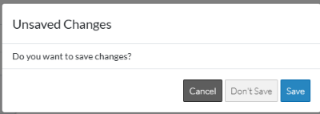
 button to cancel the Close action and return to the New Subcontract form (see the steps above)
 button to cancel changes to the Subcontract. The Commitment List displays, see Next Steps below.
 button to save the Subcontract including any information on the General, Schedule of Values or Financial Markups components. The Commitment List displays, see Next Steps below.
