All Change Requests Lists - Bulk Actions - Contracts
 Updated
Suggested Prior Reading
All Change Request Lists - Bulk Actions
All Change Request Lists - Bulk Actions - Select Line Items
Bulk Actions - Contracts
The Bulk Actions Button has functions to automatically add the selected Change Request Schedule of Value Line Items to a Contract Change Order Schedule of Values. This can be an existing Contract Change Order or a new one (that can be created with this function).
There are several items that impact this function.
- At least one Line Item must be selected
- All Change Requests with selected Line Items must be Approved (see Change Request - Status for more information).
- None of the Line Items selected can already be created on a Contract Change Order
In addition, it can be:
- Created on an existing Change Order from any Contract (not just the Contract this Change Request is associated to)
- Assigned only to a Contract Change Orders with certain Status: Draft, No Charge, In Review, Not Pricing, Pricing, Not Proceeding, Proceeding, Revised. (See Contract Change Order - Status for more information).
More information on each is described below.
At least one Line Item must be Selected
At least one Line Item must be selected for the Bulk Actions button to be enabled (i.e. the text is black): 
If a Line Item is not selected, the Bulk Actions button is not enabled to be clicked (i.e. the text is gray): 
See Change Request - Schedule of Values - Bulk Actions - Select Line Items for more information on selecting Line Items.
All Change Requests must be Approved
Only Approved Change Requests can have their Schedule of Value Line Items assigned to Contract Change Orders.
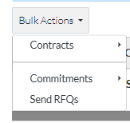
If all the Line Items selected are for Approved Change Requests, invoking the Bulk Actions function will display a drop down menu with Contracts as the first option.
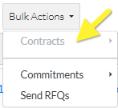
If any of the Line Items selected are for a Change Request that is not Approved, the Contracts menu option is grayed out. (The Line Items selected for non-Approved Change Requests would have to be unselected).
Can not already be assigned to a Contract Change Order
Line Items already added to a Contract Change Order, can not be added to another one.
If all the Line Items selected are not already created on a Contract Change Order, invoking the Bulk Actions function will display a drop down menu with Contracts as the first option.
If any of the Line Items selected are already created on a Contract Change Order, the Contracts menu option is grayed out. (The Line Items already created on Change Requests would have to be unselected).
Can be assigned to a Change Order from any Contract
The Change Request(s) Schedule of Values Line Items can be created only on Contract Change Order with certain Status (see below). It doesn't have to be a Change Order for the Contract that this Change Request was created for.
Can only be assigned to Contract Change Orders with certain Status
The Change Request(s) Schedule of Values Line Items can only be assigned Contract Change Order with certain Status.
They can be assigned to Contract Change Orders with Status of:
- Draft
- No Charge
- In Review
- Not Pricing
- Pricing
- Not Proceeding
- Proceeding
- Revised
Contract Change Orders with the above status will be listed to be selected to add Change Request(s) Schedule of Values Line Items to.
They can not be assigned to Contract Change Orders with Status of:
- Approved
- Rejected
- Void
Contract Change Orders with the above status will not be listed to be selected.
Next Steps
Select Line Items to assign to a Contract Change Order, see All Change Request Lists - Bulk Actions - Select Line Items.
To create a new Contract Change Order and add the selected Line Items to that, see All Change Request Lists - Bulk Actions - Contracts - New Change Order.
To add the selected Line Items to an existing Change Order, see All Change Request Lists - Bulk Actions - Contracts - Add to Existing Change Order.
