All Change Request Lists - Bulk Actions - Select Line Items
 Updated
------ Complete except need to finish Next Steps
Suggested Prior Reading
Click here for Change Requests List
OR
Click here for Contracts - List of all Change Requests
Select Line Items and Invoke Bulk Actions Function
This help pertains to selecting Line Items from either the Change Requests List or the Contracts - List of all Change Requests that display in a Grouped List View. (See Suggested Prior Reading above and Change Requests - Multiple Lists and Views for more information).
From either list:
- All Line Items from one Contract can be selected (or unselected)
- Individual Line Items from one Contract can be selected (or unselected)
- All Line Items from multiple (or all) Contracts can be selected (or unselected)
- Individual Line Items from multiple Contracts can be selected (or unselected)
To select Line Items on the Change Request Schedule of Values:
- If not already selected, access one of the following:
Change Requests List, see Change Requests List - Accessing (Grouped List View).
OR
Contracts - List of all Change Requests, see Contracts - List of all Change Requests - Accessing (Grouped List View).
The Change Request List or Contracts, List of all Change Requests displays.Click here for more information on the Change Request List
The following is the Change Requests List, with Change Requests displayed.
See Change Requests List - Layout and Navigation (Grouped List View) for more information.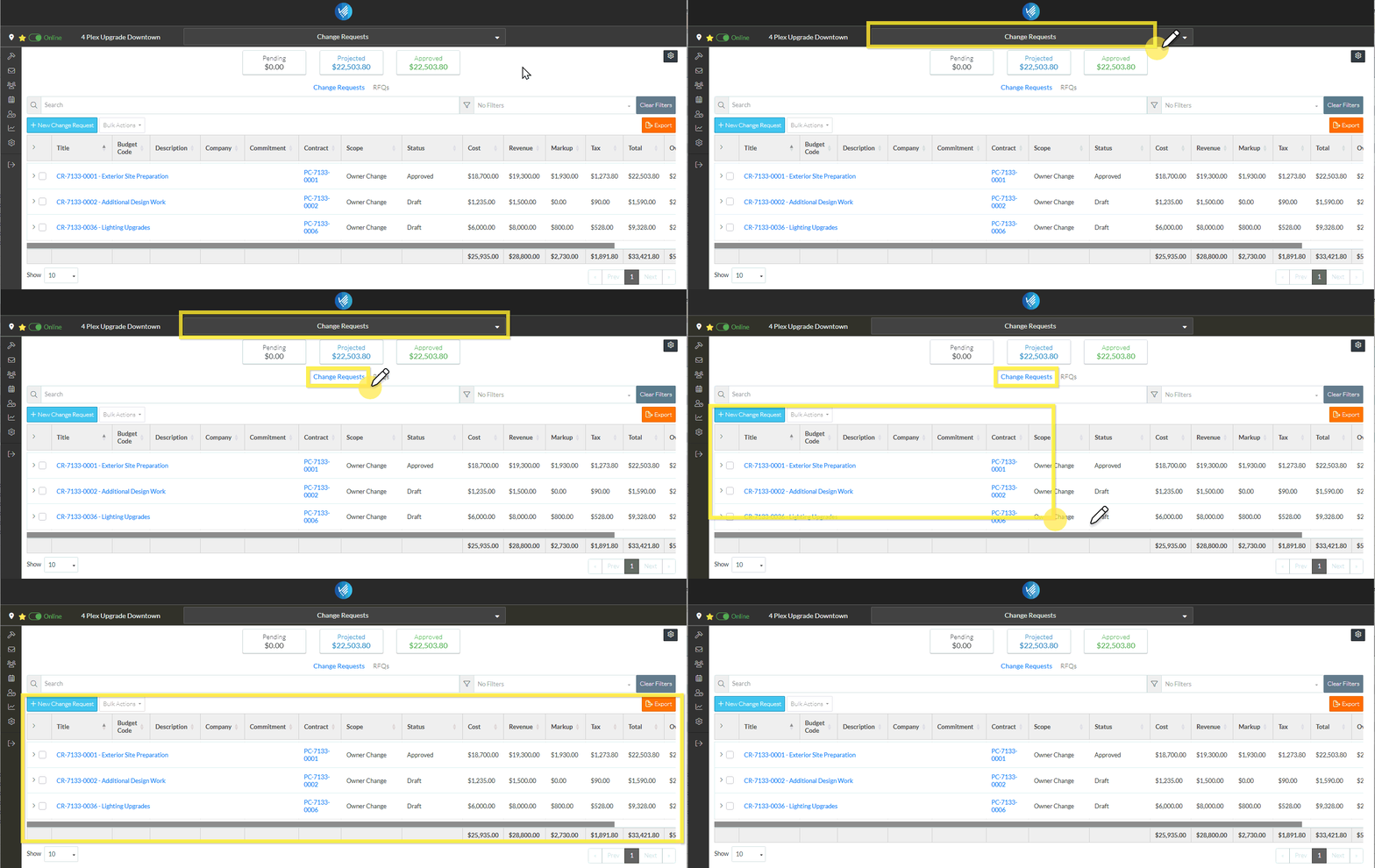
Click here for more information on the Contracts, List of all Change Requests
The following is the Contracts - List of all Change Requests with Change Requests displayed.
See Contracts - List of all Change Requests - Layout and Navigation - Grouped List View for more information.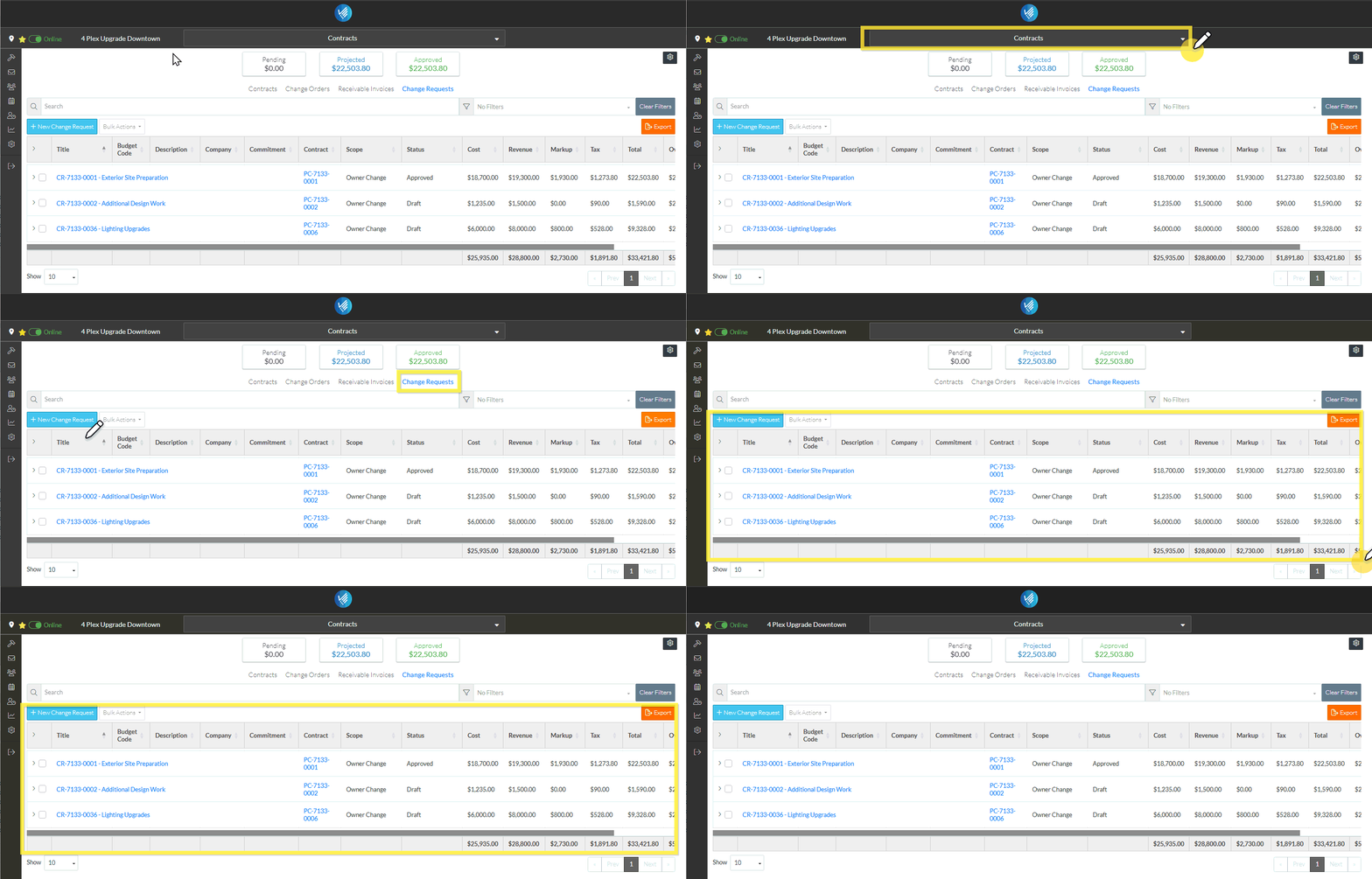
The selection function on the Change Requests are the same for either lists.
When displayed, depending on where the list was invoked from, the list may display in a collapsed mode with just the Change Requests displaying or it may display in an expanded mode with Change Requests and all their Line Items displayed.
Click here for all items displayed in a collapsed mode
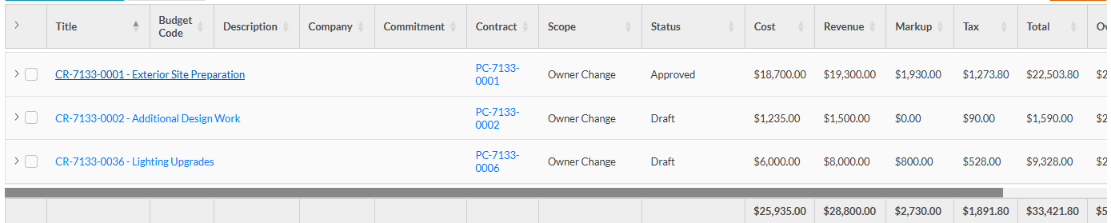
Click here for all items displayed in an expanded mode
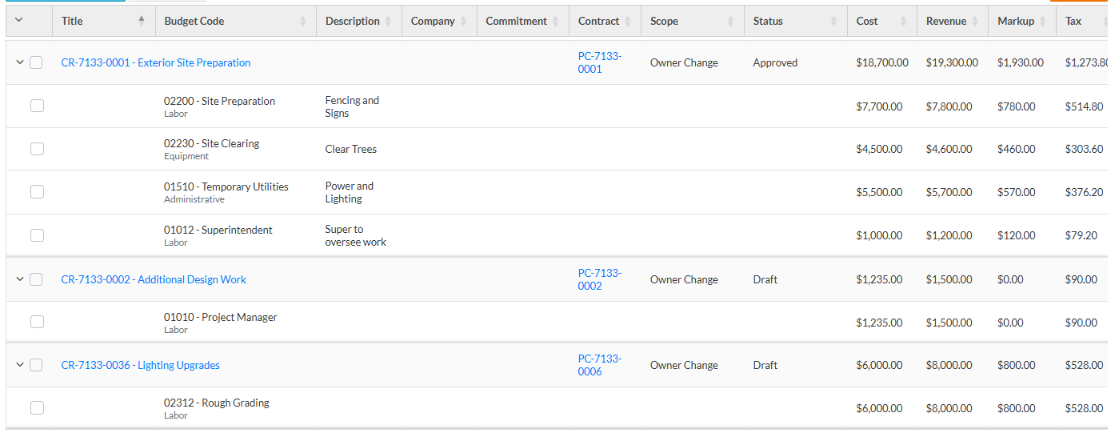
- If required, Search, Filter and/or Sort Columns to navigate the List of Change Requests and locate the Change Request(s) to select Line Items from.
- Expand and/or collapse rows as required. See All Change Requests Lists - Navigation - Rows (Grouped List View).
Select/Unselect All Line Items from a Change Request
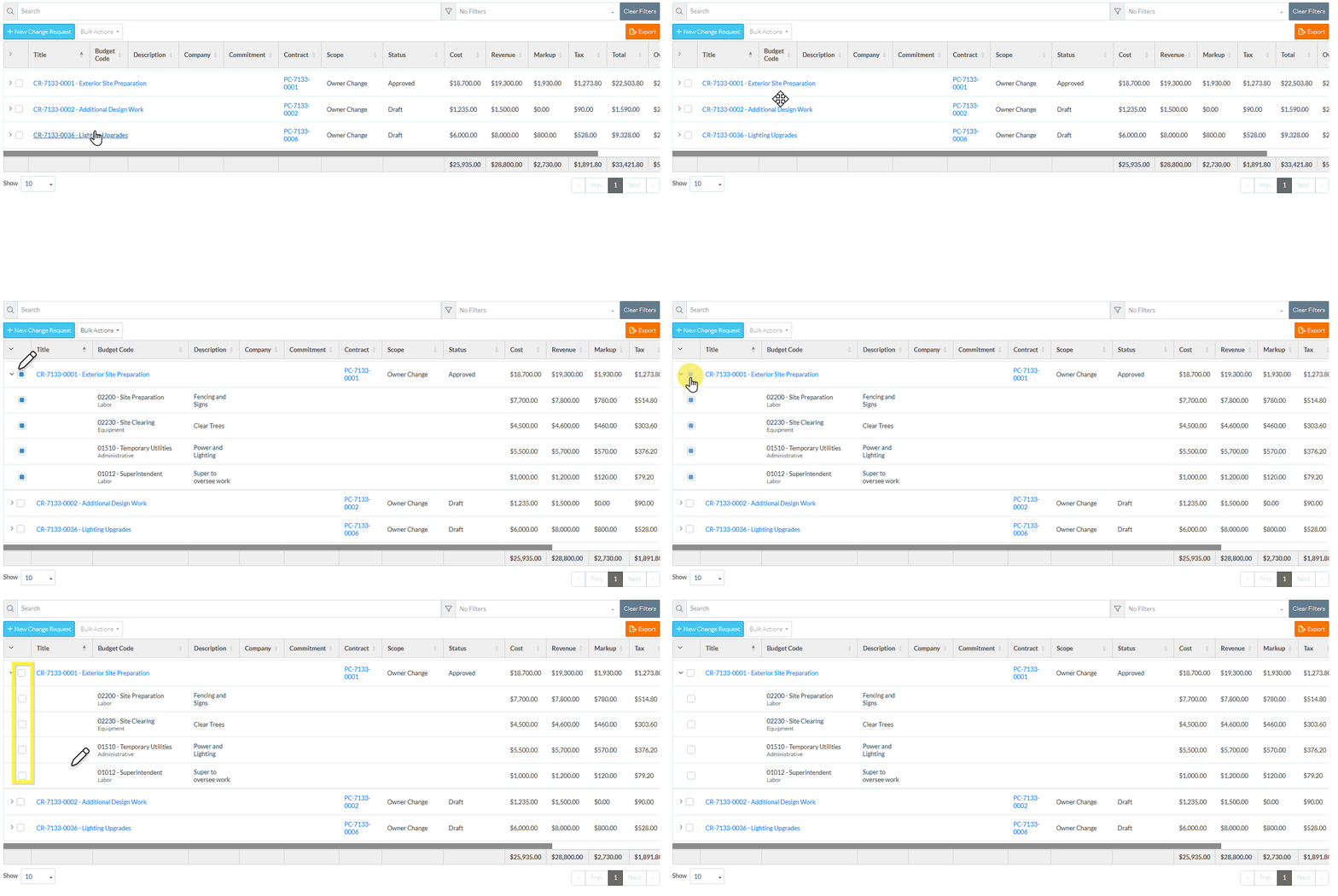
- To select All Line Items, from a Contract automatically, click in the box in the first column of the Change Request row. The Box will be filled in blue, as well, all the Line Items will also be selected (the box in the first column for the Line filled in blue).
- To toggle off selection of all Line Items, click on the box again (it will be an empty gray box) and all the Line Items will be unselected (i.e. become an empty gray box).
Note* The Change Request row can be expanded or collapsed and the function still works the same (i.e. clicking on the select box on the Change Request row, selects or unselects that row as well as all Line Items).
Select/Unselect Individual Line Items from a Change Request
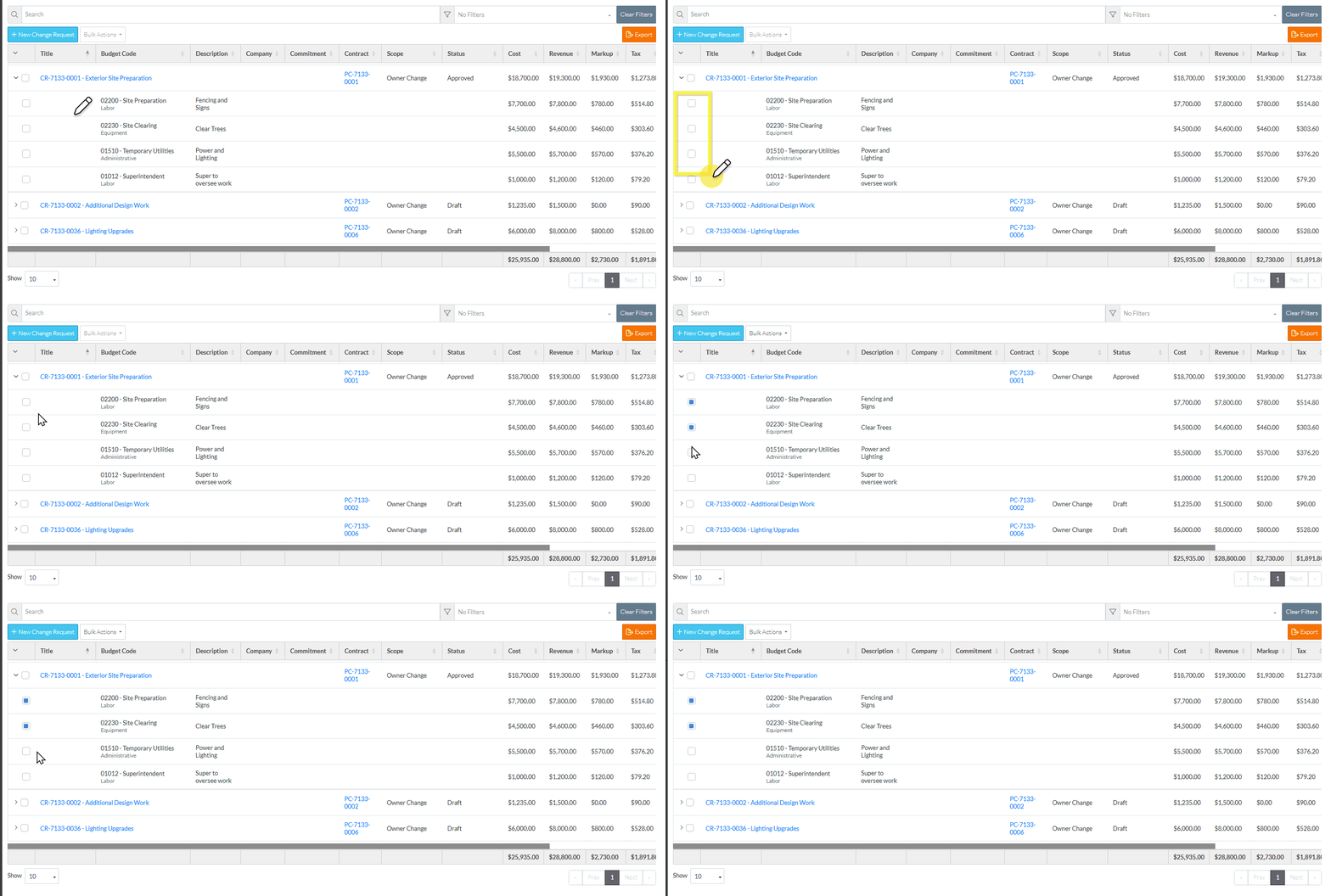
To select/unselect an individual Line Item, the Change Request row must be expanded.
- Click in the box in the first column of the Line Item (it will be filled in blue).
- To toggle off selection of a Line Item, click on the box again (it will be an empty gray box)
Select/Unselect all Line Items from multiple (or all) Change Requests
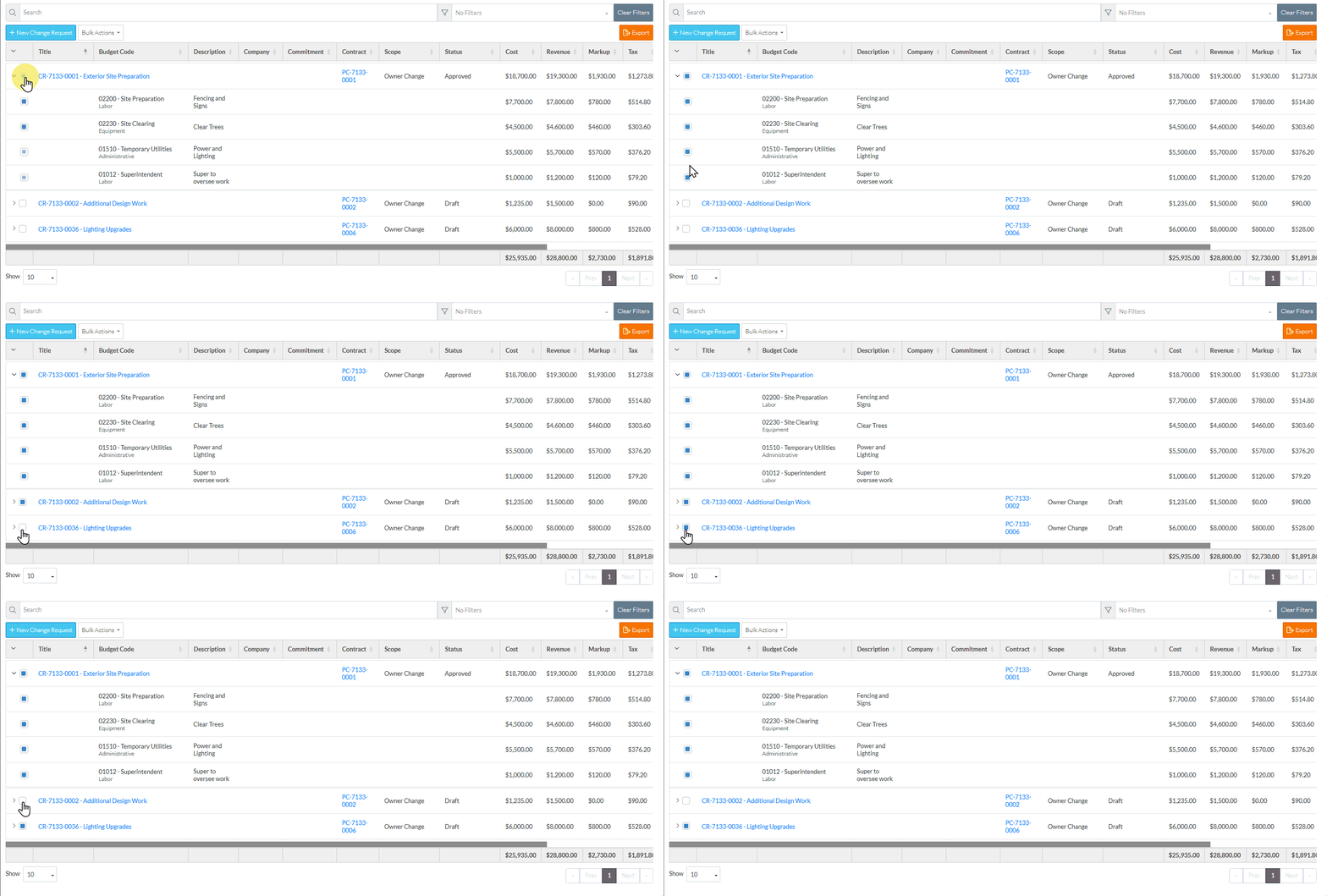
- To select all Line from multiple Contracts, click on the Change Request row select box for each (the Box will be filled in blue, as well, all the Line Items will also be selected, the box in the first column for the Line filled in blue).
- To unselect all Line from multiple Contracts, click on the Change Request row select box to unselect it (it wil become an empty gray box and so will all the Line Items select box).
Select/Unselect Individual Line Items from multiple Change Requests
To select/unselect an individual Line Items from multiple Change Request, the Change Request row(s) must be expanded.
- Click in the box in the first column of the Line Item (it will be filled in blue).
- Repeat as required for as many Line Items and as many Change Requests.
- To toggle off selection of a Line Item, click on the box again (it will be an empty gray box)
Next Steps
Click here for next steps for Contract Change Orders
To see the information about when the Contracts menu option displays on the Bulk Actions button, see Change Request - Schedule of Values - Bulk Actions - Contracts.
To create a new Contract Change Order and add the selected Line Items to that, see Change Request - Schedule of Values - Bulk Actions - Contracts - New Change Order.
To add the selected Line Items to an existing Change Order, see Change Request - Schedule of Values - Bulk Actions - Contracts - Add to Existing Change Order.
Click here for next steps for Commitments and Commitment Change Orders
To see the information about when the Commitments menu option displays on the Bulk Actions button, see Change Request - Schedule of Values - Bulk Actions - Commitments.
To create a new Purchase Order and add the selected Line Items to that, see Change Request - Schedule of Values - Bulk Actions - New Purchase Order.
To create a new Subcontract and add the selected Line Items to that, see Change Request - Schedule of Values - Bulk Actions - New Subcontract.
To add the selected Line Items to an existing Purchase Order or existing Subcontract, see Change Request - Schedule of Values - Bulk Actions - Add to Existing Commitment.
To create a new Purchase Order Change Order or Subcontract Change Order and add the selected Line Items to that, see Change Request - Schedule of Values - Bulk Actions - Commitments - New Change Order.
To add the selected Line Items to an existing Purchase Order Change Order or Subcontract Change Order, see Change Request - Schedule of Values - Bulk Actions - Commitments - Add to Existing Change Order.