Change Request - Schedule of Values - Bulk Actions - Add to Existing Commitment
 Updated
Suggested Prior Reading
Subcontract - Overview OR Purchase Order - Overview
Change Request - Schedule of Values - Bulk Actions
Change Request - Schedule of Values - Bulk Actions - Select Line Items
Change Request - Schedule of Values - Bulk Actions - Commitments
Bulk Actions - Add to Existing Commitment
Change Requests that are in any Status except Void or Rejected can have Schedule of Values Line Item(s) created on an existing Commitment (Purchase Order or Subcontract). See Change Request - Schedule of Values - Bulk Actions - Commitments.
To select an existing Commitment and add the selected Change Request Schedule of Values Line Item(s) to that Commitment (either a Purchase Order or Subcontract):
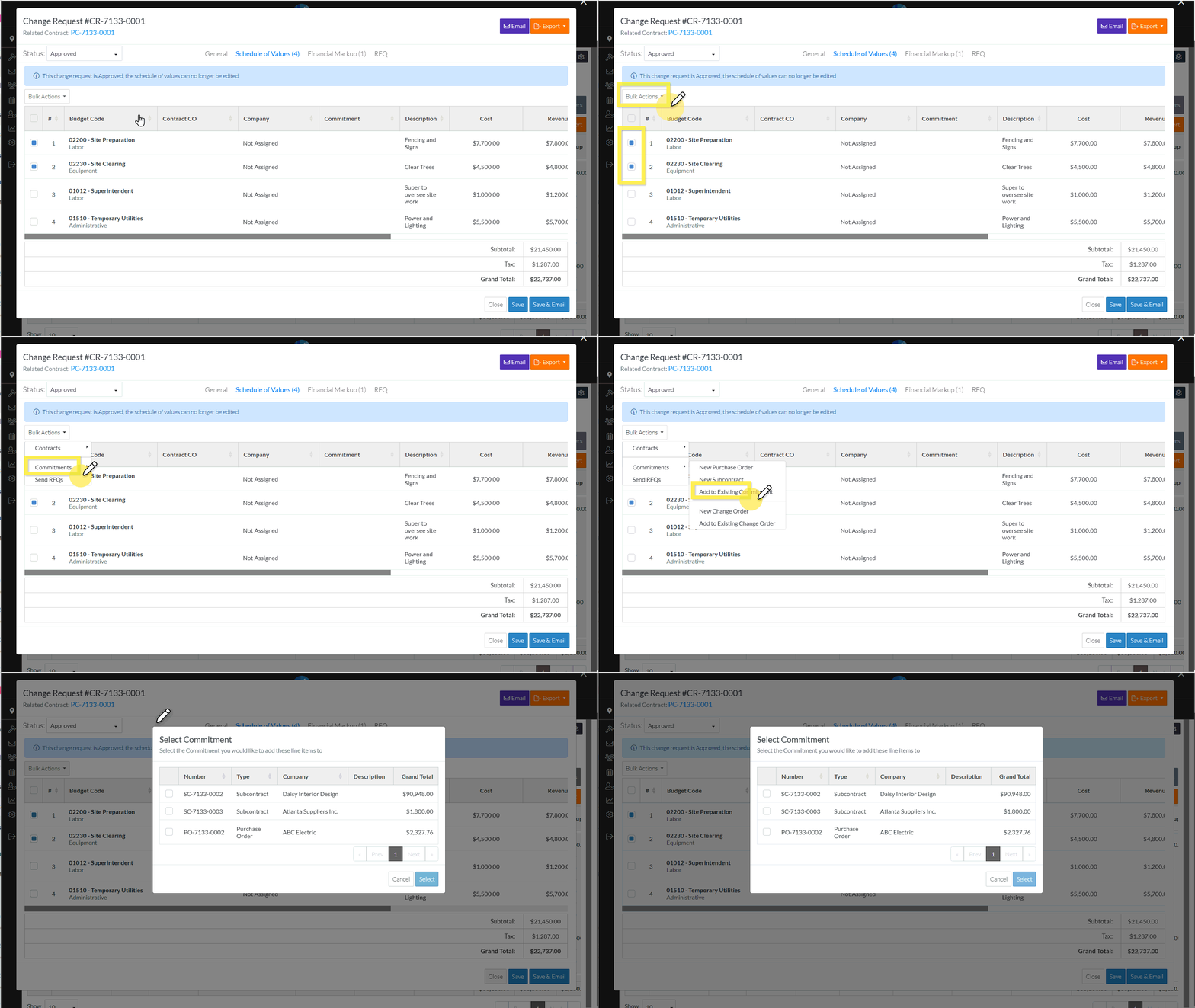
- If not already selected, access the Schedule of Values component for the Approved Change Request, and select one or more Line Items, see Change Request - Schedule of Values - Bulk Actions - Select Line Items.
Note 1* If the Line Item has been added to both a Commitment or Commitment Change Order and a Contract Change Order and both have green check marks, the Line Item is not selectable.
Note 2* Line Items that have already been added to a Commitment or Commitment Change Order can be selected (i.e. the Commitment column has a green check mark and a Commitment or Commitment Change Order displayed) however, they will be excluded from the function as they are already added to a Commitment or Commitment Change Order.
Note 3*If a Commitment is displayed but there is no green check mark, it is a reference only and the Line Item can still be selected and created on a Commitment or Commitment Change Order. The current Commitment will be replaced by the Commitment or Commitment Change Order the Line Item is created on. - Click the Bulk Actions button
 .
. - Click the Commitments menu option.
Click here for more information on why the Commitments menu on the Bulk Actions Option may not be available
If the Commitments menu option is grayed out and not available, it indicates that all of the Line Items selected have already been added on a Commitment or Commitment Change Order (i.e. the Commitment column has a green check mark and a Commitment or Commitment Change Order displayed).
Select at least one Line Item that has not been added to a Commitment or Commitment Change Order.
As long as at least one Line Item has been selected that has not been added to a Commitment or Commitment Change Order, the Commitments menu option is available. However, only those Line Items not already created on a Commitment or Commitment Change Order will be added (those that have already been added to a Commitment or Commitment Change Order are excluded from the function).
Note* If the Commitment column has a Commitment or Commitment Change Order displayed but no green check mark displays, then it is a reference only and can still be added to a Commitment or Commitment Change Order. The current Commitment will be removed and replaced by the Commitment or Commitment Change Order that the Line Item is created on. - Click the Add to Existing Commitment option.
When doing the above steps, the Change Request Schedule of Values Component will display differently depending on the status of the Change Request.
Click here to see the above steps for an Approved Change Request
Click here to see the above steps for a Change Request that is not Approved, Rejected or Void, Void or
The Select Commitment form displays.
Only Commitments and Commitment Change Orders in certain Status display. See Change Request - Schedule of Values - Bulk Actions - Commitments for more information on the Statuses and which display on this select form for Subcontracts, Subcontract Change Orders, Purchase Orders and Purchase Order Change Orders.
The first column is a selection column.
- Click in the box in the column for the Commitment (Purchase Order or Subcontract) to select. The box turns from white to blue.
- To unselect a Commitment, click on the blue box. It turns white again.
- To select a different Commitment, than the one selected, click on a different Commitment. The newly clicked Commitment will be selected (the box turned blue) and the previously selected Commitment selection box gets automatically unselected (set to white).
- Click the Select
 button to select the Commitment (with the blue box). Either the Purchase Order - View/Edit form displays or the Subcontract - View/Edit form displays. See Next Steps below.
OR
Click the Cancel button to cancel the selection. The Change Requests Add form displays (see Change Request – Add - Form Layout and Navigation) OR the Change Request - View/Edit form displays (see Change Request – View/Edit - Form Layout and Navigation).
Next Steps
To view and save the new Line Items on the Purchase Order Schedule of Values, see Change Request - Schedule of Values - Bulk Actions - Add to Existing Purchase Order.
To view and save the new Line Items on the Subcontract Schedule of Values, see Change Request - Schedule of Values - Bulk Actions - Add to Existing Subcontract.
