Contract Change Order - Schedule of Values – Maintain when created from Change Request - Layout and Navigation
 Updated
Suggested Prior Reading
Contract Change Order - Schedule of Values
Contract Change Order - Schedule of Values - Maintain when created from Change Requests
Schedule of Values - Maintain - Layout and Navigation
The Schedule of Values is a component of a Contract Change Order.
This help pertains to maintaining a Schedule of Values when a new Contract Change Order is created from Change Requests.
The Schedule of Values is accessed through the Form Navigation Menu Options during the add by clicking on the Schedule of Values text on the menu item. See Contract Change Order - Schedule of Values - Maintain when created from Change Requests.
- The Schedule of Values component is displayed in the middle section of the form New Contract Change Order form.
- Directly above the Component is the Form Navigation Menu Options which is used to navigate to the other components.
- Directly below the Component, the Contract Change Order Function Buttons display.
Both the Form Navigation Menu Options and the Contract Change Order Function Buttons apply to the entire Contract Change Order including the General, Schedule of Values and Financial Markups. They are part of the top and bottom sections of the New Contract Change Order form and don't change regardless of what component is displayed. For more information on the New Contract Change Order form layout regardless of which Component is selected, see Contract Change Order – Add - Form Layout and Navigation.
The following is an example of a the New Contract Change Order form when added from Change Requests, with the Schedule of Values Component.
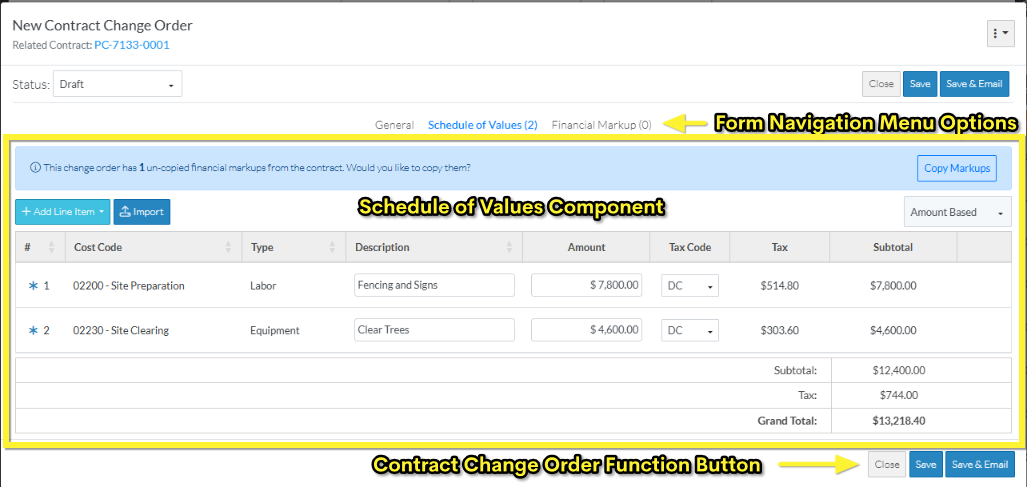
Schedule of Values Component
The Schedule of Values component consists of:
- Messages Line and Function Button - where messages that pertain to the Schedule of Values display. These may or may not display depending on the situation.
- Schedule of Values Function Buttons (functions specific to the Schedule of Values only)
- Accounting Method
- The list of the Line Items in the Schedule of Values
- Totals section
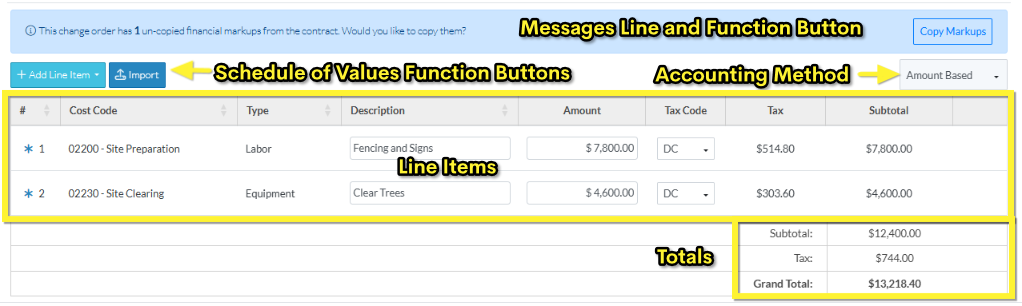
The Accounting Method is set automatically to be the same as the Change Request Accounting Method and can not be changed.
None of the changes are actually saved for the Schedule of Value Line Items, until the entire Contract Change Order is saved. This is done via the Contract Change Order Function Buttons that appear at the bottom of the form.
While Line Items are being added, edited or deleted and before the entire item is saved, this is considered a working session. The Save or Save & Email Item Function Buttons must be used to save the entire Contract Change Order and includes saving the Schedule of Values. The Save or Save & Email Item Function Buttons apply to the entire item, not just the Schedule of Values Component; they can be invoked from any component and will save all information on all Components.
Line Items
Line Items added from the Change Request will have a blue asterisk * before the Line Item number.
On the Schedule of Values, there are Function Buttons to:
If this Change Request is in a Status that can be edited, (see Change Request - Status), there are Schedule of Values Function Buttons to:
- Add individual Line Items - Either by:
- Creating a new Line Item manually
- Adding Line Item(s) from other Approved Change Requests
- Import Line Items from a File
The existing Line Items can also be:
- Edited inline within the Schedule of Values (for the information that can be edited)
- Deleted
The Cost Code and Cost Type for the Line Item(s) (and Sub Jobs if turned on) can not be edited if they were created from a Change Request. i.e. the fields are display only and not drop downs.
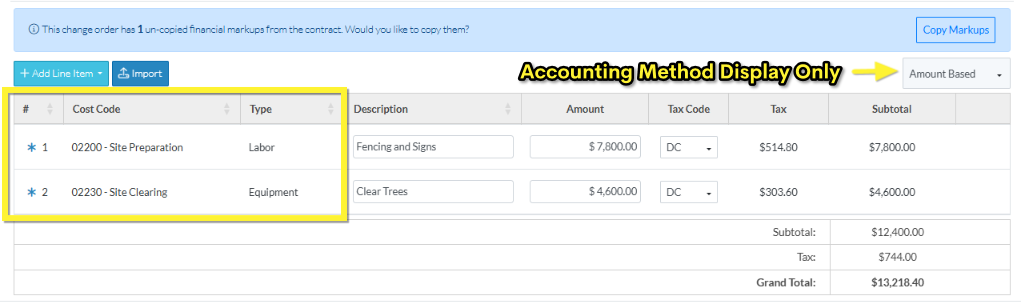
For more information on Sub Jobs, see Sub Jobs - Overview (Note* Sub Jobs are not shown in these examples).
Totals Section
Each Schedule of Values has a Totals section:
- Subtotal
- Tax (if applicable)
- Grand Total
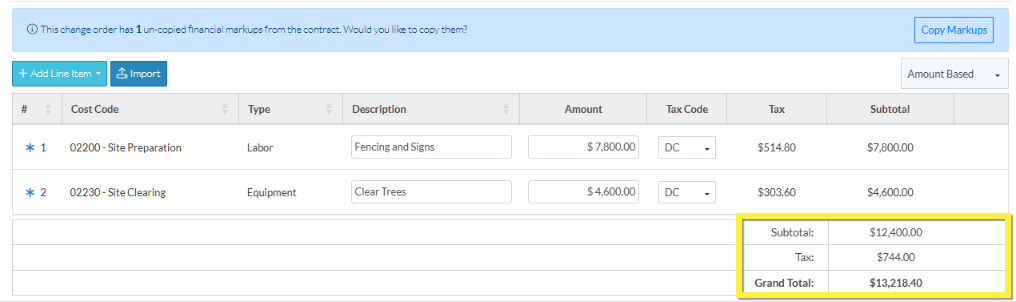
The Subtotal is the Subtotal of all the Line Items which is the Amount (or Unit Price x quantity) plus the Financial Markups if applicable).
The Taxes are the total of all Taxes for all Line Items. The Tax columns on the Schedule of Values Line Items displays only when Tax Codes have been setup by the System Administrator (see Settings - Tax Codes for more information).
The Grand Total is the Subtotal plus Taxes.
This information is automatically calculated. As Line Item values are entered it automatically updates to reflect the information (but the form has to be saved to retain the changes).
Next Steps
Add a Schedule of Values Line Item, see Contract Change Order - Schedule of Values - Add Line Item.
Bulk Import Schedule of Values Line Items, see Contract Change Order - Schedule of Values - Import.
Edit a Schedule of Values Line Item created from a Change Request, see Contract Change Order - Schedule of Values - Edit Line Items created from a Change Request.
Delete a Schedule of Values Line Item, see Contract Change Order - Schedule of Values - Delete Line Item.
