Contract - List of all Change Requests - Change Request - Export (Grouped List View)
 Updated
Suggested Prior Reading
Change Requests - Multiple Lists and Views
Contracts - List of all Change Requests - Accessing
Contracts - List of all Change Requests - Overview
Contracts - List of all Change Requests - Layout and Navigation (Grouped List View)
To Export a Change Request
This is help for exporting a Change Request from the Contracts - List of all Change Requests.
Note* There are multiple ways to access Change Requests and multiple views that can display, see Change Requests - Multiple Lists and Views for more information. This help is for the Grouped List View.
There are two different options when Exporting a Change Request:
- Costs & Revenue
- Revenue Only
- Costs Only
For more information on each of the Options, see Change Request - Export Options.
To export a Change Request, it must first be viewed/edited and then the Export function invoked from the View/Edit form.
- Access the Change Request - View/Edit form, see Change Requests List - Change Request - View/Edit (Grouped List View). Note* The following shows the Edit function invoked by double clicking on the Change Request row. See Contracts - List of all Change Requests - Change Request - View/Edit (Grouped List View) for more ways to invoke the edit.
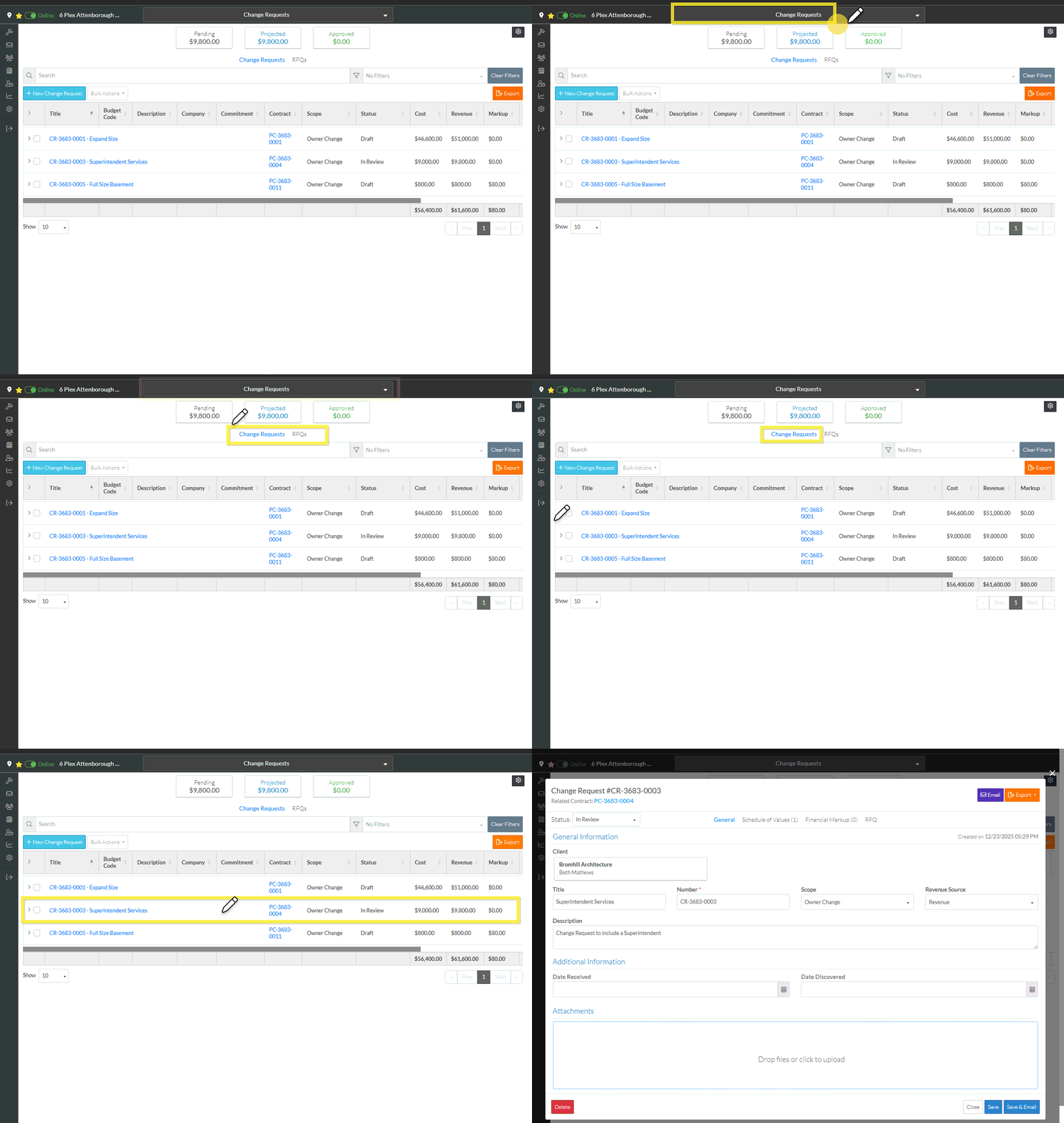
The Change Request - View/Edit form displays.
The General component displays by default after the edit is initiated but other Components can be switched to via the Form Navigation Menu Options. See Change Request – View/Edit - Form Layout and Navigation for more information.
The Change Request can be exported from any of the Components; General, Schedule of Values, Financial Markups or RFQs.
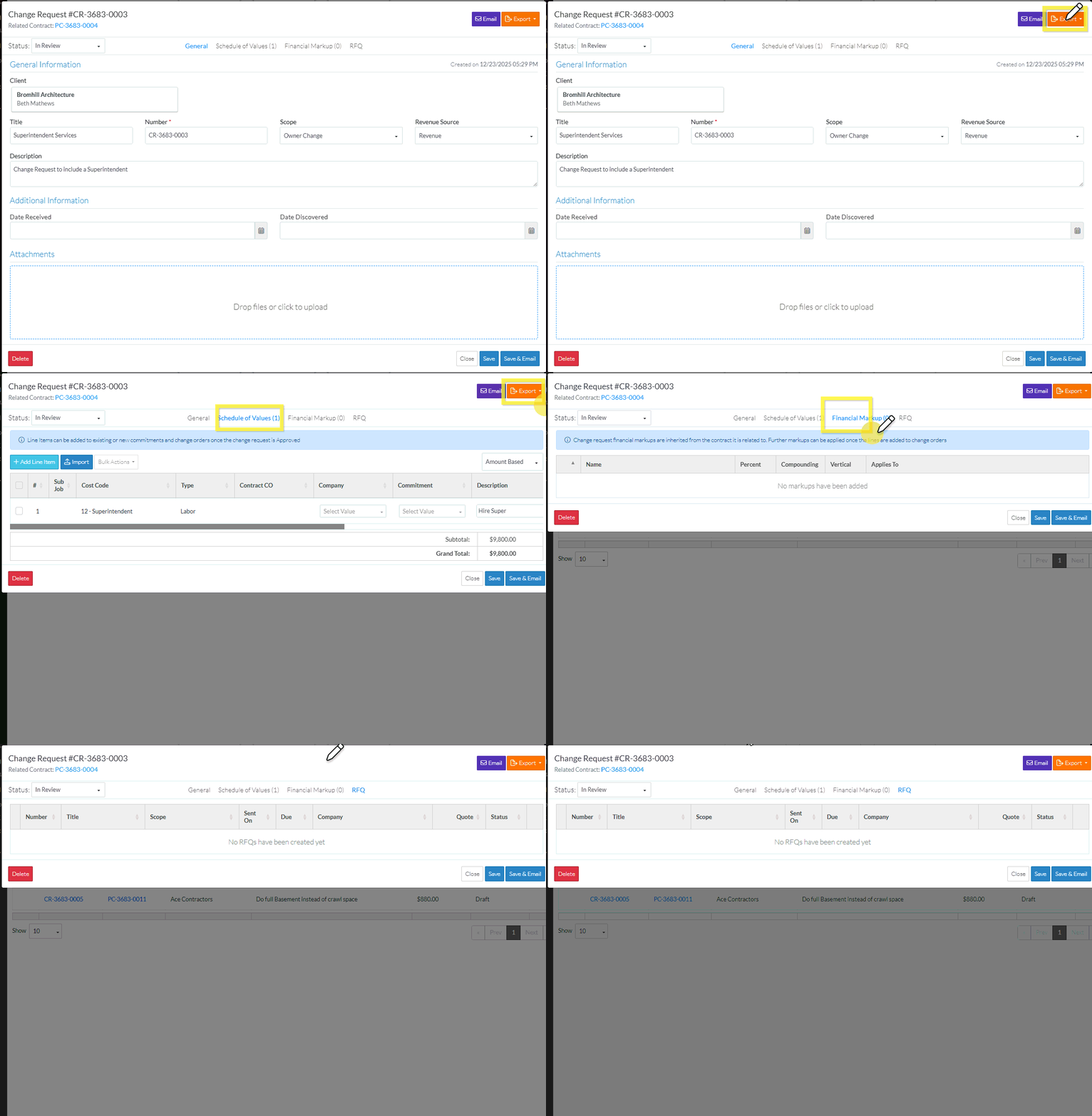
- From any of the Components, click either the Export
 button.
A drop down appears with the three export options, see Change Request - Export Options.
- Click on one of the options.
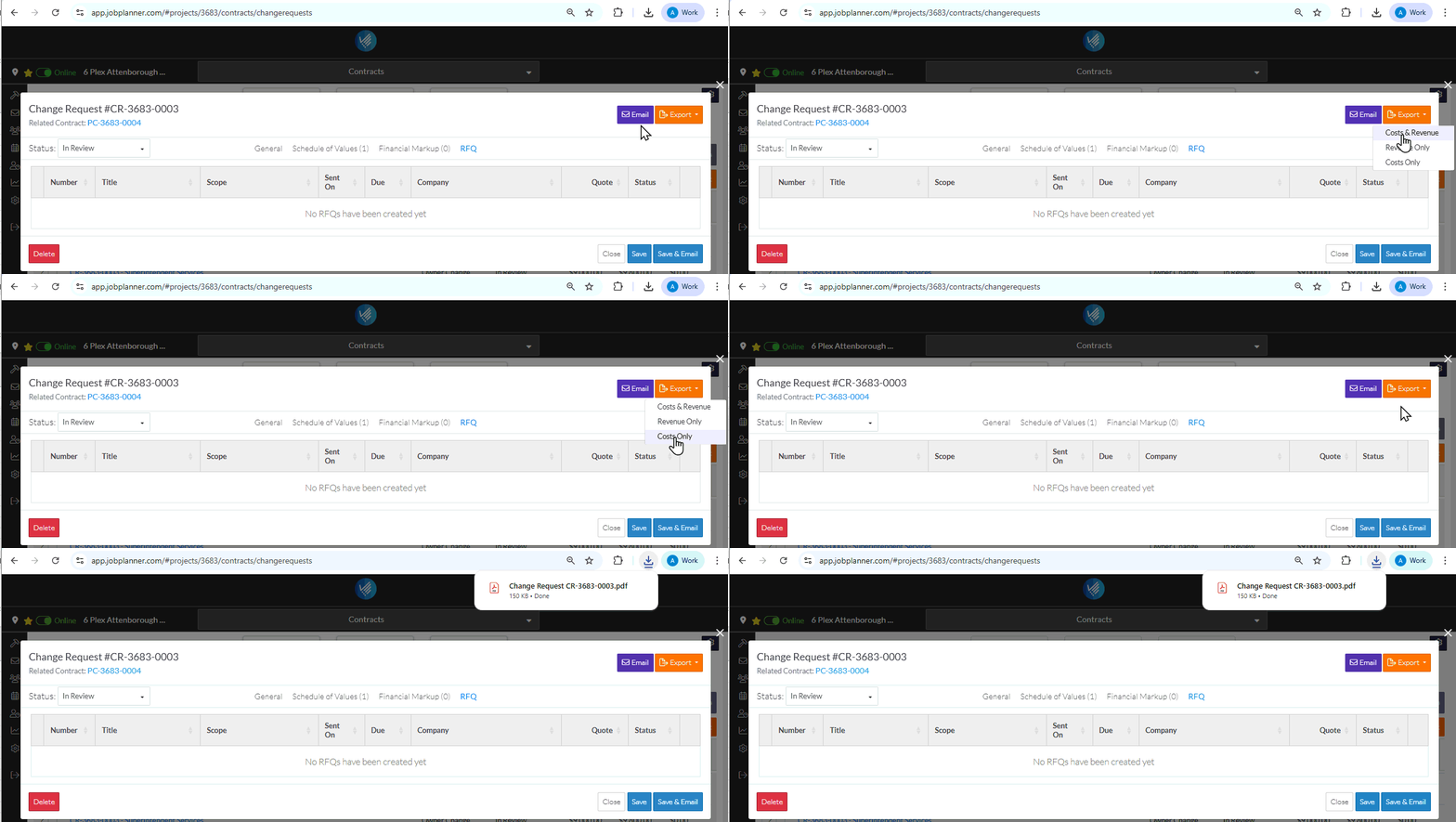
An PDF file is created in the system download folder. See Change Request - Export Options for examples on how the PDF displays.
The Change Request - View/Edit form remains displayed.
Next Steps
Enter or view the information as required, see Change Requests - Edit - Steps.
Select Change Request Line Items and create them automatically on Contract Change Orders, Commitments or Commitment Change Orders, see Contracts - List of all Change Requests - Bulk Actions.
