All Change Requests Lists - Settings - Default Filter (Simple List View)
 Updated
Suggested Prior Reading
Change Requests List - Accessing (Simple List View)
Change Requests List - Settings (Simple List View)
OR
Contracts - List of all Change Requests - Accessing (Simple List View)
Contract - List of all Change Requests - Settings (Simple List View)
Default Filter
The Change Requests List and the Contracts - List of all Change Requests can be filtered by Change Request Status(es) i.e. so only Change Requests with certain Status(es) display.
This is the Default Filter that is applied each time the form is opened.
Note* The Status(es) filter can also be changed dynamically on the lists as required. This is a temporary change and won’t be saved for the next time the form is opened. See All Change Requests Lists - Search and Filter (Simple List View).
To set the Default Filter
- If required, access the Related Settings
 for either list (see Suggested Prior Reading above).
The Change Request Settings form displays.
General User Settings is where the status(es) are selected or unselected for the Default Filter. - Click on the Default Filter drop down box in the General User Settings.
The list of Change Request Statuses display. - Click on the Status to apply it as the default filter. A checkmark appears next to the selection. The drop down list remains displayed.
- To add more than Status to apply as the default filter, click on additional filter options. Each will have a check mark appear next to it.
- Click on a Filter Option again to remove the check mark (if required) or to reset the filter back to none, ensure all check marks are removed.
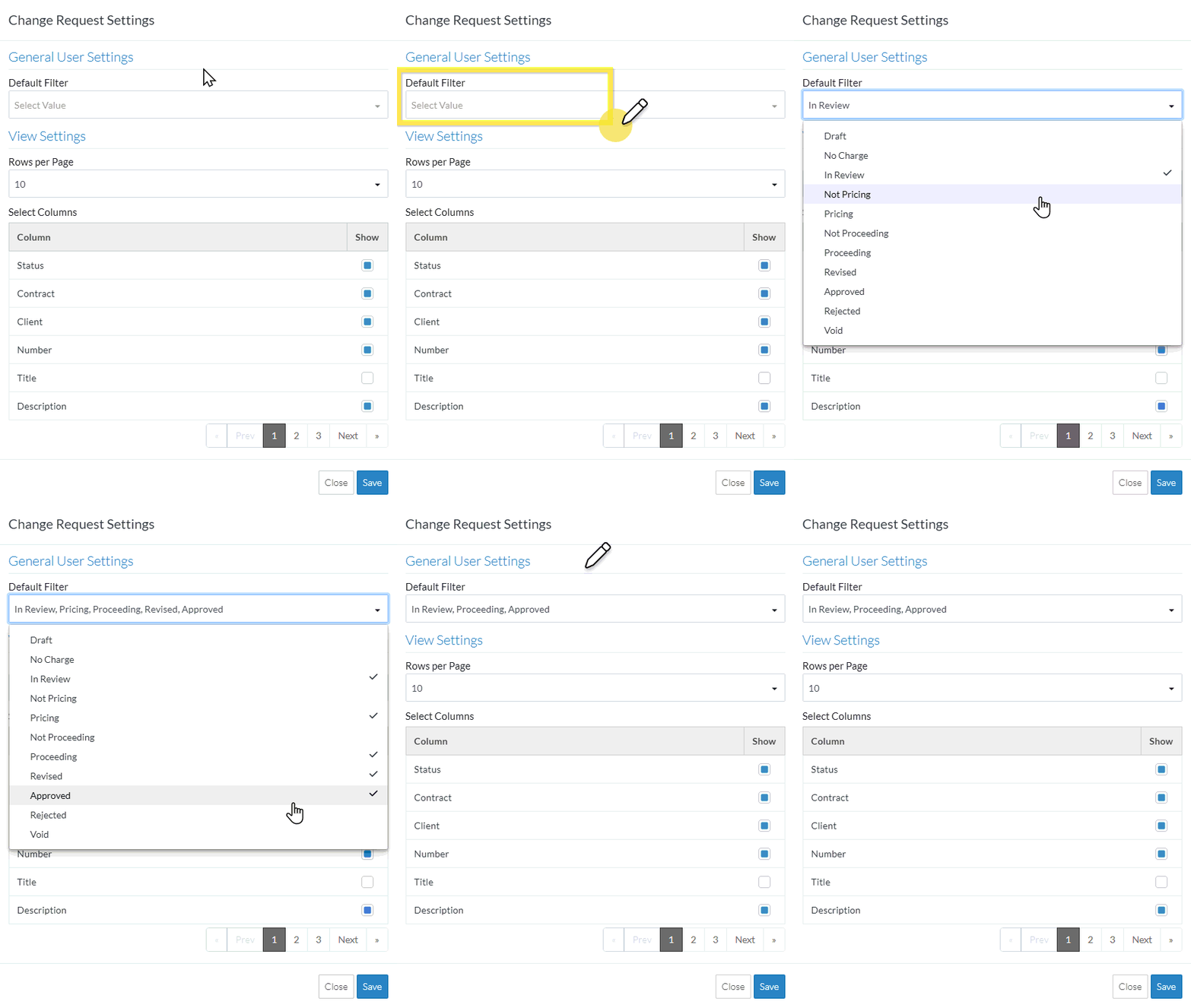
- When the selections are complete, click anywhere outside of the drop down to exit the drop down list.
The selected items will show as the drop down title and the selection displays in the drop down box in black writing (to indicate there is a filter selected and what the filter is).
If the drop down title is in grey writing Select Value it indicates there is no filter selected. - To change the default number of rows to display, see All Change Requests Lists - Settings - Rows per Page (Simple List View).
- To turn on/off columns which displays, see All Change Requests Lists - Settings - Turn On/Off Columns (Simple List View).
- Click the Save
 button at the bottom right of the form to save the changes.
OR
Click the Close button at the bottom right of the form to exit the form without saving the changes.
Next Steps
Change Requests List - Settings (Simple List View)
OR
Contract - List of all Change Requests - Settings (Simple List View)
