All Change Requests Lists - Settings - Turn On/Off Columns (Simple List View)
 Updated
Suggested Prior Reading
Change Requests List - Accessing (Simple List View)
Change Requests List - Settings (Simple List View)
OR
Contracts - List of all Change Requests - Accessing (Simple List View)
Contract - List of all Change Requests - Settings (Simple List View)
Select Columns to display on the Change Request List
The columns that display on the Change Requests List and the Contracts - List of all Change Requests can be turned on/off to display. Each time the list is opened it displays the columns turned on here.
- If required, access the Related Settings
 for either list (see Suggested Prior Reading above).
The Change Request Settings form displays.
View Settings is where the number of Rows per Page default is set.
The Select Columns section shows all the columns that are available to display. For a list and description of all columns available for Change Requests, see All Change Requests Lists - Settings - Columns (Simple List View).
If the column is turned on to display, the Show box will be filled in blue. Otherwise it will be an empty box.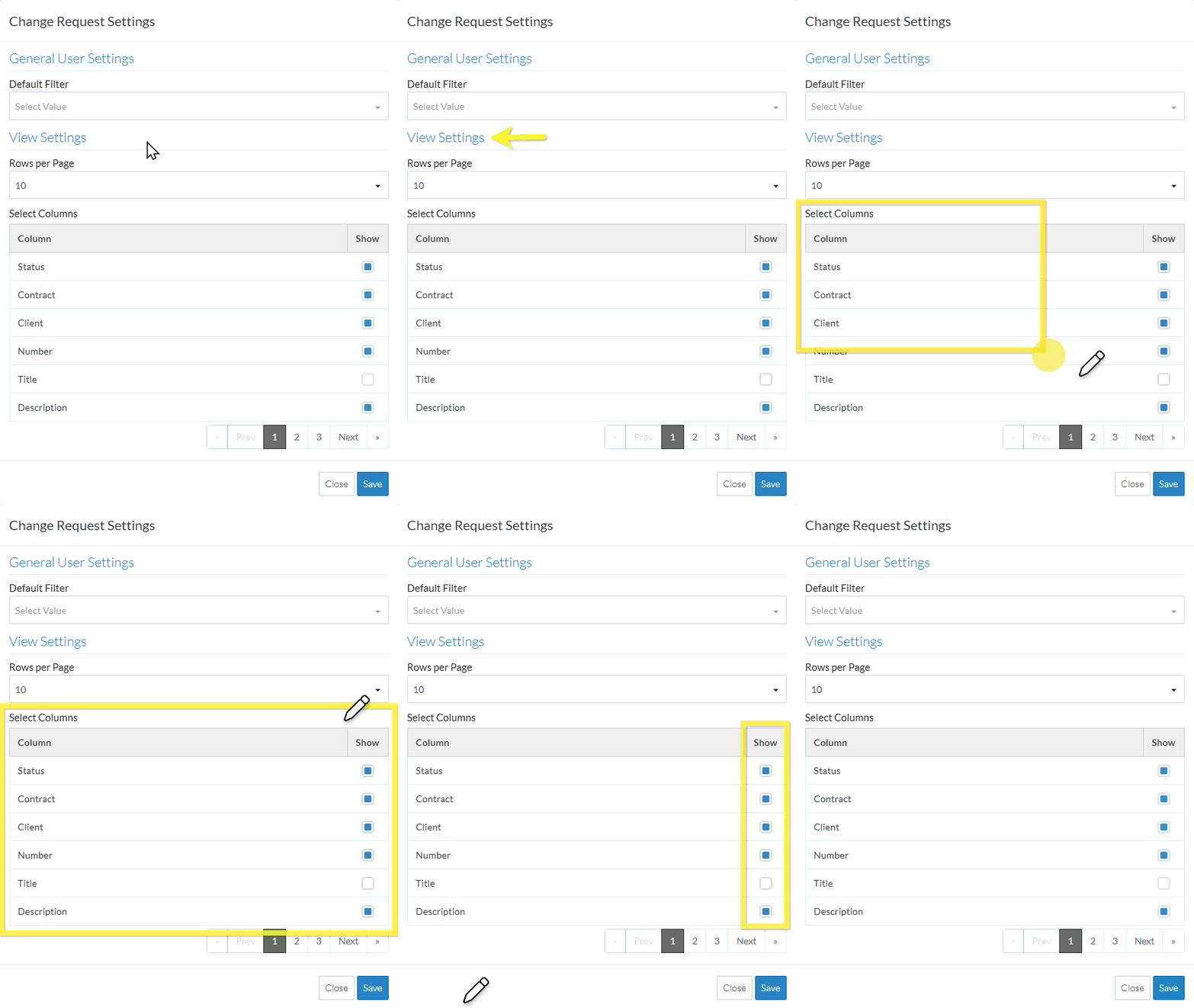
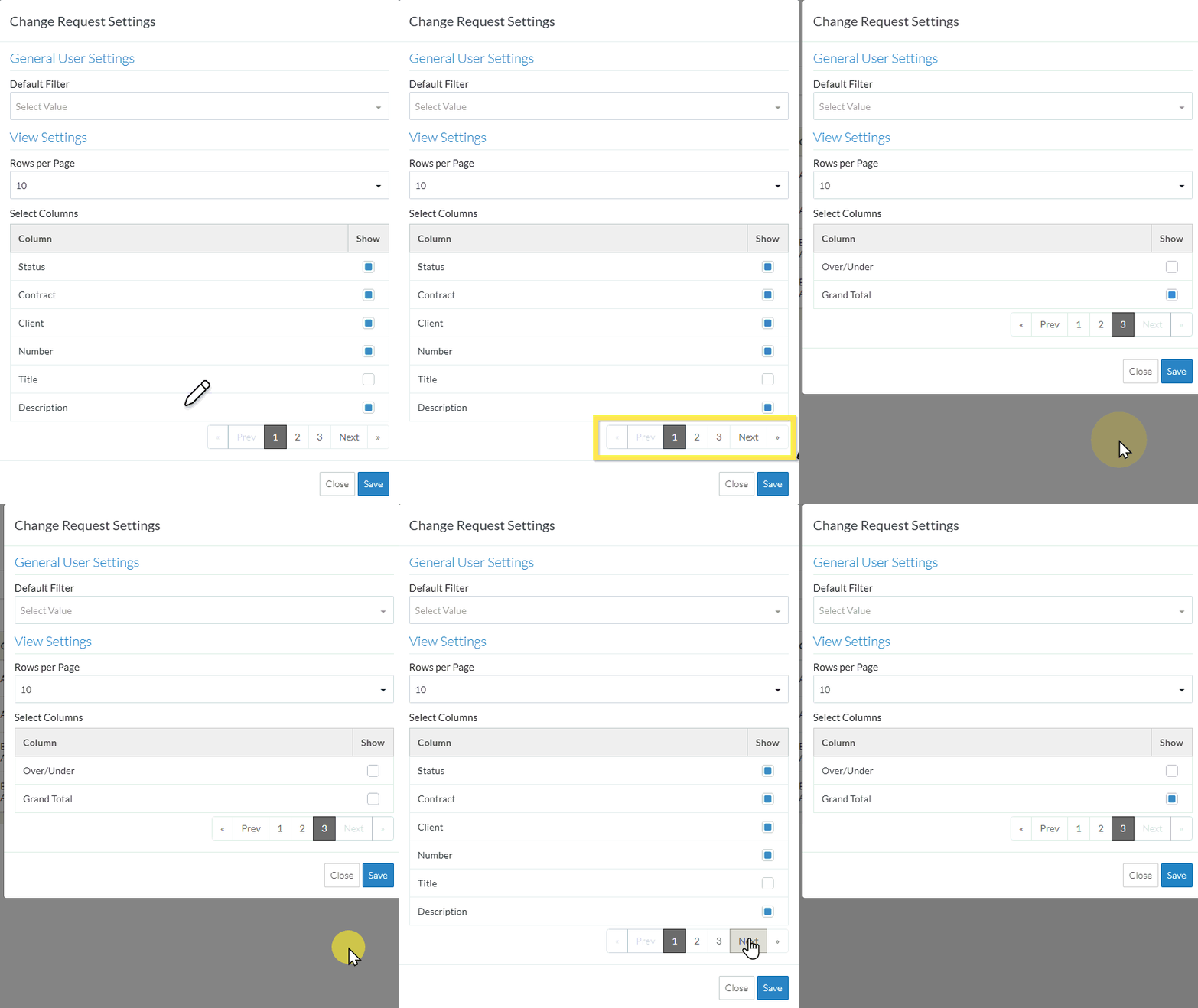
- Navigate through all the available columns to locate the ones to turn on/off
- Click on the page numbers buttons to go to that page.
- Click on the Prev or Next buttons to go to the previous or next page
- Click the << button to go to the first page or the >> button to go to the last page
- Turn on/off columns to display
- Click on the Show box for the column(s) to turn on. The Show box will be filled in blue.
- Click on the Show box for a column(s) turned on to turn if off. The Show box will be empty.
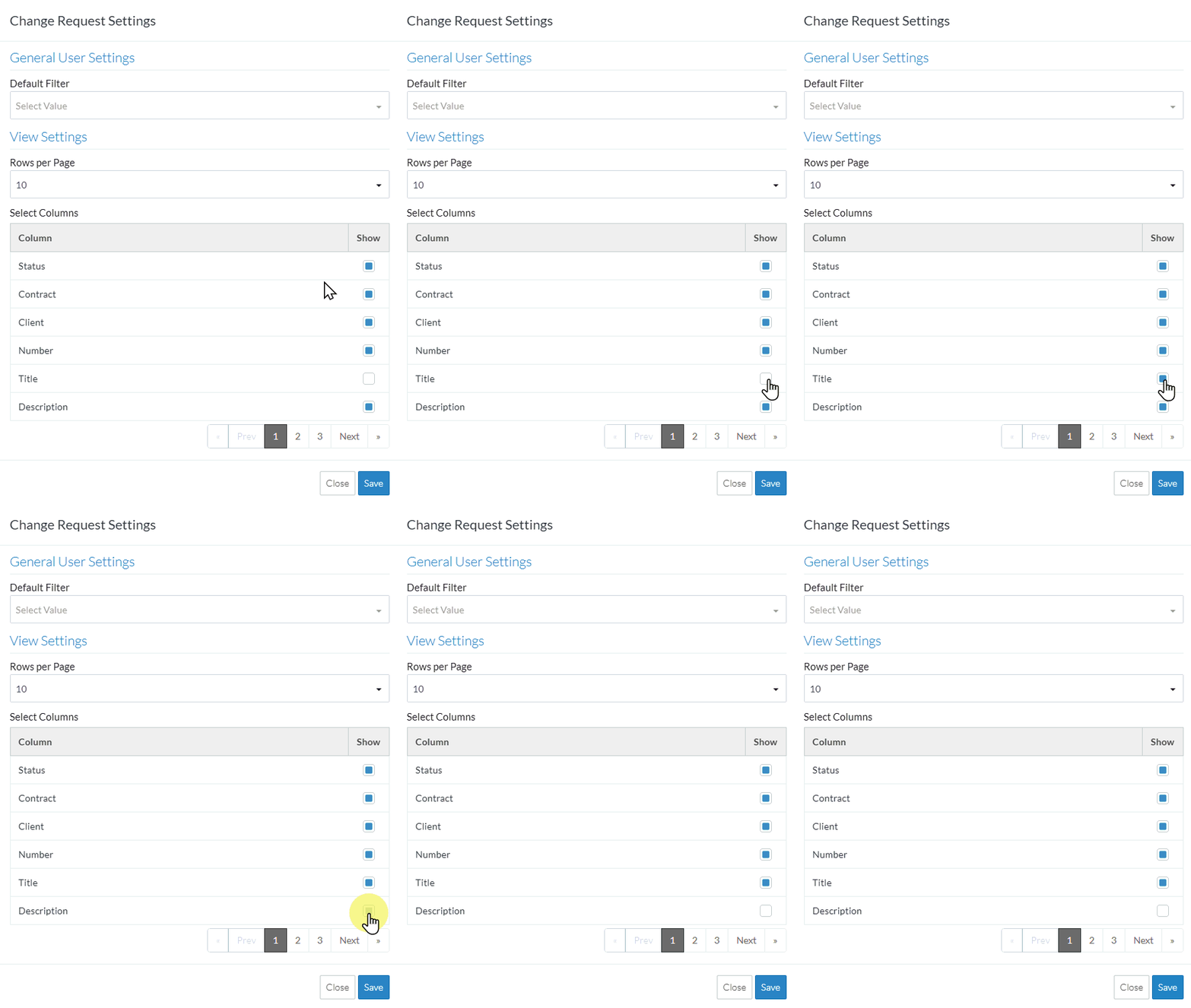
- Repeat as required to select or unselect columns.
- To change the default number of Rows to display per page, see Contracts - List of All Change Orders - Settings - Rows per Page.
- To change the Default Filter, see Contracts - List of All Change Orders - Settings - Default Filter.
- Click the Save
 button at the bottom right of the form to save the changes.
OR
Click the Close button at the bottom right of the form to exit the form without saving the changes.
Next Steps
Change Requests List - Settings (Simple List View)
OR
Contract - List of all Change Requests - Settings (Simple List View)
