Schedule of Values - Line Item - Cost Code with Sub Jobs
 Updated
Suggested Prior Reading
Schedule of Values - Add Line Item
OR
Schedule of Values - Edit Line Item (before Save)
OR
Schedule of Values - Edit Line Item (after Save)
Cost Codes with Sub Jobs
Cost Codes always display and are always required for each Line Item.
Cost Codes must be setup and Cost Codes assigned to the Project before the Line Items can be created. See Cost Codes - Overview for more information.
This is the help for entering Cost Codes when Sub Jobs are being used on the project. For projects where Sub Jobs are not being used, see Schedule of Values - Line Item - Cost Code for help on how to enter the Cost Codes.
The Parent or Sub Job must be entered before Cost Codes are entered.
Cost Codes are linked to the Budget. Either Budgeted or Un-Budgeted Cost Codes can be selected. If the Cost Code is Un-Budgeted and the information is saved, a new line item will be automatically be created on the Budget with that Cost Code (and the Sub Job and Cost Type) as an Un-Budgeted Line Item. It can then be edited and set to Budgeted once it is reviewed and approved.
Cost Codes are entered during the add of a new line item or a Cost Code can be changed (but only up until the Schedule of Values form is saved).
This help covers:
- Entering a Cost Code when adding Line Items
- Changing the Cost Code for existing Line Items (if the Schedule of Values is not yet saved)
- Display of Cost Codes (if the Schedule of Values has been saved)
- Errors for Cost Codes when trying to save
To Enter a Cost Code when adding Line Items
After the Parent or Sub Job is selected (see Schedule of Values - Line Item - Sub Job), the Cost Code column may be automatically selected.
- If the Cost Code column is not selected, click on it to select it.
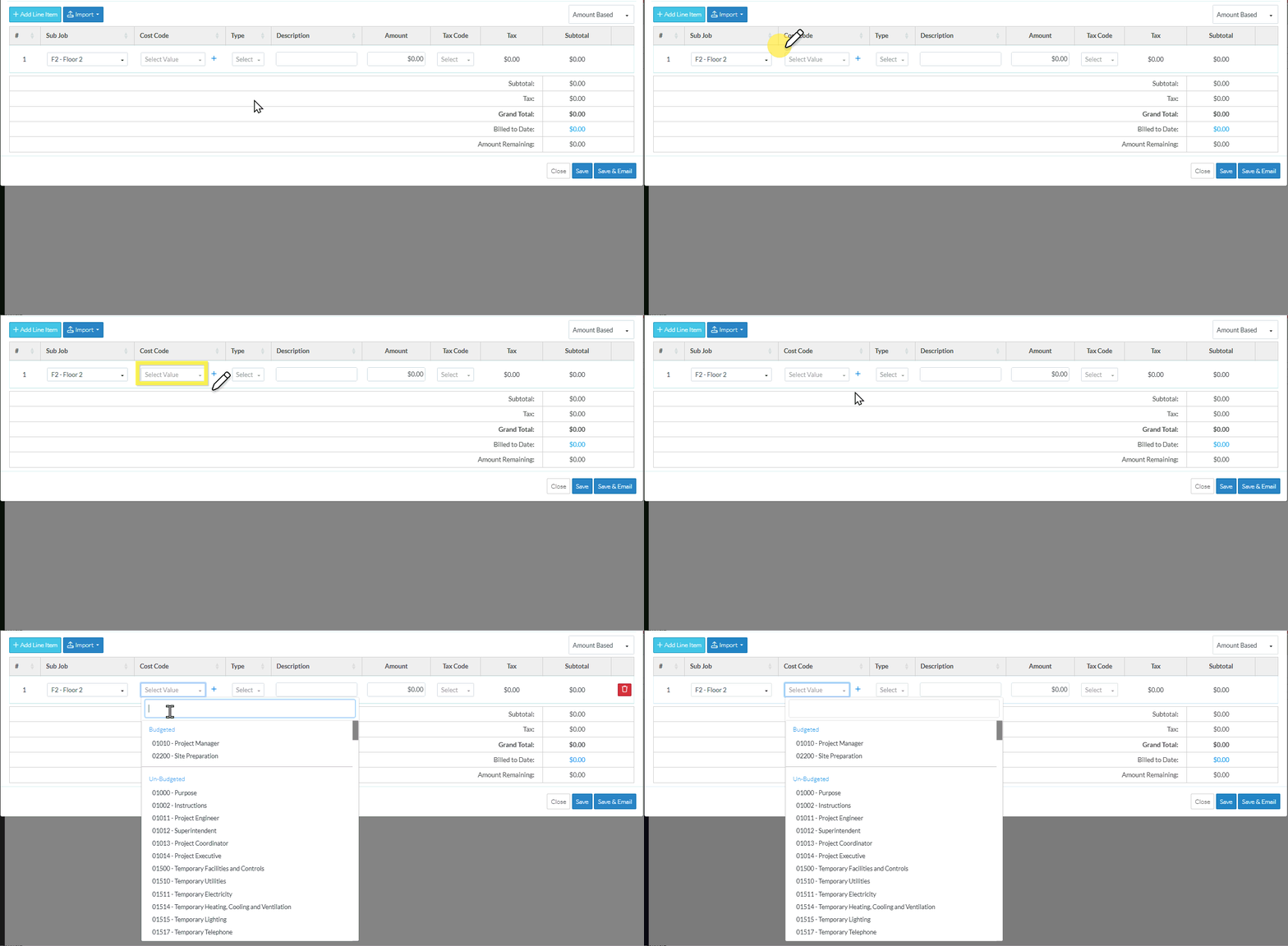
After the Cost Code is selected:
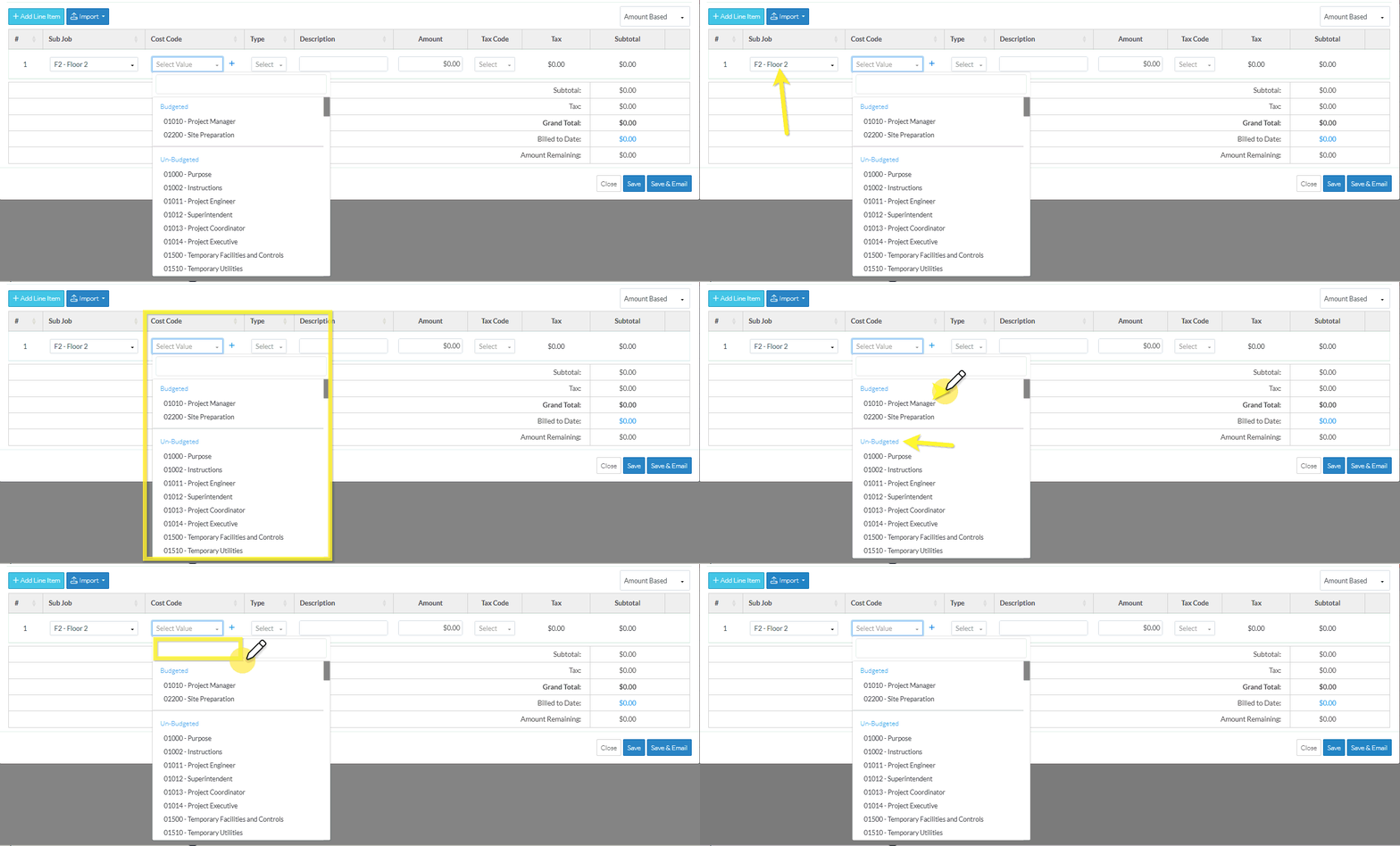
- The Cost Code column is automatically selected and the Cost Code drop down displays.
- The list of Cost Codes show only the Cost Codes applicable to the Parent or Sub Job entered. This could be all Cost Codes or a subset of them only.
- The list of Cost Codes are separated by Budgeted and Un-Budgeted.
- Budgeted means a line item on the Budget has been already created with that Cost Code
- Un-Budgeted means a line item on the Budget has not been already been created with that Cost Code
- There is also a bar in which search criteria can be entered to narrow the list.
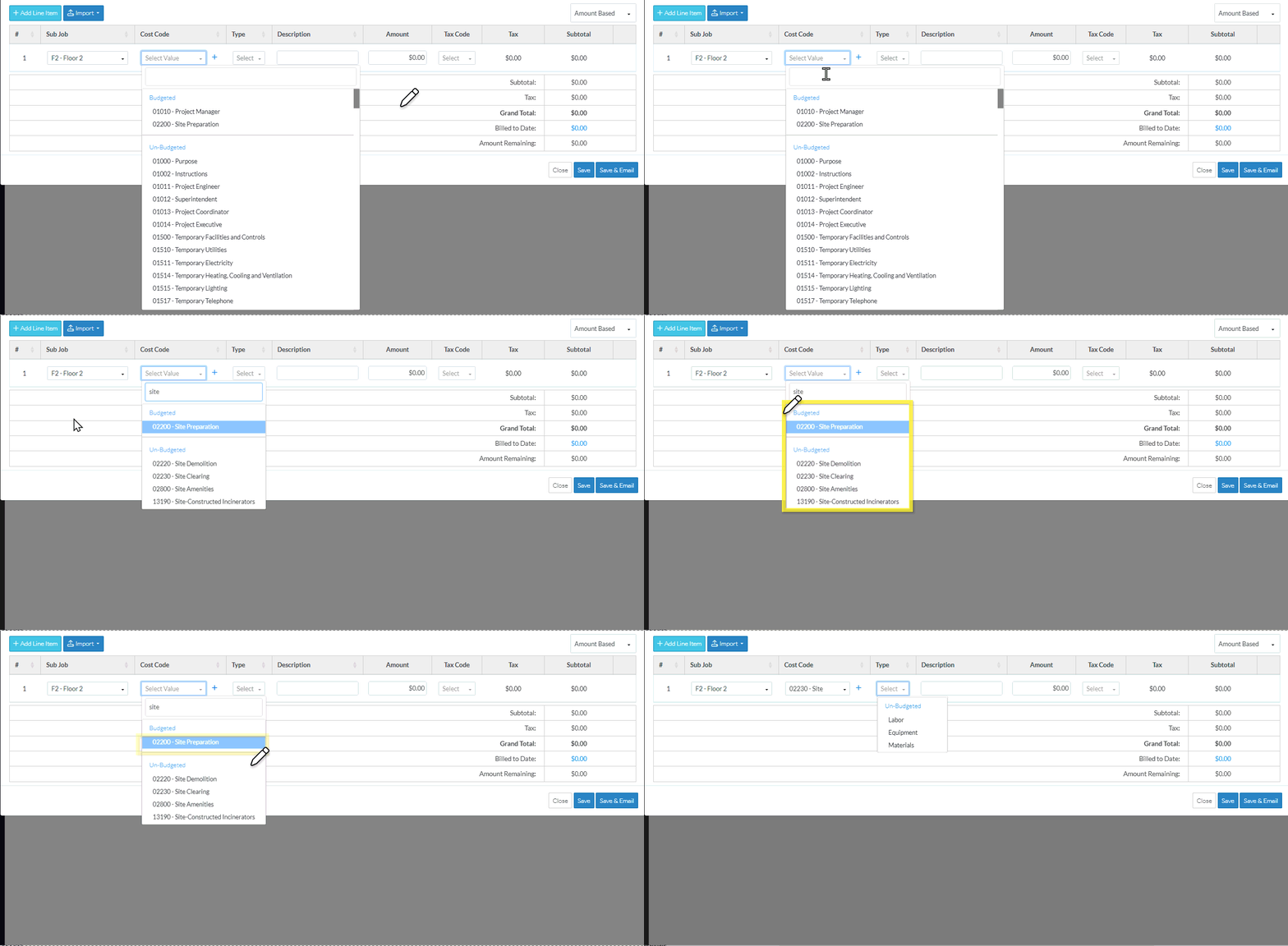
- Optionally, search for the Cost Code to select (if the Cost Code list is long). Type in the Cost Code to search for in the Search box. This can either be the code or the description, both are searched. Both the Budgeted and Un-Budgeted sections are searched as well.
As soon as characters are entered in the search box, the Cost Code list narrows to show only those Cost Codes that match what is entered.
If required, delete any letters to remove the Search criteria.
The first item in the list that matches the search criteria is highlighted blue. - If a search was done, to select the item that is highlighted blue, click Enter to select it.
OR
Click on the Cost Code in the drop down list to select it (whether search criteria was entered or not).
The Cost Code displays and the Cost Type is automatically selected and the Cost Type drop down displays.
The Cost Codes show only the Cost Codes applicable to the Parent/Sub Job selected. The Parent has its own set of Cost Codes assigned and each Sub Job also has its own set of Cost Codes assigned (to make it easy for management and selection).
To Change the Cost Code or Existing Line Items (if the Schedule of Values is not yet saved)
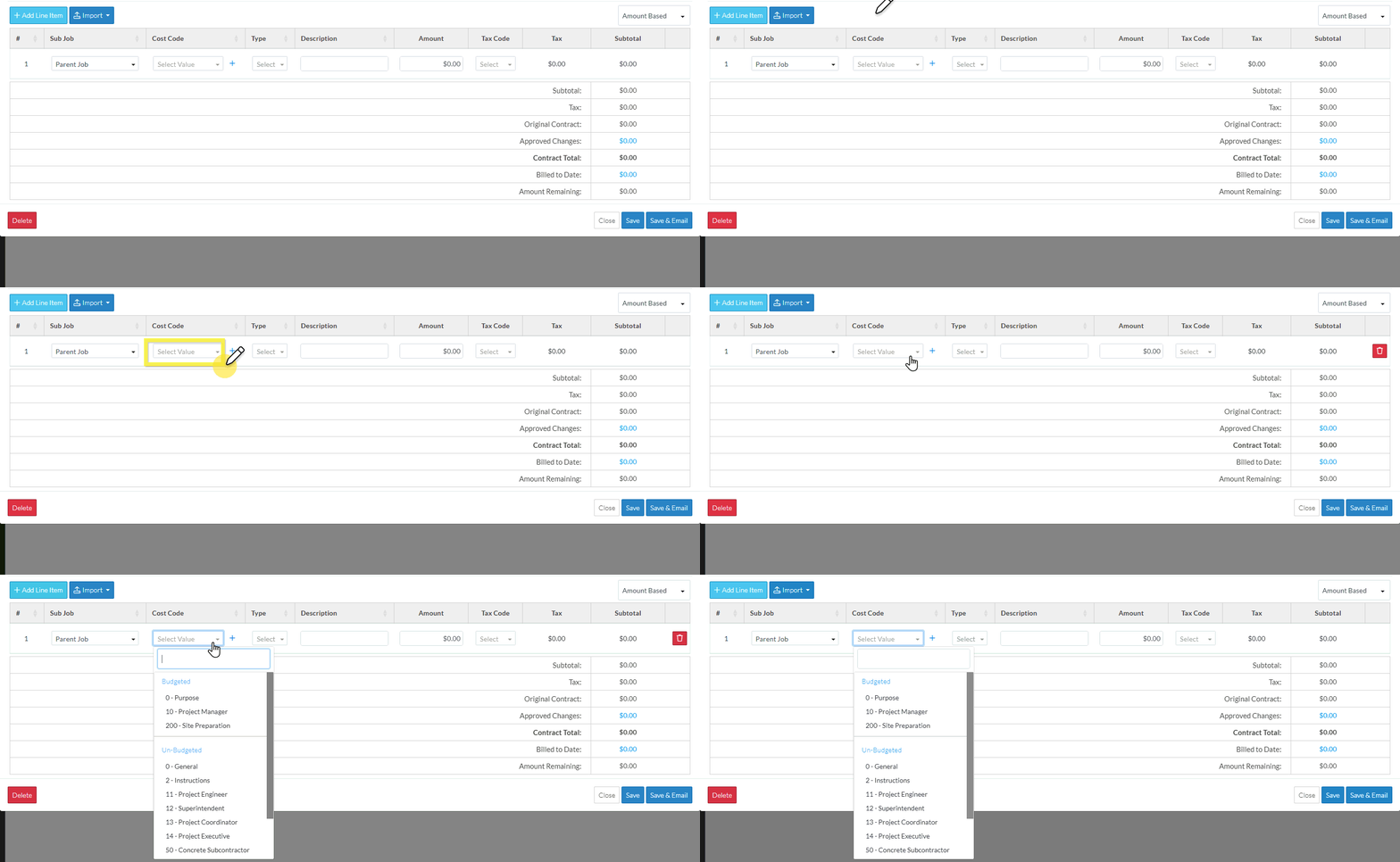
- To change the Cost Code or enter it if left blank (if the form has not been saved), click in the Cost Code on the row to edit.
The Cost Code is selected and the Cost Code drop down appears.
- Follow the steps above to select either the Parent Job or the Sub Job.
Note* If a Cost Type was already entered and the Cost Code is changed, if the Cost Type is still applicable to the new Cost Code entered, it will remain populated. If a Cost Type was already entered but is not applicable to the Cost Code entered, it is removed and the Cost Type must be re-entered.
Display of Cost Codes (if the Schedule of Values has been saved)
During the initial add of the line item (and before the form has been saved), Cost Codes are a drop down and they can be clicked in to select the Cost Code (as described above).
After the form is saved, Cost Codes (along with Cost Types and any Sub Jobs) can not be changed as it is associated with a Budget Line item. It is no longer a drop down but is display text. The Line Item would have to be deleted and added to correct any issues (and that can only be done on items with certain Statuses).

Errors for Cost Codes when trying to save
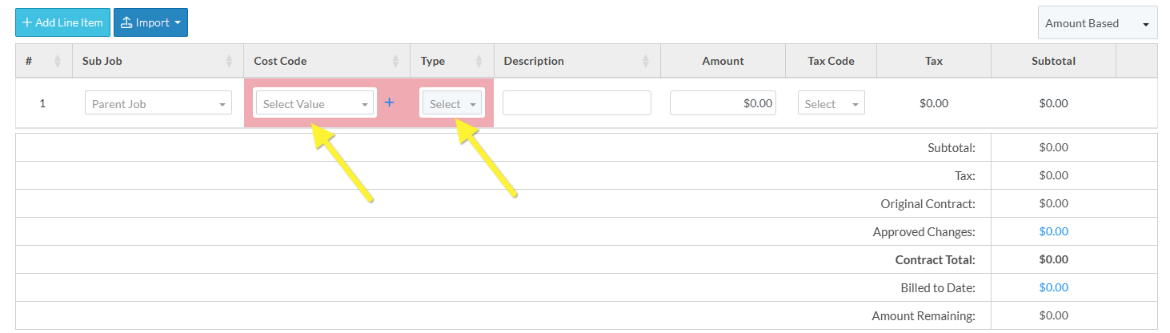
The Cost Code (and Sub Job and Cost Type) must be entered before the form can be saved. If the form is saved without entering the Cost Code and Cost Type, they will be highlighted in orange to indicate they are missing. The Sub Job is also required but will default to the Parent Job. Other fields are optionally and can be edited later on.
Next Steps
Enter the Cost Type, see Schedule of Values - Line Item - Cost Type.
