Change Request - Schedule of Values - Line Item - Cost Code
 Updated
Suggested Prior Reading
Change Request - Schedule of Values - Add Line Item
OR
Change Request - Schedule of Values - Edit Line Item (before Save)
OR
Change Request - Schedule of Values - Edit Line Item (after Save)
Cost Codes
Cost Codes always display and are always required for each Line Item.
Cost Codes must be setup and Cost Codes assigned to the Project before the Line Items can be created. See Cost Codes - Overview for more information.
This is the help for entering Cost Codes when Sub Jobs are not being used on the project. For projects where Sub Jobs are being used, see Change Request - Schedule of Values - Line Item - Cost Code with Sub Jobs for help on how to enter the Cost Codes.
Note* How columns display for the Line Items on the Schedule of Values display depends on various factors, see Change Request - Schedule of Values – Layout and Navigation.
Cost Codes are linked to the Budget. Either Budgeted or Un-Budgeted Cost Codes can be selected. If the Cost Code is Un-Budgeted and the Schedule of Values is saved, a new line item will be automatically be created on the Budget with that Cost Code (and the Cost Type) as an Un-Budgeted Line Item. It can then be edited and set to Budgeted once it is reviewed and approved.
Cost Codes are entered during the add of a new line item or a Cost Code can be changed (but only up until the Schedule of Values form is saved. Once its saved, the Cost Code can't be changed).
If these Line Items are created on new or existing Commitments/Commitment Change Orders or Contract Change Orders, the Cost Code will be copied to those Line Items and can not be changed. See Assign Change Request Line Items to Contracts and Commitments - Overview (Grouped List View) OR Assign Change Request Line Items to Contracts and Commitments - Overview (Simple List View) for more information.
This help covers:
- Entering a Cost Code when adding Line Items
- Changing the Cost Code for existing Line Items (if the Schedule of Values is not yet saved)
- Display of Cost Codes (after the Schedule of Values has been saved)
- Errors for Cost Codes when trying to save
To Enter a Cost Code when adding Line Items
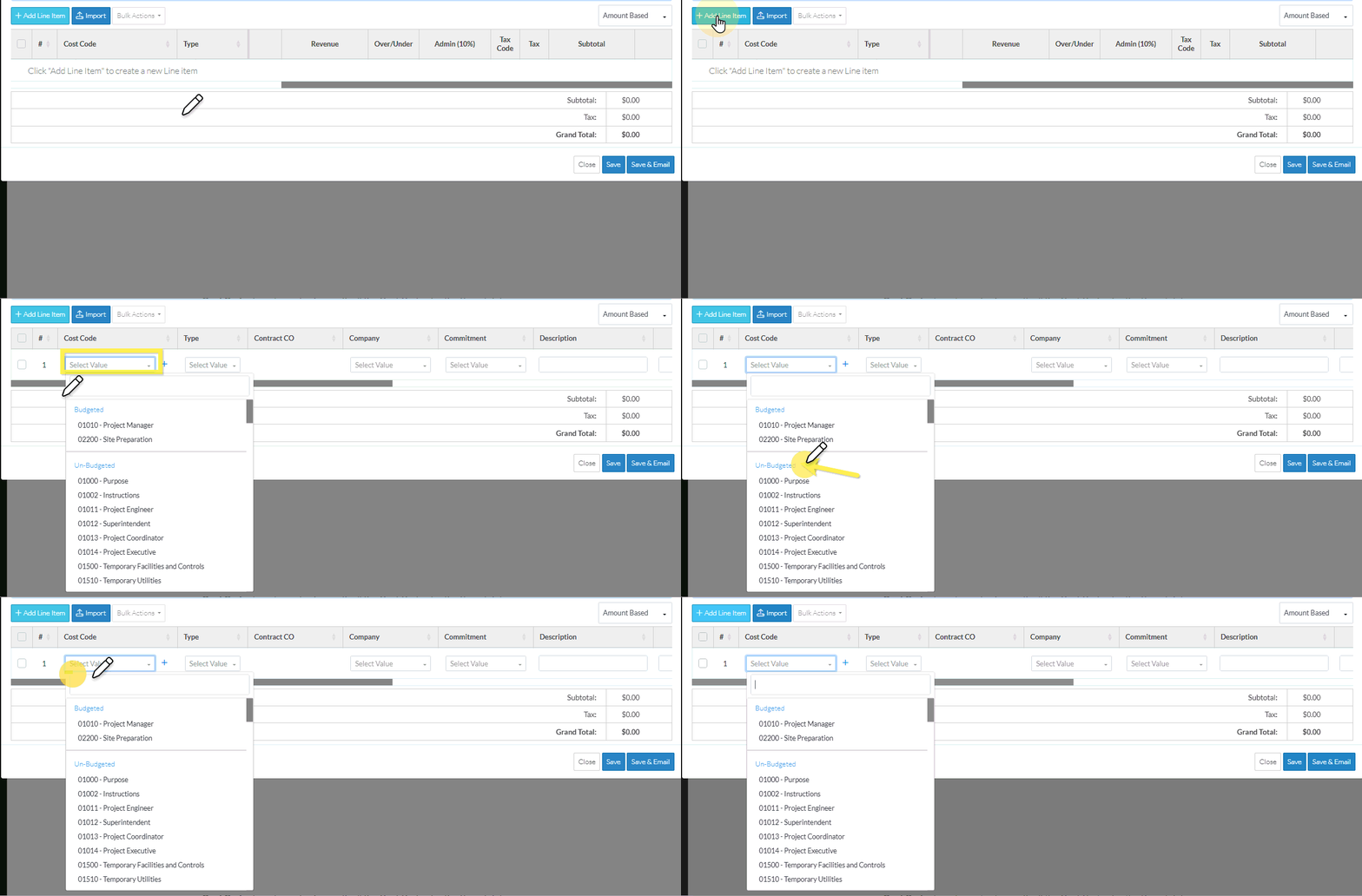
- After the + Add Line Item
 button and any options is selected:
- A new line is created in the Schedule of Values.
- The Cost Code is automatically selected and the Cost Code drop down displays.
- The list of Cost Codes are separated by Budgeted and Un-Budgeted.
- Budgeted means a line item on the Budget has been already created with that Cost Code
- Un-Budgeted means a line item on the Budget has not been already been created with that Cost Code
- There is also a bar in which search criteria can be entered to narrow the list.
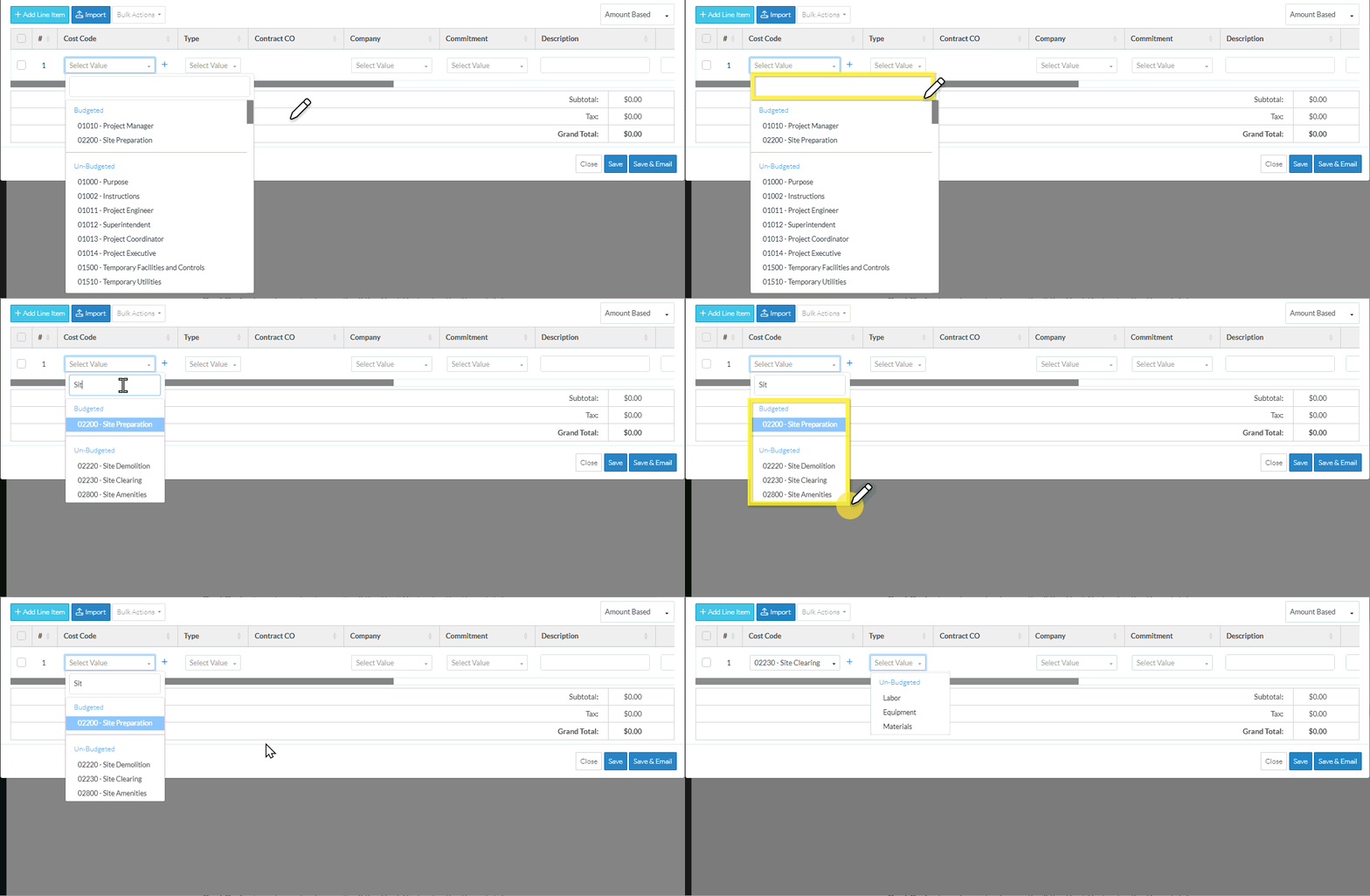
- Optionally, search for the Cost Code to select (if the Cost Code list is long). Type in the Cost Code to search for in the Search box. This can either be the code or the description, both are searched. Both the Budgeted and Un-Budgeted sections are searched as well.
As soon as characters are entered in the search box, the Cost Code list narrows to show only those Cost Codes that match what is entered.
If required, delete any letters to remove the Search criteria.
The first item in the list that matches the search criteria is highlighted blue. - If a search was done, to select the item that is highlighted blue, click Enter to select it.
OR
Click on the Cost Code in the drop down list to select it (whether search criteria was entered or not)
The Cost Code displays and the Cost Type column is automatically selected and the Cost Type drop down displays.
To Change the Cost Code for Existing Line Items (if the Schedule of Values is not yet saved)
The Cost Code can be changed as long as the Line Item has not yet been saved.
To change the Cost Code or enter it if left blank (and the Line Item has not been saved), follow the steps above.
Note* If a Cost Type was already entered and the Cost Code is changed, if the Cost Type is still applicable to the new Cost Code entered, it will remain populated. If a Cost Type was already entered but is not applicable to the Cost Code entered, it is removed and the Cost Type must be re-entered.
Display of Cost Codes (after the Schedule of Values has been saved)
During the initial add of the line item (and before the form has been saved), Cost Codes are a drop down and they can be clicked in to select the Cost Code (as described above).
After the form is saved, Cost Codes (along with Cost Types any any Sub Jobs) can not be changed as it is associated with a Budget Line item. It is no longer a drop down but is display text. The Line Item would have to be deleted and added to correct any issues (and that can only be done on items with certain Statuses).
The display of the Schedule of Values after the form is saved, differs depending on the Change Request Status (see Change Request - Status for more information).
If the Change Request is in a Status that can still have the Schedule of Values edited, the Cost Code displays in its own column:

If the Change Request is in a Status that can not still have the Schedule of Values edited (such as Approved, Void or Rejected), the Cost Code displays in a column labeled Budget Code (along with the Cost Type on the line below it).

Errors for Cost Codes when trying to save
The Cost Code (and Cost Type) must be entered before the form can be saved. If the form is saved without entering the Cost Code and Cost Type, they will be highlighted in orange to indicate they are missing. Other fields are optional and can be edited later on.

Next Steps
Enter the Cost Type, see Change Request - Schedule of Values - Line Item - Cost Type.
