Change Request - Schedule of Values – Create - Layout and Navigation
 Updated
Suggested Prior Reading
Change Request - Schedule of Values - Overview
Change Request - Schedule of Values - Create During Add
OR
Change Request - Schedule of Values - Create During Edit
Schedule of Values - Create during Add or Edit - Layout and Navigation
The Schedule of Values is a component of a Change Request.
Creation of a Schedule of Values is assuming that no Line Items have yet been entered. (If Line Items are entered and the Schedule of Values saved, see Change Request - Schedule of Values – Maintain - Layout and Navigation).
The Schedule of Values can be created during the add of a new Change Request or edit of an existing Change Request (if it wasn't created previously). It is accessed through the Form Navigation Menu Options during the add/edit by clicking on the Schedule of Values text on the menu item. See Change Request - Schedule of Values - Create During Add OR Change Request - Schedule of Values - Create During Edit.
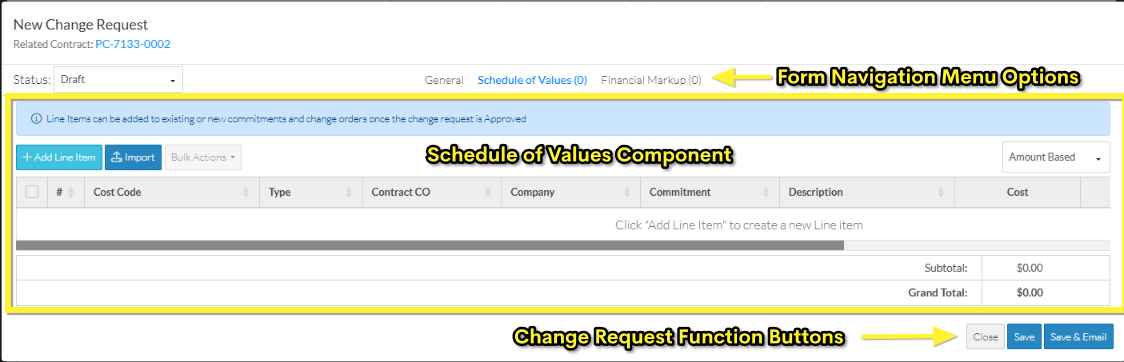
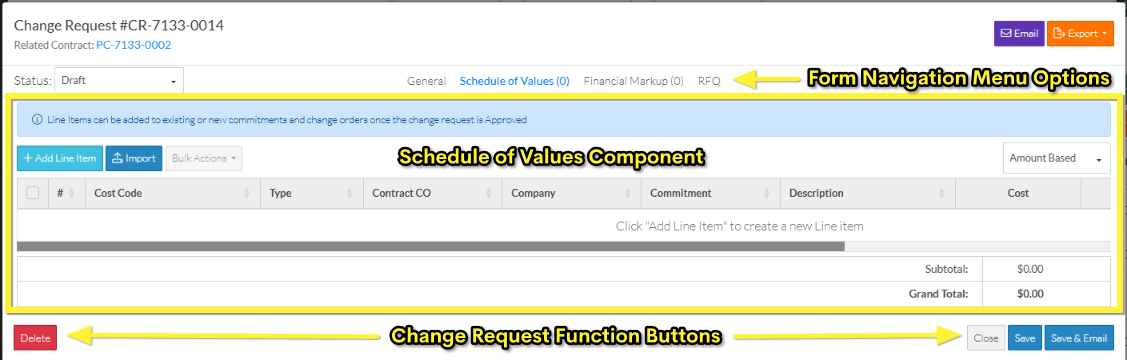
- The Schedule of Values component is displayed in the middle section of the form.
- Directly above the Component is the Form Navigation Menu Options which is used to navigate to the other components.
- Directly below the Component, the Change Request Function Buttons display.
Both the Form Navigation Menu Options and the Change Request Function Buttons apply to the entire Change Request including the General, Schedule of Values and Financial Markups. They are part of the top and bottom sections of the New Change Request form or the Change Request View/Edit form and don't change regardless of what component is displayed. For more information on the New Change Request form layout regardless of which Component is selected, see Change Request – Add - Form Layout and Navigation. For more information on the Change Request View/Edit form layout regardless of which Component is selected, see Change Request – View/Edit - Form Layout and Navigation.
The following is an example of a the New Change Request form with the Schedule of Values Component displaying that has no line items entered.
The following is an example of an edit of an existing Change Request on the Change Request View/Edit form with the Schedule of Values Component displaying that has no line items entered.
Schedule of Values Component
The Schedule of Values component consists of:
- Messages Line (highlighted in blue and which may or may not display depending on various factors)
- Schedule of Values Function Buttons (functions specific to the Schedule of Values only)
- Accounting Method
- The list of the Line Items in the Schedule of Values
- Totals section

The status of the Change Request and whether or not the Line Items have been saved and whether or not the Line Item has been assigned to Commitment or Commitment Change Orders, will determine the type of functionality available (more details below).
However, none of the additions or changes are actually saved for the Schedule of Value Line Items, until the entire Change Request is saved. This is done via the Change Request Function Buttons that appear at the bottom of the form.
While Line Items are being added, edited or deleted and before the entire Change Request is saved, this is considered a working session. The Save or Save & Email Item Function Buttons must be used to save the entire Change Request including saving the Schedule of Values. The Save or Save & Email Item Function Buttons apply to the entire item, not just the Schedule of Values Component; they can be invoked from any component and will save all information on all Components.
Line Items
There are Schedule of Values Function Buttons to:
- Set the Accounting Method
- Add individual Line Items
- Import Line Items from a File
- Perform Bulk Actions:
- Add the Line Item to an existing or new Contract Change Order
- Add the Line Item to an existing or new Commitment or Commitment Change Order
- Send RFQs
- Edited inline within the Schedule of Values (for the information that can be edited)
- Deleted
No Line Items entered
When there are no Line Items entered, the Accounting Method is a display and drop down.
The Accounting Method can be changed as long as no line items are entered. Once line items are entered, then the Accounting Method can not be changed. See Schedule of Values - Accounting Method.
If No Line Items are entered, the Line Items section will be blank and the Totals Section will be set as zeros.

Line Items entered
Once Line Items are entered, the Accounting Method is displayed but it is grayed out and can not be changed.

Sub Job, Cost Code and Cost Type
The Cost Code and Cost Type for a Line Item (and Sub Jobs if turned on) can be edited, (but only until the Change Request is saved).
In the example below, the Change Request has not been saved so the Cost Code and Cost Type (and the Sub Job if applicable) are drop down fields that can be clicked and changed.

For more information on Sub Jobs, see Sub Jobs - Overview (Note* Sub Jobs are not shown in these examples).
Messages Line
The Messages Line displays information regarding the Schedule of Values.
Line Items can be added to existing or new contracts and change orders once the change request is Approved
If the Change Request is not in an Approved, Void or Rejected Status, a message displays indicating that Line Items can be added to existing or new Contract Change Orders but only when the Status for the Change Request is Approved.
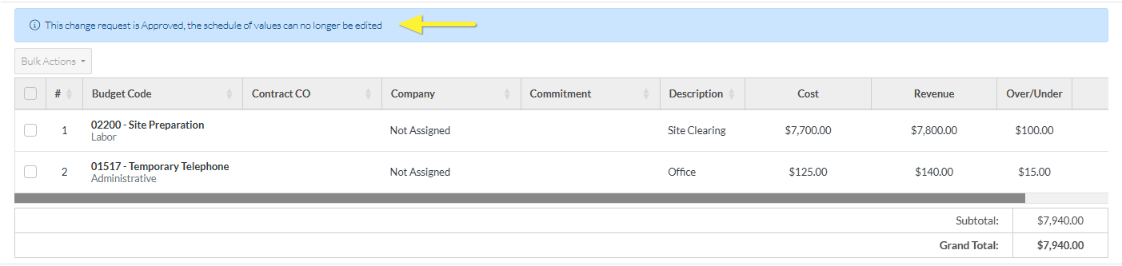
This change request is Approved, the schedule of values can no longer be edited
The Schedule of Values can only be maintained for Change Requests in certain statuses. If the Schedule of Values is Approved, it can't be changed. Note* The Status can be changed while creating the Schedule of Values and if it is changed to Approved the current display is updated to reflect the functionality available with the new Status.
A message displays at the top of the Schedule of Values component indicating this.
Some function buttons don't display nor does the Accounting Method display and none of the Line Items can changed or deleted or new line items added directly from this form.
Note* Line Items can still be created on Contract Change Orders, Commitments or Commitment Change Orders and/or RFQs can be sent through the Bulk Actions function. See Change Request - Add/Edit - Bulk Actions.
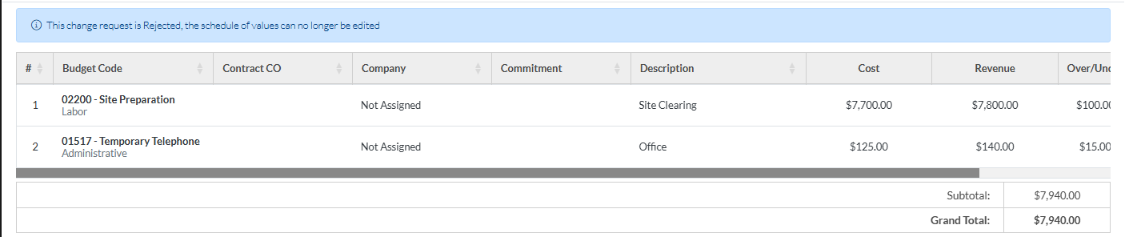
This change request is Rejected (Void), the schedule of values can no longer be edited
Schedule of Values can only be maintained for items in certain statuses. If the Schedule of Values is Void or Rejected, it can't be changed.
A message displays at the top of the Schedule of Values component indicating this.
No function buttons display nor does the Accounting Method and none of the Line Items can changed or deleted or new line items added directly from this form.
Totals Section
Each Schedule of Values has a Totals section:
- Subtotal
- Taxes (if applicable)
- Grand Total

The Subtotal is the Subtotal of all the Line Items which is the Amount (or Unit Price x quantity) plus the Financial Markups if applicable).
The Taxes are the total of all Taxes for all Line Item. The Tax columns on the Schedule of Values Line Items displays only when Tax Codes have been setup by the System Administrator (see Settings - Tax Codes for more information).
The Grand Total is the Subtotal plus Taxes.
This information is automatically calculated. As Line Item values are entered it automatically updates to reflect the information (but the form has to be saved to retain the changes).
Next Steps
Set the Default Accounting Method for the Schedule of Values, see Schedule of Values - Accounting Method.
Add a Schedule of Values Line Item, see Change Request - Schedule of Values - Add Line Item.
Bulk Import Schedule of Values Line Items, see Change Requests - Schedule of Values - Import.
Edit a Schedule of Values Line Item before the Line Item has been saved, see Change Request - Schedule of Values - Edit Line Item (before Save).
Edit a Schedule of Values Line Item after the Line Item has been saved, see Change Request - Schedule of Values - Edit Line Item (after Save).
Delete a Schedule of Values Line Item, see Change Request - Schedule of Values - Delete Line Item.
To create the Schedule of Value Line Item(s) automatically on a Contract Change Order, Commitment or Commitment Change Order and create an association to this Line Item, see Change Request - Schedule of Values - Bulk Actions.
