Change Request - Schedule of Values - Line Item - Cost Type
 Updated
Suggested Prior Reading
Change Request - Schedule of Values - Add Line Item
OR
Change Request - Schedule of Values - Edit Line Item (before Save)
OR
Change Request - Schedule of Values - Edit Line Item (after Save)
Cost Types
Cost Types always display and are always required for each Line Item.
Cost Types must be setup and if required associated with Cost Codes before Line Items can be created. See Cost Codes - Overview and Settings - Cost Codes (and Cost Types) for more information.
Cost Codes must be entered before Cost Types are entered.
Note* How columns display for the Line Items on the Schedule of Values display depends on various factors, see Change Request - Schedule of Values – Layout and Navigation.
Cost Types are linked to the Budget. Either Budgeted or Un-Budgeted Cost Types can be selected. If the Cost Type is Un-Budgeted and the Schedule of Values is saved, a new line item will be automatically be created on the Budget with that Cost Type (and the Sub Job (if used) and Cost Type) as an Un-Budgeted Line Item. It can then be edited and set to Budgeted once it is reviewed and approved.
Cost Types are entered during the add of a new line item or a Cost Type can be changed (but only up until the Schedule of Values form is saved. Once its saved, the Cost Type can't be changed).
If these Line Items are created on new or existing Commitments/Commitment Change Orders or Contract Change Orders, the Cost Type will be copied to those Line Items and can not be changed. See Assign Change Request Line Items to Contracts and Commitments - Overview (Grouped List View) OR Assign Change Request Line Items to Contracts and Commitments - Overview (Simple List View) for more information.
This help covers:
- Entering a Cost Type when adding Line Items
- Changing the Cost Type for existing Line Items (if the Schedule of Values is not yet saved)
- Enter other Line Item Information or Save the Change Request
- Display of Cost Types (after the Schedule of Values has been saved)
- Errors for Cost Types when trying to save
The examples in this help are for Projects without Sub Jobs. For more information on Sub Jobs and how they display, see Change Request - Schedule of Values - Line Item - Sub Job. Whether Sub Jobs are turned on or off, the Cost Type always displays to the right of the Cost Code (as the Cost Code needs to be entered before the Cost Type can be entered). This help applies whether Sub Jobs are turned on or off.
To Enter a Cost Type when adding new Line Items
After the Cost Code is selected the Cost Type column may be automatically selected. See
- Change Request - Schedule of Values - Line Item - Cost Code OR
- Change Request - Schedule of Values - Line Item - Cost Code with Sub Jobs
- If the Cost Type column is not selected, click on it to select it.
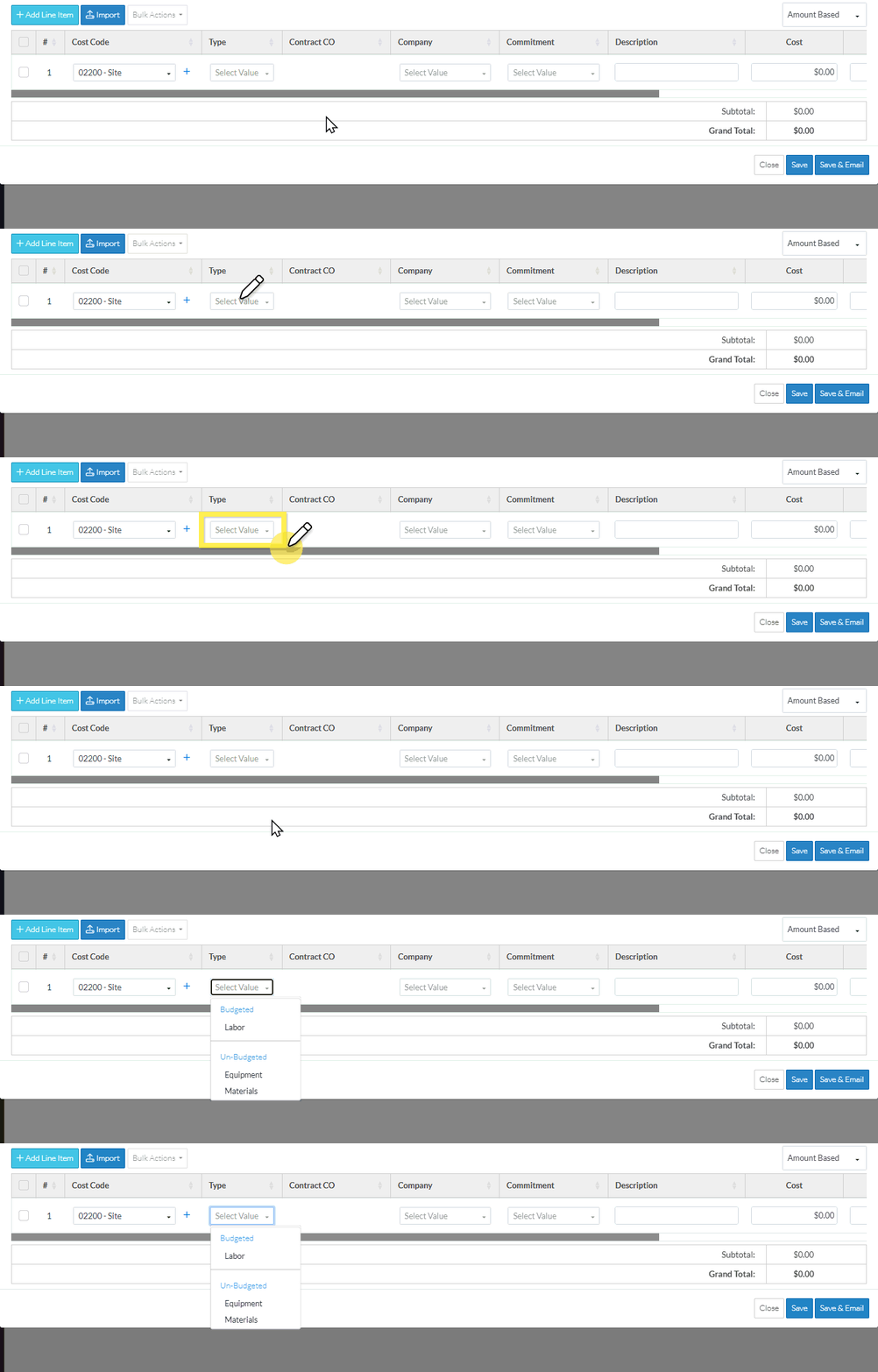
After the Cost Type is selected (either automatically or by clicking on it):
- The Cost Type column is automatically selected and the Cost Type drop down displays.
- The list of Cost Types show only the Cost Types applicable to the Cost Code entered. This could be all Cost Types or a subset of them only.
- The list of Cost Types are separated by Budgeted and Un-Budgeted.
- Budgeted means a line item on the Budget has been already created with that Cost Type
- Un-Budgeted means a line item on the Budget has not been already been created with that Cost Type
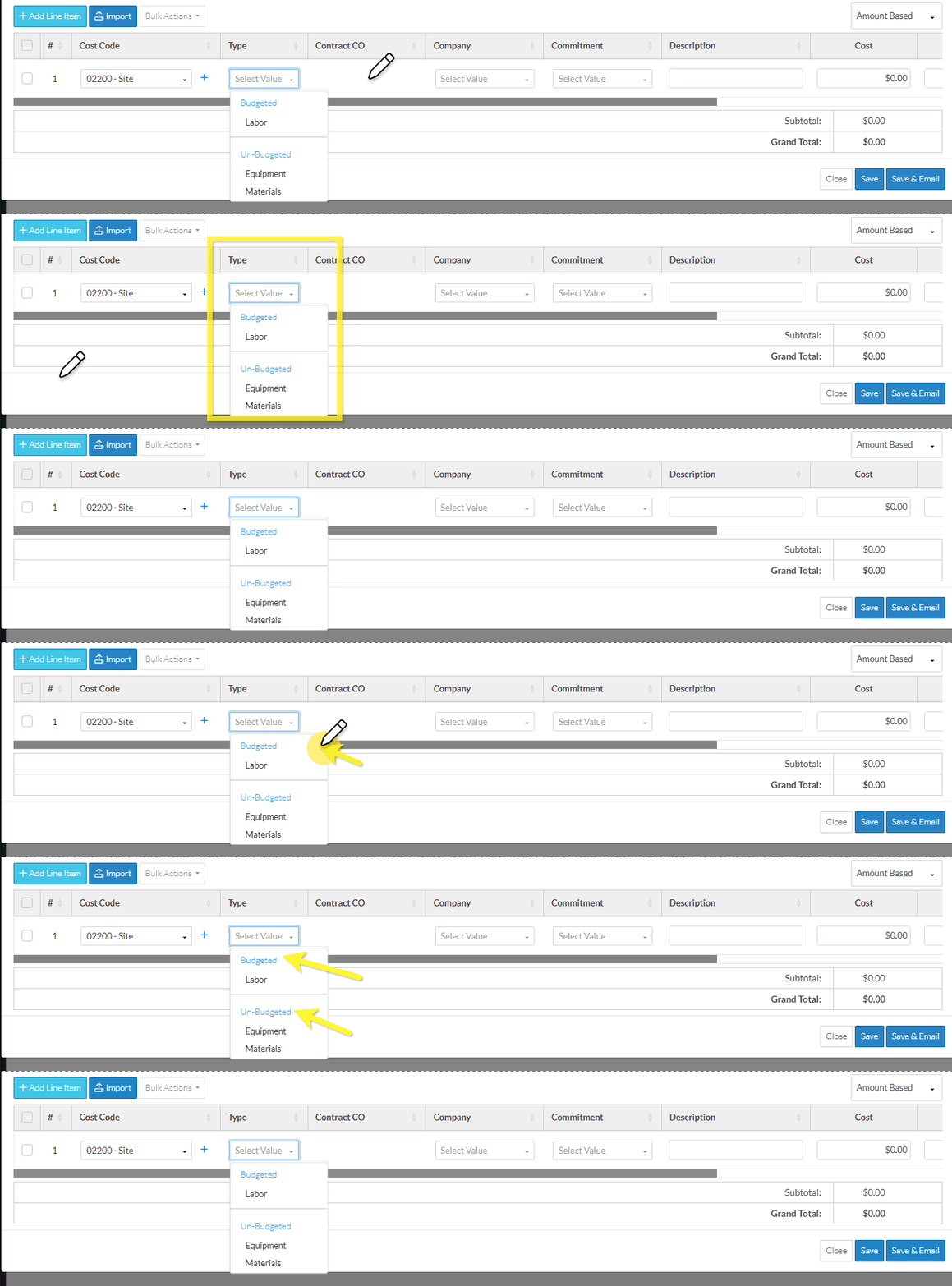
- Click on a Cost Type in the list to select it.
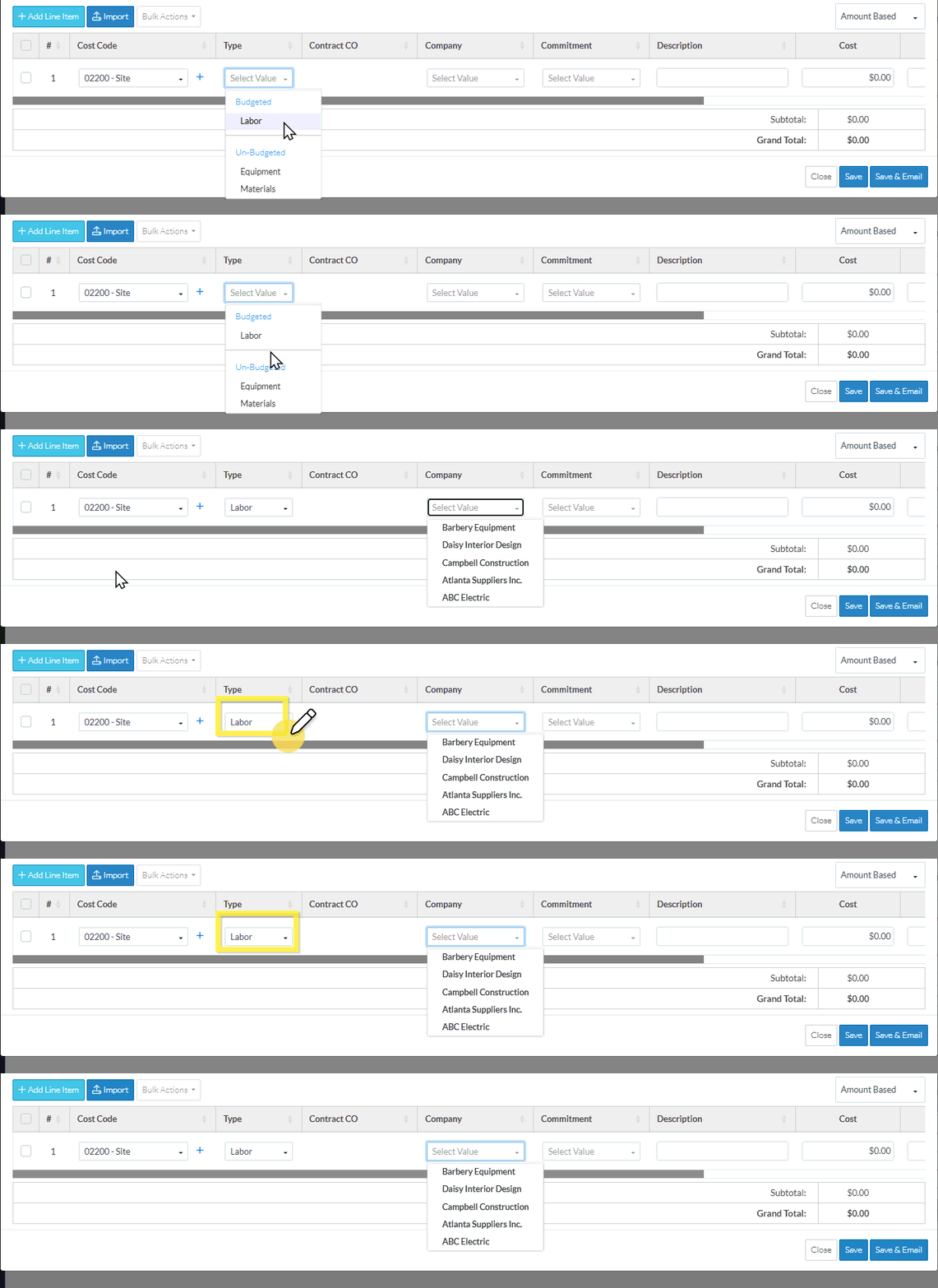
The Cost Type displays and the Company column is automatically selected.
Once the Cost Type and Cost Code (and the Sub Job if using Sub Jobs) are entered, the Schedule of Values can be saved (as the other information is optional). As well, the other information can be edited after the Schedule of Values is saved but the Cost Type, Cost Code and Sub Job (if used) can't be changed after the Save.
To Change the Cost Type for Existing Line Items (if the Schedule of Values is not yet saved)
The Cost Type can be changed as long as the Line Item has not yet been saved.
To change the Cost Type or enter it if left blank (and the Line Item has not been saved), follow the steps above.
Enter other Line Item Information or Save the Change Request
Enter other Line Item Information, see More Information below.
OR
Click the Save  button (at the bottom of the form) to save the Change Request.
Click here for more information on the Save function.
This list the function was invoked from displays. See Next Steps below.
OR
Click the Save & Email  button (at the bottom of the form) to save the Change Request and email it.
Click here for more information on the Save and Email function.
OR
Click the Close  button (at the bottom of the form) to close the form without saving the Change Request.
Click here for more information on the Close function.
If information was changed, then an additional prompt displays indicating there were changes and additional prompts on what to do.
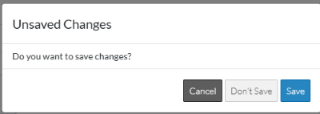
Click the Cancel
 button to cancel the Close action and return to the Change Request View/Edit form (see the steps above)
OR
Click the Don't Save
 button to cancel changes to the Change Request. The list the add or edit function was invoked from displays, see Next Steps below.
OR
Click the Save
 button to save the Change Request including any information on the General, Schedule of Values or Financial Markups components. The list the add or edit function was invoked from displays, see Next Steps below.
Display of Cost Types (after the Schedule of Values has been saved)
During the initial add of the line item (and before the form has been saved), Cost Types are a drop down and they can be clicked in to select the Cost Type (as described above).
After the form is saved, Cost Type (along with Cost Codes and any Sub Jobs) can not be changed as it is associated with a Budget Line item. It is no longer a drop down but is display text. The Line Item would have to be deleted and added to correct any issues (and that can only be done on items with certain Statuses).
The display of the Schedule of Values after the form is saved, differs depending on the Change Request Status (see Change Request - Status for more information).
If the Change Request is in a Status that can still have the Schedule of Values edited, the Cost Type displays in its own column:

If the Change Request is in a Status that can not still have the Schedule of Values edited (such as Approved, Void or Rejected), the Cost Type displays in a column labeled Budget Code (along with the Cost Code on the line above it).

See Change Request - Status for more information.
Errors for Cost Types when trying to save
The Cost Type must be entered before the form can be saved. If the form is saved without entering the Cost Type, it will be highlighted in orange to indicate it is missing.

More Information
Enter other Schedule of Values, Line Item information:
- Contract CO - see Change Request - Schedule of Values - Line Item - Contract CO.
- Company and Commitment - see Change Request - Schedule of Values - Line Item - Company and Commitment.
- Description - see Change Request - Schedule of Values - Line Item - Description.
- Cost - see Change Request - Schedule of Values - Line Item - Cost.
- Revenue - see Change Request - Schedule of Values - Line Item - Revenue.
- Over/Under - see Change Request - Schedule of Values - Line Item - Over/Under.
- Financial Markups - see Change Request - Schedule of Values - Line Item - Financial Markups.
- Tax Codes and Tax, see Change Request - Schedule of Values - Line Item - Tax Code and Tax.
- Subtotal - see Change Request - Schedule of Values - Line Item - Subtotal.
View, add or edit General Change Request information, see Change Request - Add - General OR Change Request - Edit - General.
Review all Financial Markups, see Change Request - Financial Markups - Overview.
If this is an existing Change Request (that was previously added and saved), review and manage RFQs, see RFQs - Overview.
Next Steps
Grouped List View
Click here for next steps for the Change Requests List (Grouped List View)
To create a new Change Request, see Change Requests List - New Change Request (Grouped List View).
To view/edit an existing Change Request, see Change Requests List - Change Request - View/Edit (Grouped List View).
To select Change Request Line Items and create them automatically on Contract Change Orders, Commitments or Commitment Change Orders or Send RFQs, see Change Requests List - Bulk Actions.
To delete a Change Request, see Change Requests List - Change Request - Delete (Grouped List View).
To email a Change Request, see Change Requests List - Change Request - Email (Grouped List View).
To export a single Change Request, see Change Requests List - Change Request - Export (Grouped List View).
To view and manage RFQs, see RFQs - Overview.
To change Settings for the list display, see Change Requests List - Settings (Grouped List View).
To export the full list of Change Requests, see Change Requests Lists - Export (Grouped List View).
Click here for next steps for Contracts - List of all Change Requests (Grouped List View)
To create a new Change Request, see Contracts - List of All Change Requests - New Change Request (Grouped List View).
To view/edit an existing Change Request, see Contracts - List of All Change Requests - Change Request - View/Edit (Grouped List View).
To select Change Request Line Items and create them automatically on Contract Change Orders, Commitments or Commitment Change Orders or Send RFQs, see Contracts - List of all Change Requests - Bulk Actions.
To delete a Change Request, see Contracts - List of All Change Requests - Change Request - Delete (Grouped List View).
To email a Change Request, see Contracts - List of All Change Requests - Email (Grouped List View).
To export a single Change Request, see Contracts - List of All Change Requests - Export (Grouped List View).
To change Settings for the list display, see Contract - List of all Change Requests - Settings (Grouped List View).
To export the full list of Change Requests, see Change Requests Lists - Export (Grouped List View).
Simple List View
Click here for next steps for the Change Requests List
To add a new Change Request, see Change Requests List - New Change Request (Simple List View).
To view/edit an existing Change Request, see Change Requests List - Change Request - View/Edit (Simple List View).
To delete a Change Request, see Change Requests List - Change Request - Delete (Simple List View).
To email a Change Request, see Change Request List - Change Request - Email (Simple List View).
To export a single Change Request, see Change Requests List - Change Request - Export (Simple List View).
To view and manage RFQs, see RFQs - Overview.
To change Settings for the list display, see Change Requests List - Settings (Simple List View).
To export the full list of Change Requests, see Change Requests Lists - Export (Simple List View).
Click here for next steps for Contracts - List of all Change Requests
To add a new Change Request, see Contracts - List of All Change Requests - New Change Request (Simple List View).
To view/edit an existing Change Request, see Contracts - List of All Change Requests - Change Request - View/Edit (Simple List View).
To delete a Change Request, see Contracts - List of All Change Requests - Change Request - Delete (Simple List View).
To email a Change Request, see Contracts - List of All Change Requests - Email (Simple List View).
To export a single Change Request, see Contracts - List of All Change Requests - Export (Simple List View).
To change Settings for the list display, see Contract - List of all Change Requests - Settings (Simple List View).
To export the full list of Change Requests, see Change Requests Lists - Export (Simple List View).
