Change Request - Schedule of Values - Line Item - Subtotal
 Updated
Suggested Prior Reading
Change Request - Schedule of Values - Add Line Item
OR
Change Request - Schedule of Values - Edit Line Item (before Save)
OR
Change Request - Schedule of Values - Edit Line Item (after Save)
Subtotal
The Subtotal column on the Change Request Schedule of Values is an automatically calculated column.
It displays the Revenue plus any markup amounts that display on the Line Item.
Note* How columns display for the Line Items on the Schedule of Values display depends on various factors, see Change Request - Schedule of Values – Layout and Navigation.

Continue to maintain the Schedule of Values
The Schedule of Values can continue to be maintained in this session or it can be saved and the session ended (see below).
- To add a Line Item, see Schedule of Values - Add Line Item.
- To change a Line Item that was entered during this session and has not yet been saved, see Schedule of Values - Edit Line Item (before Save).
- To change a Line Item that was entered and saved in a previous session, see Schedule of Values - Edit Line Items (after Save).
- To bulk Import Line Items, see Schedule of Values - Import.
- To perform Bulk Actions, see Change Request - Schedule of Values - Bulk Actions.
- Delete a Line Item, see Schedule of Values - Delete Line Item.
Enter other Change Request Information or Save the Change Request (and end this session)
Enter other Change Request Information, see More Information below.
OR
Click the Save  button (at the bottom of the form) to save the Change Request.
Click here for more information on the Save function.
This list the function was invoked from displays. See Next Steps below.
OR
Click the Save & Email  button (at the bottom of the form) to save the Change Request and email it.
Click here for more information on the Save and Email function.
OR
Click the Close  button (at the bottom of the form) to close the form without saving the Change Request.
Click here for more information on the Close function.
If information was changed, then an additional prompt displays indicating there were changes and additional prompts on what to do.
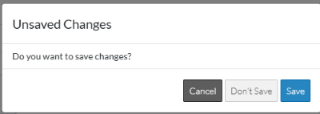
Click the Cancel
 button to cancel the Close action and return to the Change Request View/Edit form (see the steps above)
OR
Click the Don't Save
 button to cancel changes to the Change Request. The list the add or edit function was invoked from displays, see Next Steps below.
OR
Click the Save
 button to save the Change Request including any information on the General, Schedule of Values or Financial Markups components. The list the add or edit function was invoked from displays, see Next Steps below.
More Information
View, add or edit General Change Request information, see Change Request - Add - General OR Change Request - Edit - General.
Review all Financial Markups, see Change Request - Financial Markups - Overview.
If this is an existing Change Request (that was previously added and saved and is not Void or Rejected), review and manage RFQs, see RFQs - Overview.
Next Steps
Grouped List View
Click here for next steps for the Change Requests List (Grouped List View)
To create a new Change Request, see Change Requests List - New Change Request (Grouped List View).
To view/edit an existing Change Request, see Change Requests List - Change Request - View/Edit (Grouped List View).
To select Change Request Line Items and create them automatically on Contract Change Orders, Commitments or Commitment Change Orders or Send RFQs, see Change Requests List - Bulk Actions.
To delete a Change Request, see Change Requests List - Change Request - Delete (Grouped List View).
To email a Change Request, see Change Requests List - Change Request - Email (Grouped List View).
To export a single Change Request, see Change Requests List - Change Request - Export (Grouped List View).
To view and manage RFQs, see RFQs - Overview.
To change Settings for the list display, see Change Requests List - Settings (Grouped List View).
To export the full list of Change Requests, see Change Requests Lists - Export (Grouped List View).
Click here for next steps for Contracts - List of all Change Requests (Grouped List View)
To create a new Change Request, see Contracts - List of All Change Requests - New Change Request (Grouped List View).
To view/edit an existing Change Request, see Contracts - List of All Change Requests - Change Request - View/Edit (Grouped List View).
To select Change Request Line Items and create them automatically on Contract Change Orders, Commitments or Commitment Change Orders or Send RFQs, see Contracts - List of all Change Requests - Bulk Actions.
To delete a Change Request, see Contracts - List of All Change Requests - Change Request - Delete (Grouped List View).
To email a Change Request, see Contracts - List of All Change Requests - Email (Grouped List View).
To export a single Change Request, see Contracts - List of All Change Requests - Export (Grouped List View).
To change Settings for the list display, see Contract - List of all Change Requests - Settings (Grouped List View).
To export the full list of Change Requests, see Change Requests Lists - Export (Grouped List View).
Simple List View
Click here for next steps for the Change Requests List
To add a new Change Request, see Change Requests List - New Change Request (Simple List View).
To view/edit an existing Change Request, see Change Requests List - Change Request - View/Edit (Simple List View).
To delete a Change Request, see Change Requests List - Change Request - Delete (Simple List View).
To email a Change Request, see Change Request List - Change Request - Email (Simple List View).
To export a single Change Request, see Change Requests List - Change Request - Export (Simple List View).
To view and manage RFQs, see RFQs - Overview.
To change Settings for the list display, see Change Requests List - Settings (Simple List View).
To export the full list of Change Requests, see Change Requests Lists - Export (Simple List View).
Click here for next steps for Contracts - List of all Change Requests
To add a new Change Request, see Contracts - List of All Change Requests - New Change Request (Simple List View).
To view/edit an existing Change Request, see Contracts - List of All Change Requests - Change Request - View/Edit (Simple List View).
To delete a Change Request, see Contracts - List of All Change Requests - Change Request - Delete (Simple List View).
To email a Change Request, see Contracts - List of All Change Requests - Email (Simple List View).
To export a single Change Request, see Contracts - List of All Change Requests - Export (Simple List View).
To change Settings for the list display, see Contract - List of all Change Requests - Settings (Simple List View).
To export the full list of Change Requests, see Change Requests Lists - Export (Simple List View).
