Purchase Order – View/Maintain - Form Layout
 Updated
Suggested Prior Reading
Viewing/Maintaining a Purchase Order
When viewing an existing Purchase Order, the Purchase Order - View/Maintain form displays (see Commitment - View to access the form).
This is help on the layout of the Purchase Order - View/Maintain form.
The layout and whether information can be viewed or edited on the Purchase Order - View/Maintain form depends on:
- The Permissions the User has been granted on Commitments (i.e. View Only, Add, Edit of the General information, Edit of the Schedule of Values or Admin permissions)
- The Permissions the User has been granted on:
- Commitment Change Orders (can they at least view Commitment Change Orders)
- Payable Invoices (can they at least view Payable Invoices)
- The Status of the Purchase Order
For help on navigating the Purchase Order - View/Maintain form, see Purchase Order – View/Maintain - Form Navigation.
Overview of the Purchase Order View/Maintain Form Layout
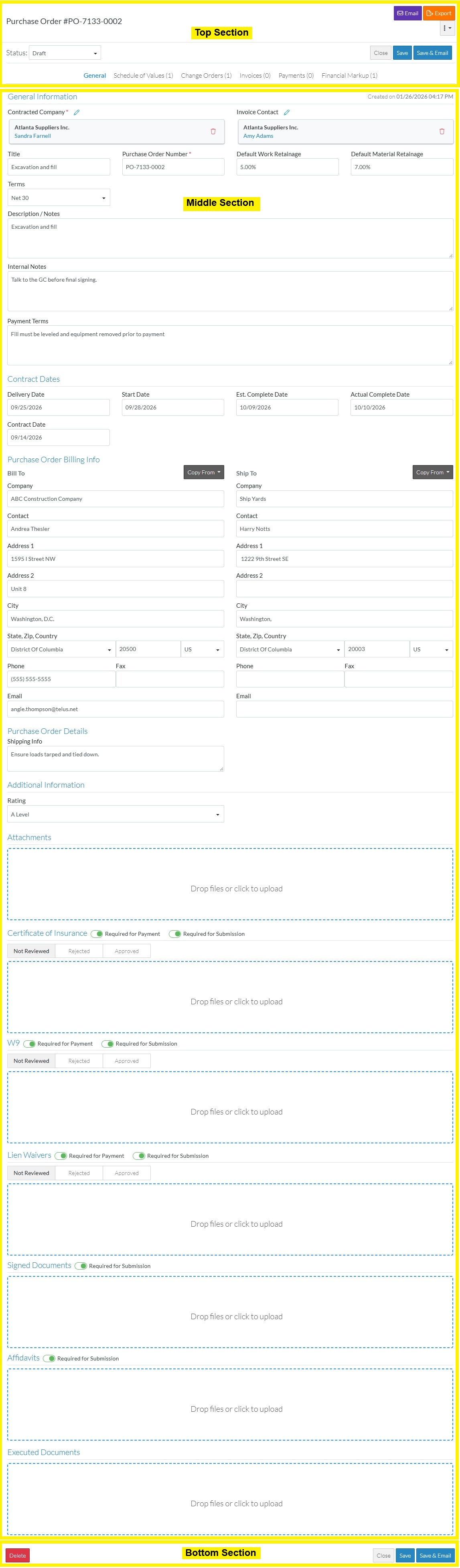
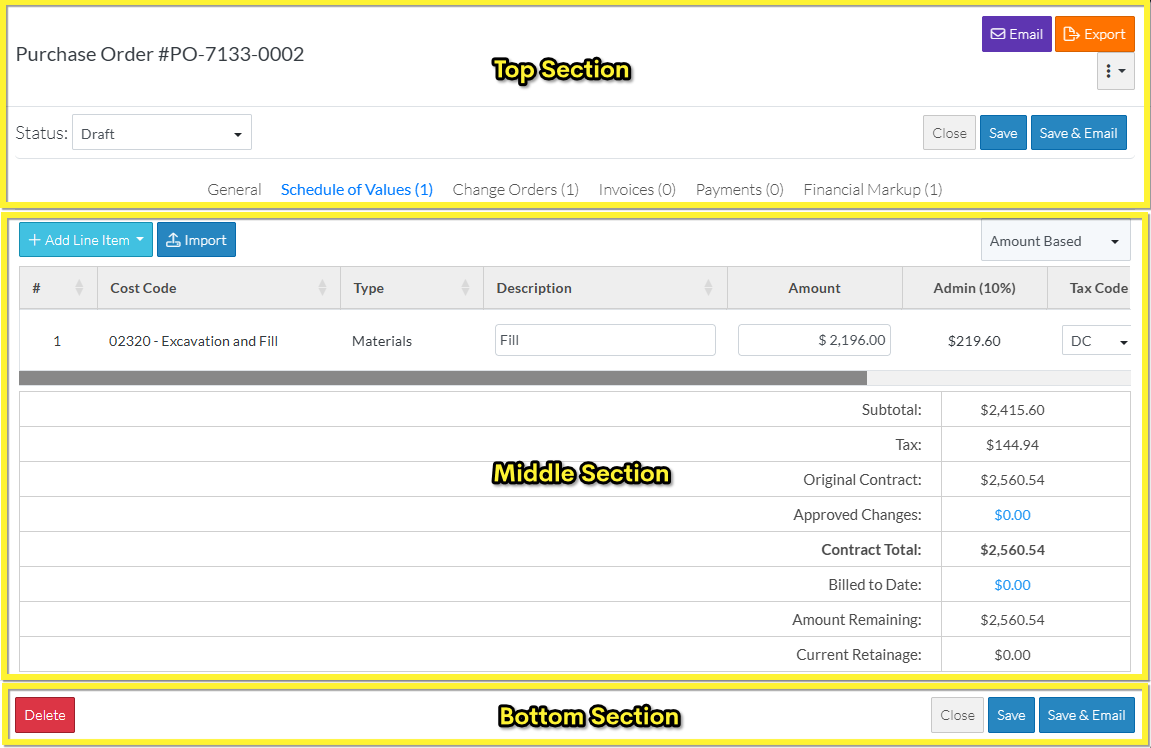
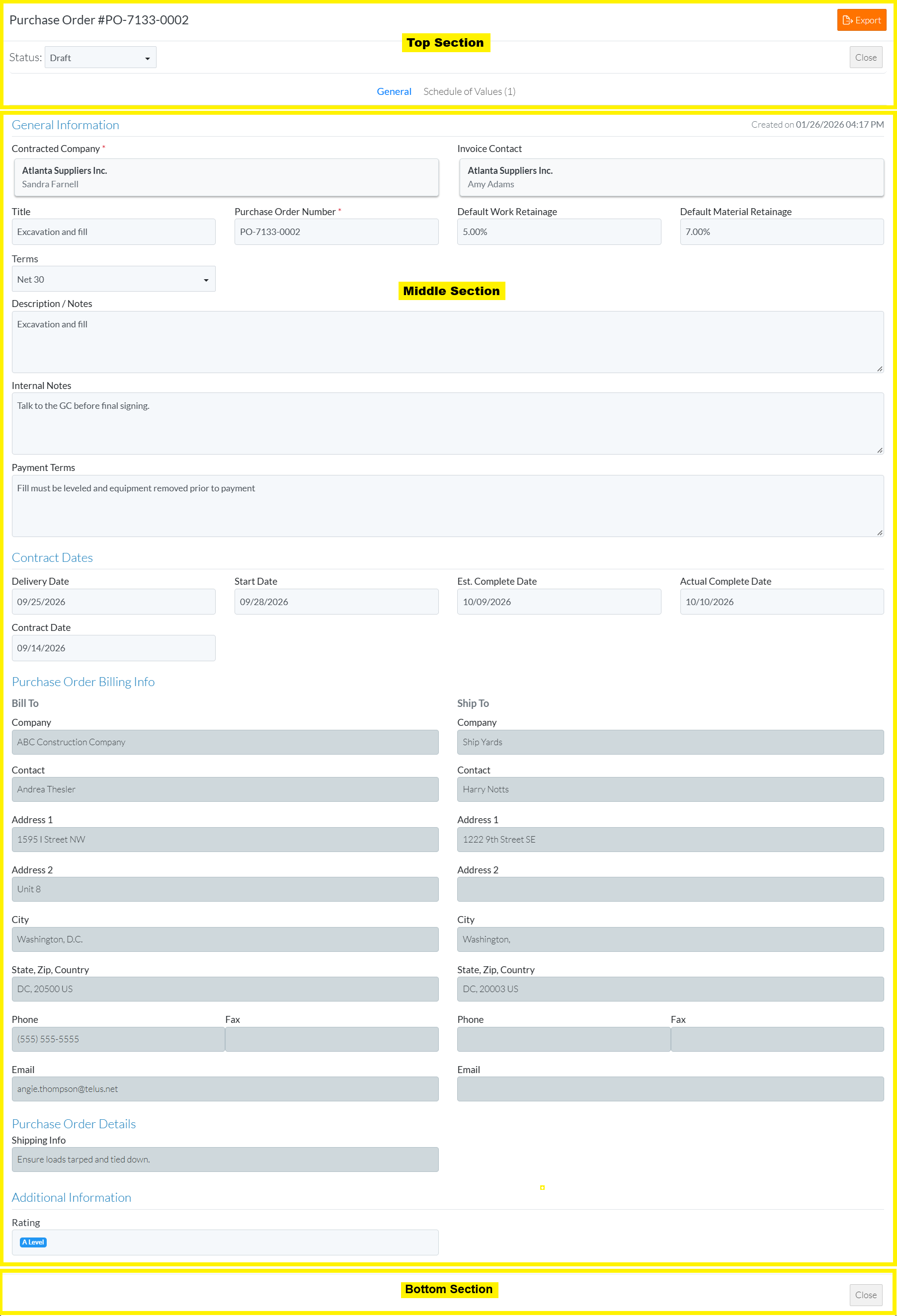
The Purchase Order - View/Maintain Form is divided into three sections:
- Top section
- Middle section
- Bottom section
The middle section changes depending on what Purchase Order Component is selected to display.
The top section and the bottom section don't change for the User except if the Purchase Order Status is changed and it impacts the functions available.
Click here for an example of the sections of the form with the General Component displayed for a User with Admin permissions for Commitments and at least View access to Commitment Changes Orders or Payable Invoices and the Purchase Order is in a Status that can be deleted
Click here for an example of the sections of the form with the Schedule of Values Component displayed for a User with Admin permissions for Commitments and at least View access to Commitment Changes Orders or Payable Invoices and the Purchase Order is in a Status that can be deleted
Click here for an example of the sections of the form with the General Component displayed for a User with View Only permissions for Commitments and no permissions to Commitment Changes Orders or Payable Invoices
Click here for an example of the sections of the form with the Schedule of Values Component displayed for a User with View Only permissions for Commitments and no permissions to Commitment Changes Orders or Payable Invoices
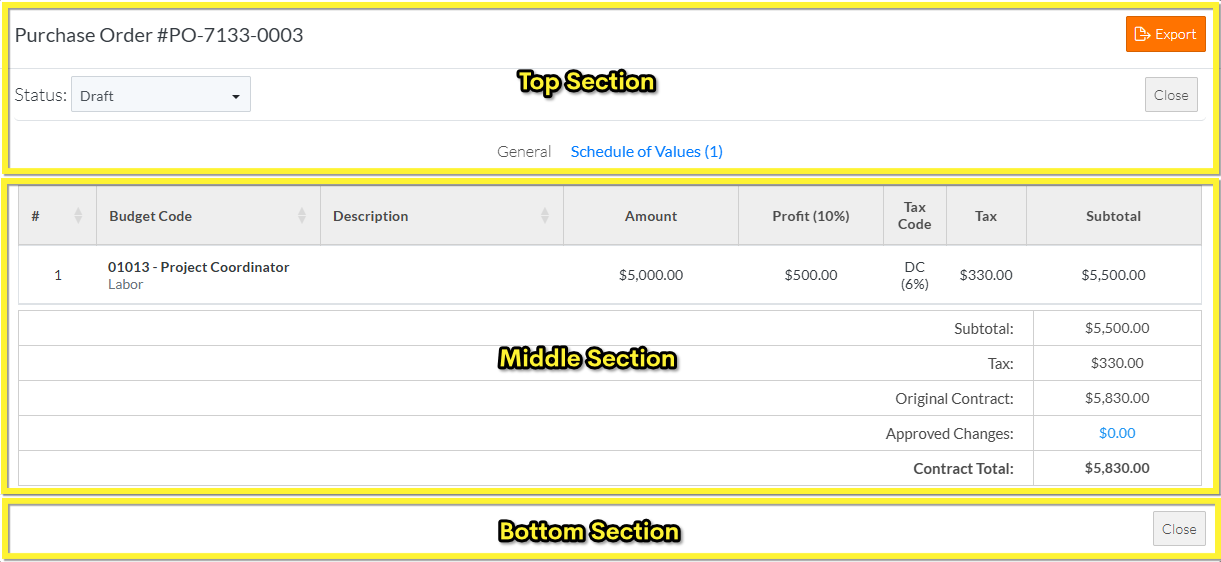
Top Section
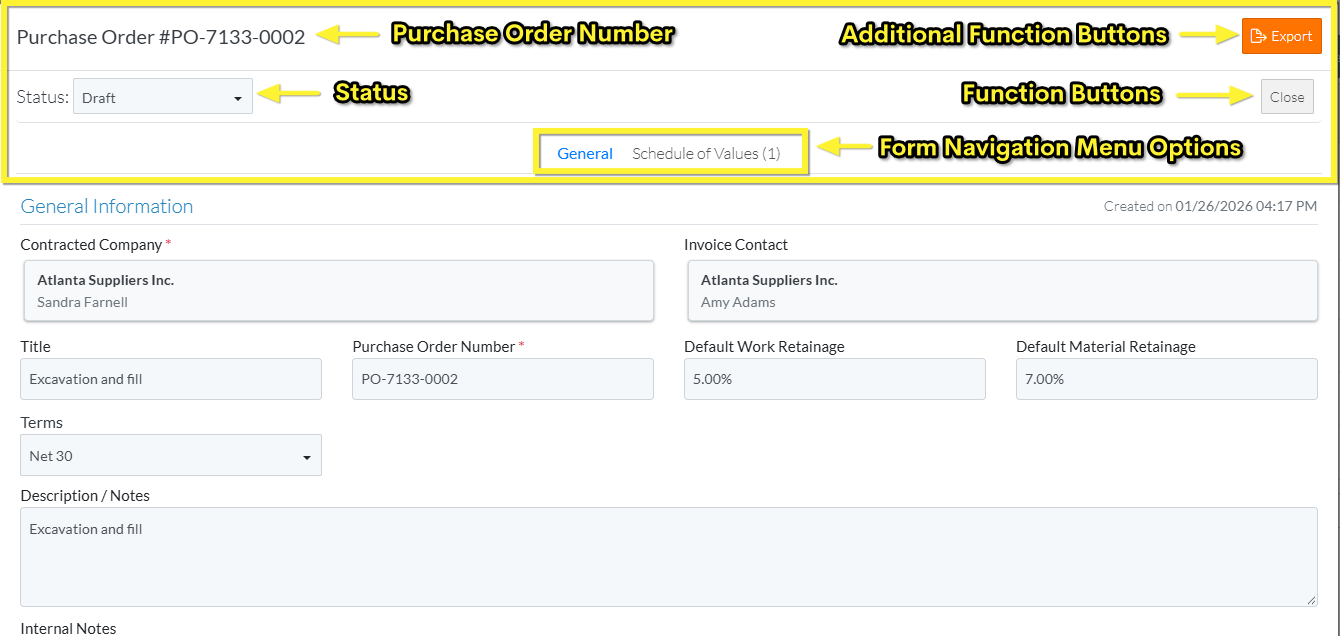
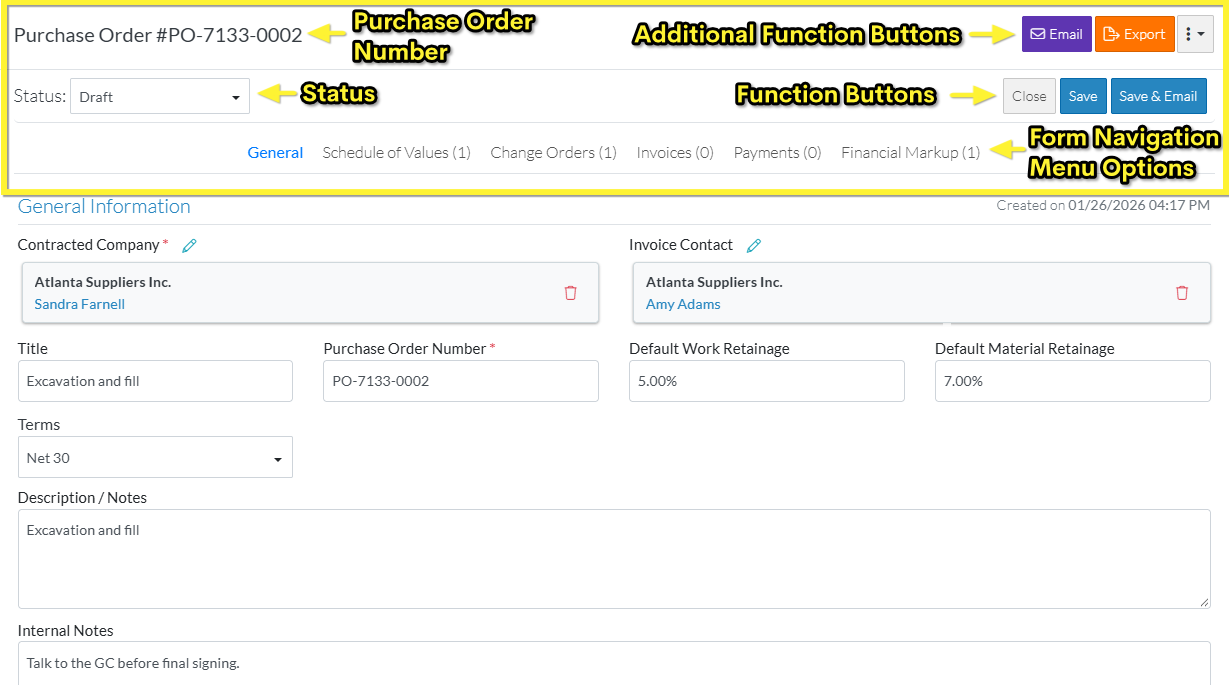
The top section of the form always displays:
- The Purchase Order Number
- The Status
- Additional Function Buttons
- Function Buttons
- Form Navigation Menu Options
The Purchase Order number always displays the same, however the other parts on the top section will differ depending on permissions and the Purchase Order Status:
Part | Display and Functionality |
Status | If a User does not have Admin permission on Commitments - the Status is display only and can not be changed. If a User does have Admin permission on Commitments - the Status is a display and drop down. It displays the current Status but it can be clicked on to change the Status. See Purchase Order - View/Maintain - Status for more information. |
Additional Function Buttons | Used to additional functions for the Purchase Order. All Users can
Admin Users can:
|
Function Buttons | Used to Close the Purchase Order form, Save the Purchase Order or Save and Email the Purchase Order All Users can
Add, Edit or Edit SOV users can:
Admin Users have all the above functionality plus:
|
Form Navigation Menu Options | Are used to display which component is currently selected and to switch between components of the Purchase Order that are displayed in the middle section. All Users can:
Users with at least View permissions on Commitment Change Orders can:
Users with at least View permissions on Payable Invoices can:
|
 - the Purchase Order information to a PDF
 the Purchase Order – send an email with a link to the Purchase Order information
 - a drop down to view additional information about the Purchase Order such as History
 the form
 the Purchase Order
 - save the Purchase Order and then send an email with a link to the Purchase Order information
Click here for an example of the top section of the form with the General Component displayed for a User with View Only permissions to Commitments and no access to Commitment Changes Orders or Payable Invoices
Click here for an example of the top section of the form with the General Component displayed for a User with Admin permissions to Commitments and at least view access to Commitment Changes Orders or Payable Invoices
Middle Section
The middle section changes depending on what Purchase Order component is selected to display.
There are two Components that always display for a Purchase Order:
- General (such as the Contracted Company, Title, Description, Dates etc.).
- For overall information on the Purchase Order General component, see Purchase Order - View/Maintain - General Component (Overview).
- If a User has View Only permissions on Commitments, see Purchase Order - View/Maintain - General Component - View (Examples & Steps).
OR
If a User has Edit or Admin permissions on Commitments, see Purchase Order - View/Maintain - General Component - Edit (Examples & Steps).
- Schedule of Values (the details about the Contract). See Commitment - Schedule of Values (Overview).
Other Components may also be available to display depending on permissions;
- Financial Markups. See Commitment - Financial Markups (Overview).
- Change Orders. See List of Change Orders for a specific Commitment.
- Invoices. See List of Invoices for a specific Commitment.
- Payments. See List of Payments for a specific Commitment.
The Component that is currently displayed is highlighted in the Form Navigation Menu Options. The Form Navigation Menu Options are also used to toggle between components displayed. See Purchase Order – View/Maintain - Form Navigation for more information.
Bottom Section
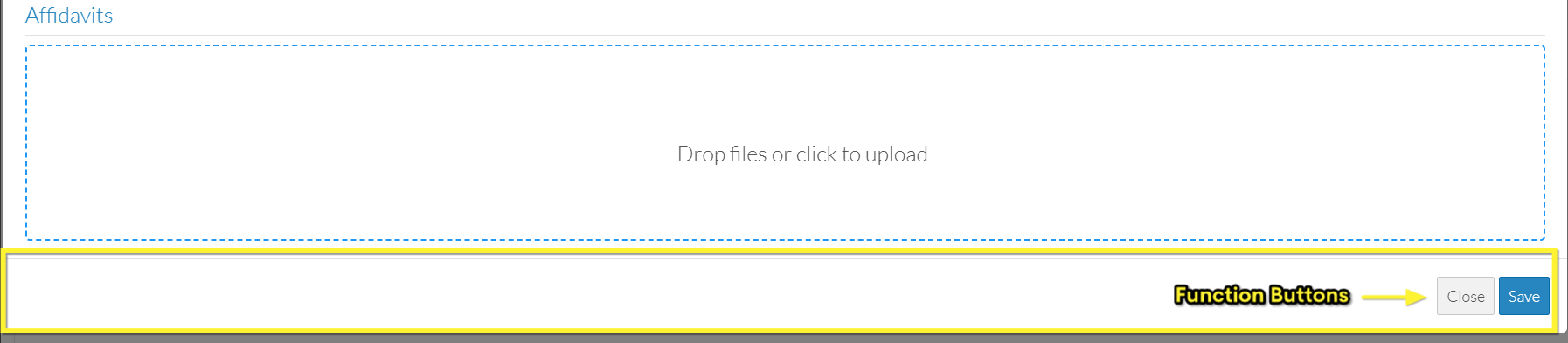
The bottom section of the Purchase Order View/Maintain has the same Functions Buttons as the top of the form, (i.e. to Close the Purchase Order form, Save the Purchase Order or Save and Email the Purchase Order) for easy access as the form may be lengthy.
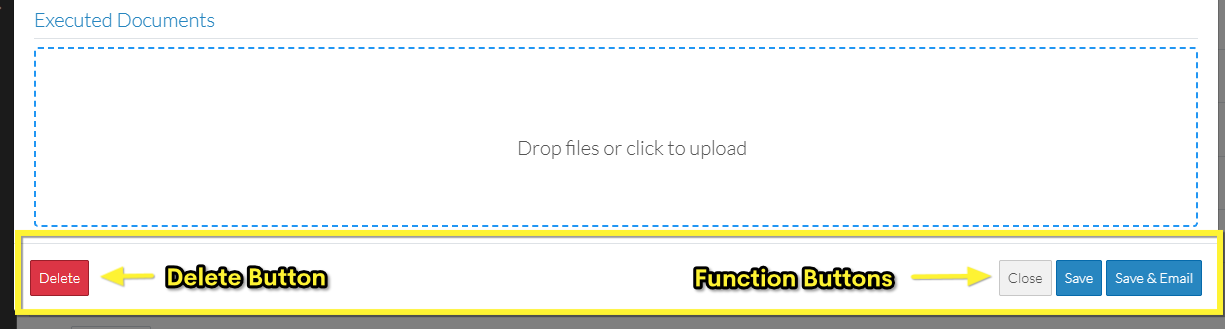
There may also be an additional Delete  button if the User has delete permissions and the Purchase Order is in a Status the enables deleting.
Click here for an example of the bottom section of the General component for a User with View Only or Edit permissions to Commitments
Click here for an example of the bottom section of the General component for a User with Admin permissions to Commitments