Contract Change Order - Financial Markups - Maintain - Layout and Navigation
 Updated
Suggested Prior Reading
Contract Change Order - Financial Markups
Contract Change Order - Financial Markups - Maintain
Contract Change Order - Financial Markup - Maintain - Layout and Navigation
The Financial Markups is a component that displays on the Contract Change Order form during the edit of an existing Contract Change Order.
Click here for more information on the ways to initiate the edit of an existing Contract Change Order
From the Contracts - List of All Change Orders, see Contracts - List of All Change Orders - View/Edit
From the Contract Specific Change Orders List, see Contract Specific Change Orders List - View/Edit
If the Grouped List view is turned on (see Change Requests - Multiple Lists and Views):
From the Change Requests List, see Change Requests List - Change Request - View/Edit (Grouped List View)
From the Contracts - List of all Change Requests, see Contracts - List of all Change Requests - Change Request - View/Edit (Grouped List View)
The Contract Change Order View/Edit form displays with the General Component selected.
The Financial Markup for items are accessed through the Form Navigation Menu Options and by clicking on the Financial Markups text on the menu item. The number of Financial Markup entered is displayed in brackets next to the text for quick reference.
When the Financial Markups option is selected, the Financial Markups component is displayed in the middle section of the form.
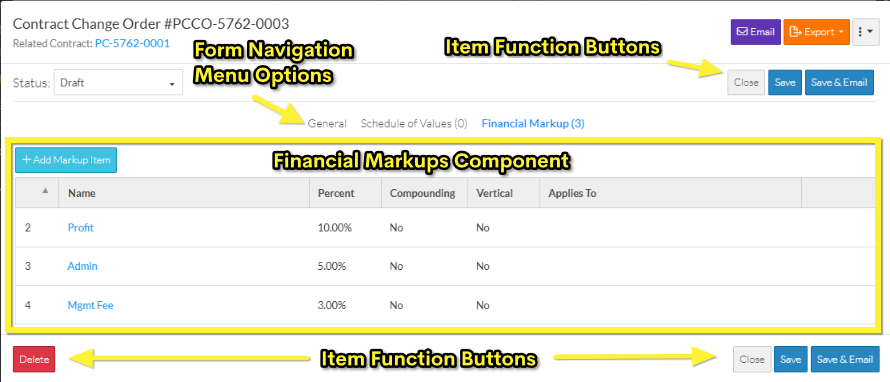
For information on the overall layout of the Contract Change Order View/Edit form, including the Form Navigation Menu Options and the Item Function Buttons, see Contract Change Order – Edit - Form Layout and Navigation for more information.
The Financial Markups component is a list of all the Financial Markups. It is where
- Financial Markup can be added
- Financial Markup can be edited
- Financial Markups can be copied from the Contract.
- Financial Markups can have their order changed for display and/or compounding order
- Financial Markups can be deleted
None of the changes are actually saved for the Financial Markups, until the entire Contract Change Order is saved. This is done via the Item Function Buttons that appear at both the the top and bottom of the form (for easy access). While Financial Markups are being added, edited or deleted and before the entire item is saved, this is considered a working session. The Save or Save & Email Item Function Buttons must be used to save the entire item and includes saving the Financial Markups. The Save or Save & Email Item Function Buttons apply to the entire item, not just the Financial Markups Component; they can be invoked from any component and will save all information on all Components.
The Financial Markups component display will differ depending on different circumstances:
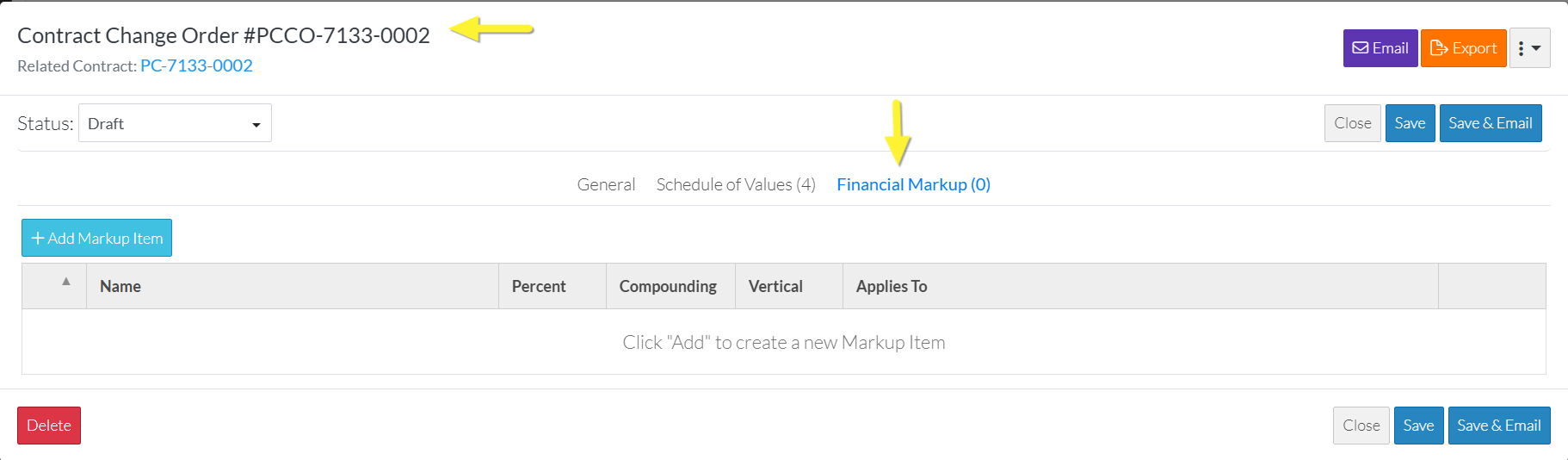
No Financial Markups are displayed in the list and there are no Financial Markups on the Contract
If the Financial Markups list is blank and no Financial Markups have been setup for the Contract, then the Financial Markup Component would appear as outlined in the above example (with a blank list and no messages line).
Click here for an example
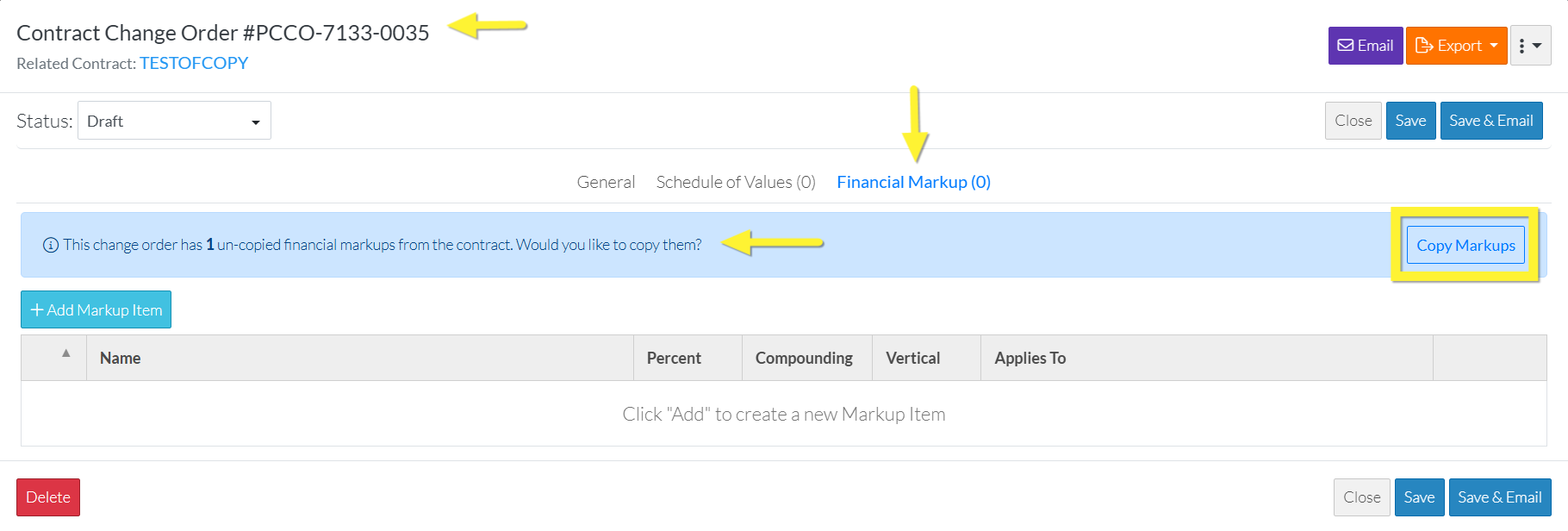
No Financial Markups are displayed in the list and there are Financial Markups on the Contract
If the Financial Markups list is blank and there are Financial Markups on the Contract and they have not all been copied to the Contract Change Order Financial Markup Component, a blue message bar displays indicating that and with an option to Copy the Markups. See Contract Change Order - Financial Markups - Copy from Contract for more information.
Click here for an example where there are Financial Markups on the Contract but no Financial Markups have been created
Financial Markups displayed in the list
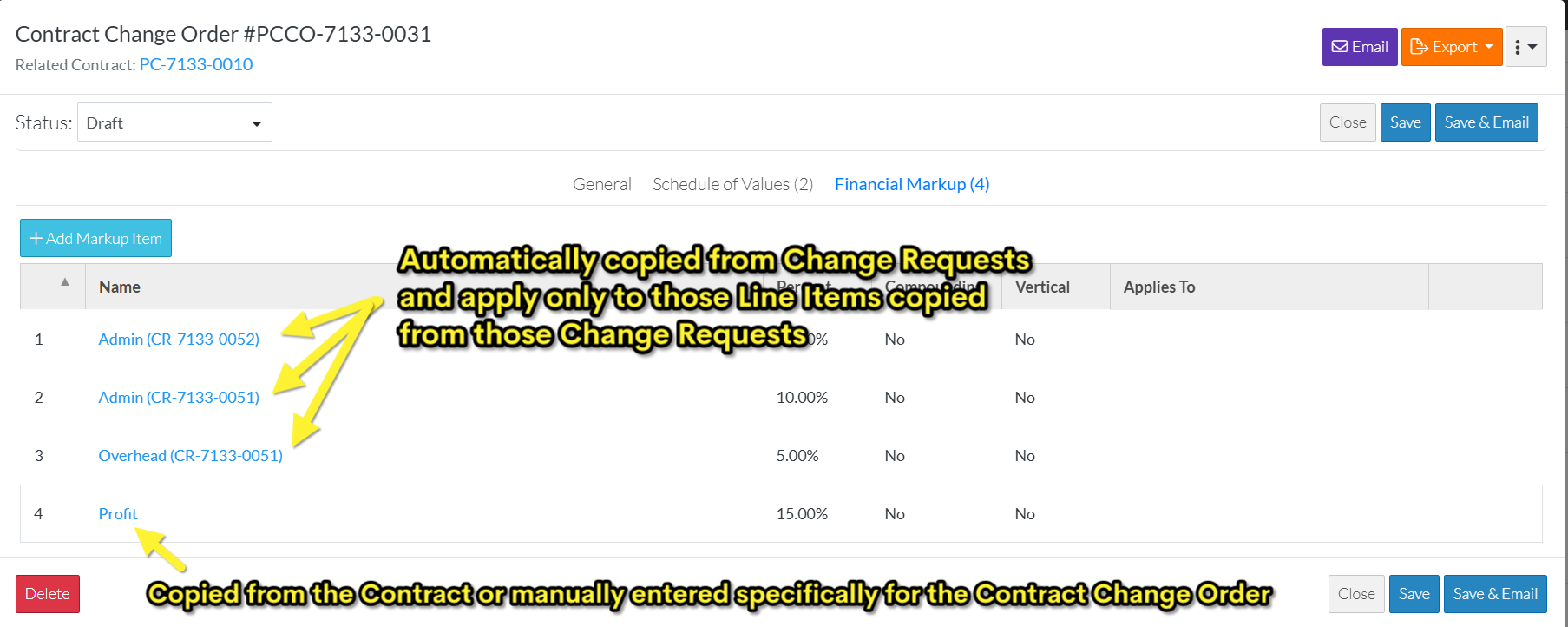
If Financial Markups have already been created for the Contract Change Order, they will display in the list.
How they display depends on different circumstances.
- If the Financial Markup displays just the Name in the Name column, it indicates it was either copied from the Contract or manually entered specifically for the Contract Change Order. These can be edited or deleted as long as the Contract Change Order is in a status that enables changes (see Contract Change Order - Status).
- If the Financial Markup displays with the Name followed by the Change Request in brackets, it indicates it was automatically copied from the Change Request and only applies to those Line Items created from that Change Request. These can not be edited. They can only be deleted.
Click here for examples of the Financial Markups and how they display
Contract Change Order Status Impact on Financial Markups
The Financial Markups for a Contract Change Order can only be added, edited or deleted if the Contract Change Order is in a Status that enables editing. See Contract Change Orders – Status for more information.
When the Financial Markups can't be edited, a message appears in a blue bar on the Financial Markups Component.
The Status of the Change Order is displayed (Approved, Rejected, Void) and a message shows that it can no longer be edited.
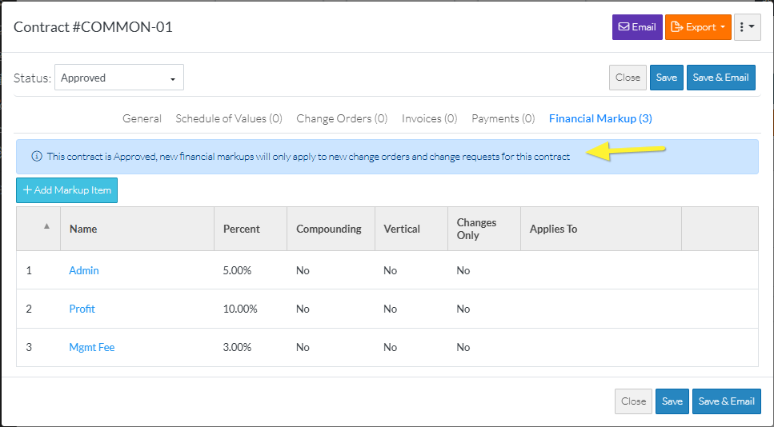
Note* If the Financial Markup has been copied from a Change Request it can not be edited, it is view only, regardless of the Contract Change Order status. However it can be deleted.
Next Steps
See Contract Change Order - Financial Markups - Maintaining.
