Contract Change Order - Financial Markups - Copy from Contract During Contract Change Order Creation
 Updated
Suggested Prior Reading
Contract Change Order - Financial Markups - Copy from Contract
Copy the Financial Markups From the Contract during the Contract Change Order Creation
This is help for copying the Financial Markups from the Contract to the Contract Change Order during the creation of the Contract Change Order.
- If required, Initiate the add of a new Contract Change Order, see Contract - New Change Order.
The New Contract Change Order form displays (see Contract Change Order – Add - Form Layout and Navigation for more information on the form).
The required fields on the General component need to be entered before the Contract Change Order can be saved. This can be done before or after the Financial Markups are created. See Contract Change Order - General. - Click on the Financial Markups on the Form Navigation Menu Options
OR
Click on the Schedule of Values on the Form Navigation Menu Options
If there were Financial Markups on the Contract and they have not yet been copied to the Contract Change Order, a blue message bar displays on the Schedule of Values or the Financial Markup Component, that there are uncopied financial markups from the Contract and are there is an option to copy them to this Contract Change Order. - To copy the Financial Markups from the Contract, click the
 button on the blue message line on either component.
Financial Markups Component
The following is an example of the Copy function on the Financial Markup component.
After the copy has been invoked, the Financial Markups component will be populated with all the Contract Financial Markups.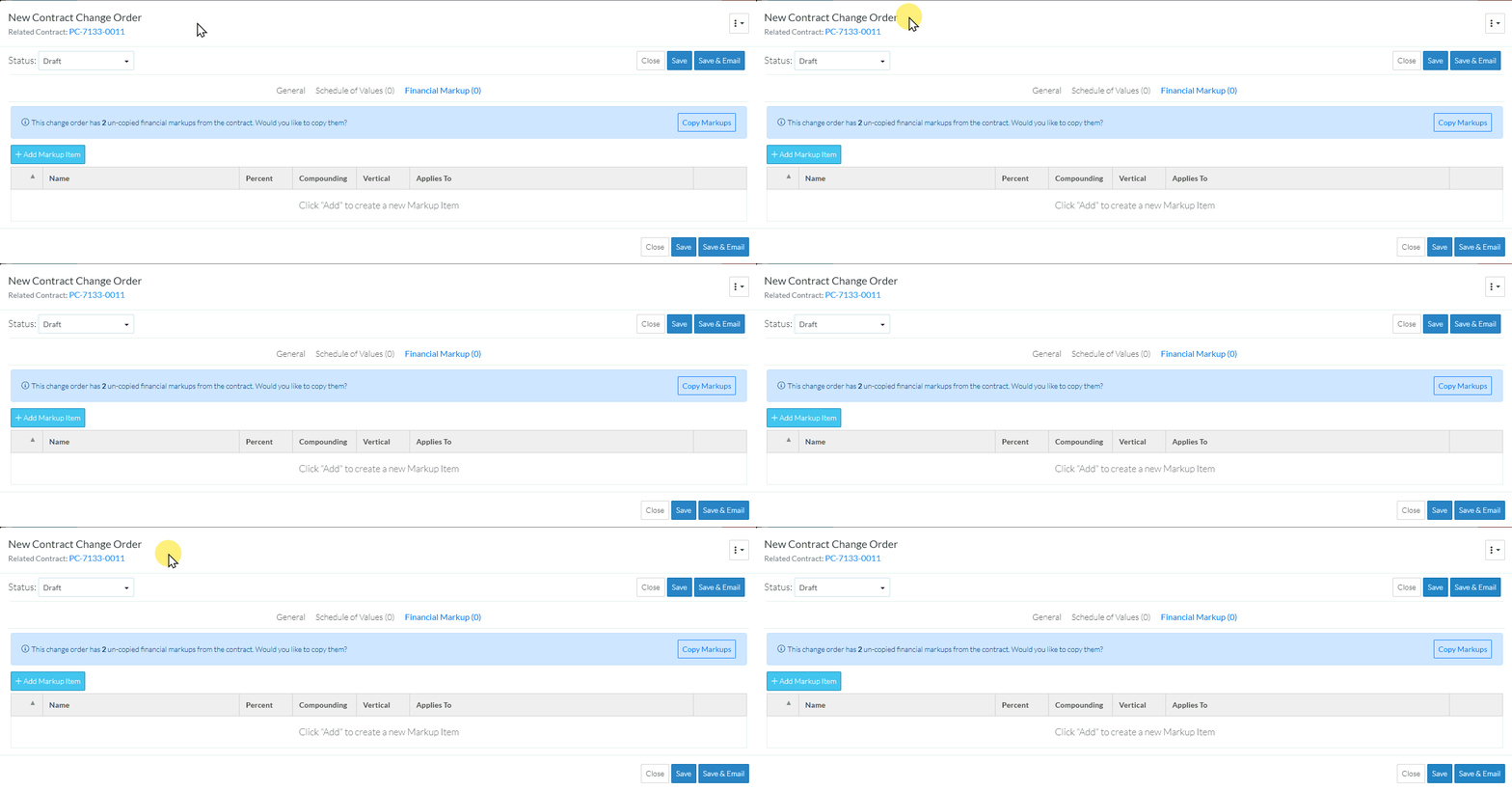
- Optionally, click on the Schedule of Values component to view how the Financial Markups display.
The display will depend on how the Financial Markups were setup, see Financial Markup - Calculation and Display for more information.
The above example displays Financial Markups set in a horizontal mode (i.e. display as a column on each Line Item).
The following is an example of the Copy function on the Schedule of Values component.
After the copy has been invoked from this component, the Schedule of Values will be updated to display the copied Financial Markups.
The example below displays Financial Markups set in a horizontal mode (i.e. display as a column on each Line Item).- Optionally, click on the Financial Markups component to view how the Financial Markups display.
The display will depend on how the Financial Markups were setup, see Financial Markup - Calculation and Display for more information.
The following example displays Financial Markups set in a horizontal mode (i.e. display as a column on each Line Item).
- Optionally, click on the Schedule of Values component to view how the Financial Markups display.
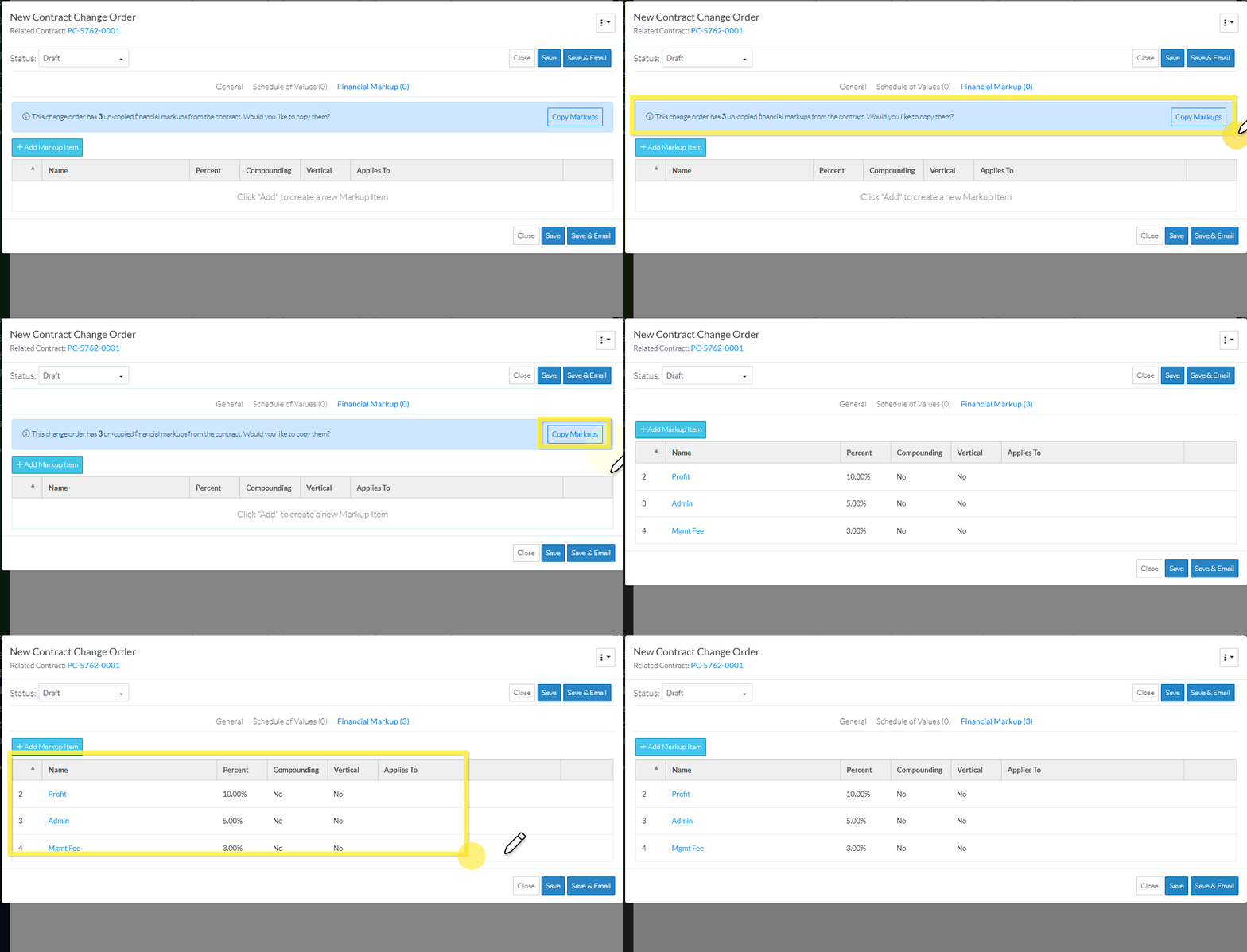
After all the Financial Markups setup for the Contract are copied to the Change Order, the blue message bar no longer displays. However, the changes to the Financial Markups are not yet saved until the Save function is invoked (see below) and they can still be changed (edited or deleted).
Maintain Additional information for the Change Order or Save the Financial Markups (and end this session)
- Add or modify other Contract Change Order information if required, see More Information below.
OR
Click the Save button (at the bottom of the form) to save the Contract Change Order.OR
Click here for more information on the Save function.
This saves the Contract Change Order including any information on the General, Schedule of Values and Financial Markups Components.
This list the function was invoked from displays. See Next Steps below.
Click the Save & Email button (at the bottom of the form) to save the Contract Change Order and email it.OR
Click here for more information on the Save and Email function.
This saves the Contract Change Order including any information on the General, Schedule of Values and Financial Markup components and sends an email with a link to the Contract Change Order in JobPlanner (and optionally include the Contract Change Order as a PDF attachment in the email). The Email can be sent to any Project Contacts. The Email Contract Change Order form displays, see Email Contract Change Order.
Click the Close button (at the bottom of the form) to close the form without saving the Contract Change Order.
Click here for more information on the Close function.
If no information was changed or entered, the list the add or edit function was invoked from displays, see Next Steps below.
If information was changed, then an additional prompt displays indicating there were changes and additional prompts on what to do.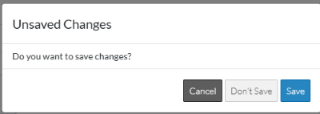
Click the Cancel button to cancel the Close action and return to the Contract Change Order View/Edit form (see the steps above)
OR
Click the Don't Save button to cancel changes to the Contract Change Order. The list the add or edit function was invoked from displays, see Next Steps below.
OR
Click the Save button to save the Contract Change Order including any information on the General, Schedule of Values or Financial Markups components. The list the add or edit function was invoked from displays, see Next Steps below.
More Information
To maintain the Schedule of Values, see Contract Change Order - Schedule of Values.
To maintain the Financial Markups, see Contract Change Order - Financial Markups - Create.
To change the Status of the Change Order, see Contract Change Orders - Edit - Status.
To maintain the General Change Order Information, see Contract Change Order - General.
