New Purchase Order - General Component (Examples & Steps)
 Updated
Suggested Prior Reading
Click here for more information on invoking the add of a new Purchase Order
The process to create a new Purchase Order differs depending on whether or not both Subcontracts and Purchase Orders can be created in the system (or just one or the other). See Adding New Commitments for more information.
If both Subcontracts or Purchase Orders can be created, see New Commitment.
OR
If only Purchase Orders can be created, see New Purchase Order (Initiate)
New Purchase Order - General Component (Overview)
Purchase Order - General Component - Add
This help applies to Users who have Add or Admin permissions on Commitments and are viewing the General component on the New Purchase Order form (see the above Suggested Prior Reading for more information).
- Only users with Admin permissions can change all the fields on the form.
- Users with Add permissions only can not change or view all the information (see the first example below)
The following gives some different examples of how the General component looks in Add mode only and Admin mode.
For more information on the overall layout of the Purchase Order form, see Purchase Order - View/Maintain - Form Layout.
Click here for an example of a User with Add permissions and No Permissions on Commitment Change Orders and Payables Invoices
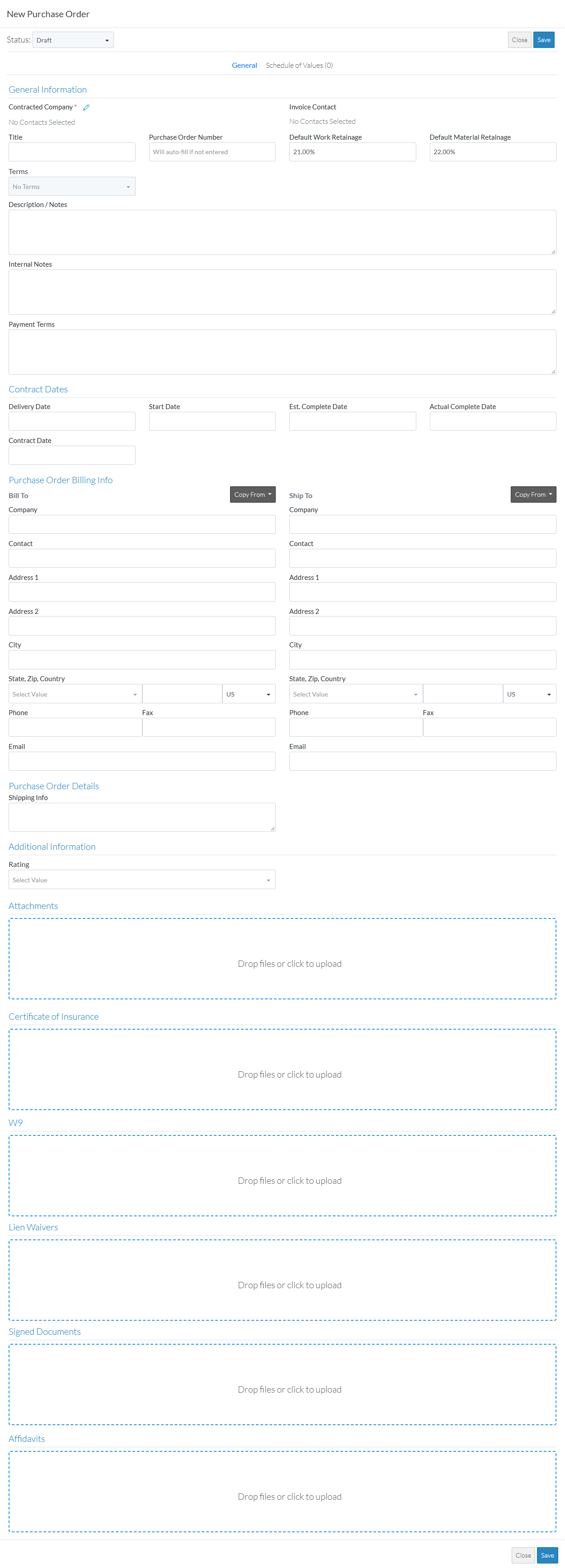
The following shows a User with Add permissions but no permissions on Commitment Change Orders or Payable Invoices.
The Form Navigation Menu options show the General and Schedule of Values.
There are Close
 and Save
 buttons that appear at both the top and bottom of the form.
The Status, Invoice Contact and Terms are view only and not editable. All Custom Fields are editable.
For Attachments, Certificate of Insurance, W9, Lien Waivers, Signed Documents and Affidavits, files can be uploaded, viewed or downloaded but they can not be deleted.
Click here for an example of a User with Admin permissions and Admin permissions on Commitment Change Orders and Payables Invoices
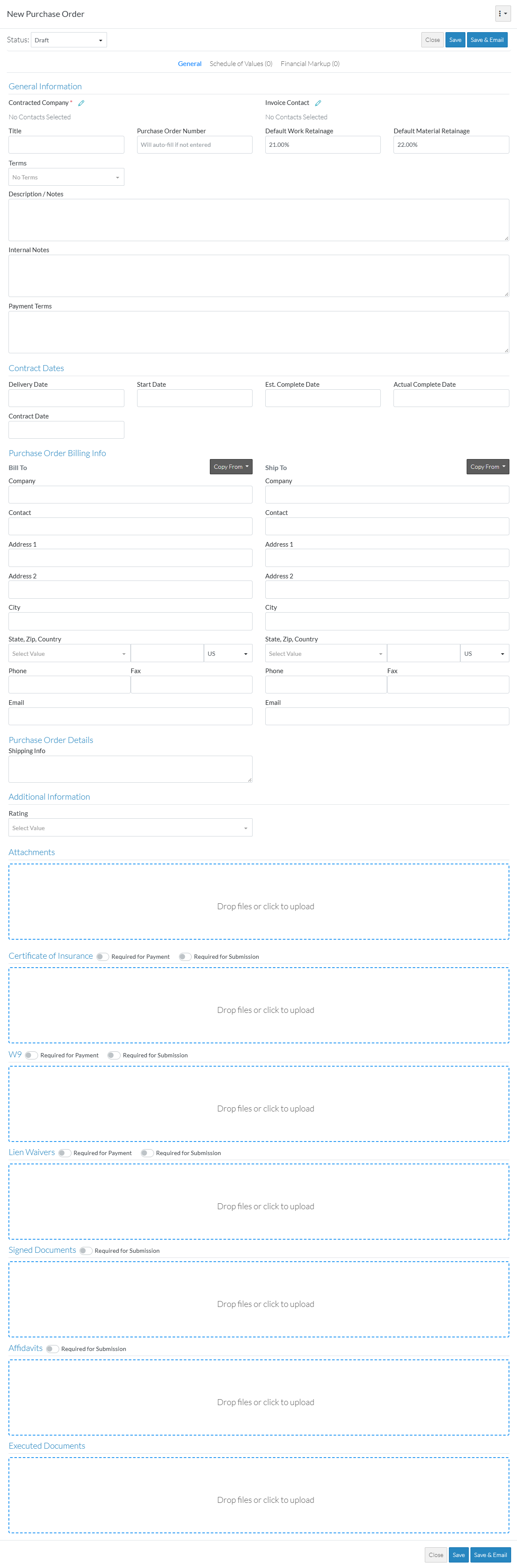
The following shows a User with Admin permissions on Commitments as well as Commitment Change Orders and Payable Invoices.
The Form Navigation Menu options show the General, Schedule of Values and Financial Markup components.
There are Close
, Save and Save & Email  buttons that appear at both the top and bottom of the form.
All of the Core Fields and any Custom Fields are editable.
To enter the information on the General Component
- Initiate the add of a new Purchase Order if not already initiated. See the above Suggested Prior Reading.
- Ensure the General Component is selected, see New Purchase Order - Form Navigation.
To enter the Information
- To enter the General Information, see Purchase Order - General - General Information (Overview and Steps).
- To enter Contract Dates, see Purchase Order - General - Contract Dates (Overview and Steps).
- To enter Purchase Order Billing Info, see Purchase Order - General - Purchase Order Billing Info (Overview and Steps).
- To enter Purchase Order Details, see Purchase Order - General - Purchase Order Details (Overview and Steps).
- To enter custom fields in the Additional Information section, if setup, see Purchase Order - General - Additional Information (Overview).
- To change all other information, see Purchase Order - General - Other (Overview).
View/Maintain Other Information or Save, Close or Save & Email the Purchase Order
- Add, Edit or View other information for the Purchase Order, see More Information below.
OR
If available/applicable, click the Save button (at the top or bottom of the form) to re-save the Purchase Order and close the form.OR
Click here for more information on the Save function.
The Save button is only available if the user has Add, Edit, Edit SOV or Admin permissions on Commitments.
The Save function saves the Purchase Order including any information on the General, Schedule of Values and Financial Markups Components (if applicable).
The New Purchase Order form is closed and the list the function was invoked from displays. See Next Steps below.
If available/applicable, click the Save & Email button (at the top or bottom of the form) to save the Purchase Order and email it.OR
Click here for more information on the Save and Email function.
The Save & Email button is only available if the user has Admin permissions on Commitments.
The Save & Email button saves the Purchase Order including any information on the General, Schedule of Values and Financial Markup components (if applicable) and sends an email with a link to the Purchase Order in JobPlanner (and optionally include the Purchase Order as a PDF attachment in the email). The Email can be sent to any Project Contacts. The Email Commitment form displays, see Email Commitment.
Click the Close button (at the top or bottom of the form) to close the form.
Click here for more information on the Close function.
If no information was changed or entered, the list the function was invoked from displays, see Next Steps below.
If information was changed, then an additional prompt displays indicating there were changes and additional prompts on what to do.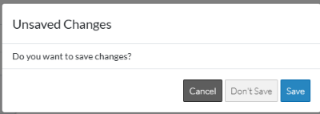
Click the Cancel button to cancel the Close action and return to the New Purchase Order form (see the steps above)
OR
Click the Don't Save button to cancel changes to the Purchase Order. The list the function was invoked from displays, see Next Steps below.
OR
Click the Save button to save the Purchase including any information on the General, Schedule of Values or Financial Markups components (if applicable). The list the add or edit function was invoked from displays, see Next Steps below.
More Information
Create or maintain the Purchase Order Schedule of Values, see Commitment - Schedule of Values (Overview).
If the User has at least view access to Commitment Change Orders, view the list of Change Orders for the Purchase Order, see List of Change Orders for a specific Commitment.
If the User has at least view access to Payable Invoices:
- View the list of Invoices for the Purchase Order, see List of Invoices for a specific Commitment.
- View the list of Payments for the Purchase Order, see List of Payments for a specific Commitment.
If the user has Admin permissions:
- Create or maintain Purchase Order Financial Markups, see Commitment - Financial Markups (Overview).
- Email the Purchase Order, see Purchase Order - View/Maintain - Email.
