Purchase Order - General - General Information - Contracted Company
 Updated
Suggested Prior Reading
New Purchase Order - General Component (Examples & Steps)
OR
Purchase Order - View/Maintain - General Component - Edit (Examples & Steps)
Contracted Company
The vendor or supplier (the company and contact) the purchase order is issued to, and who is responsible for providing the materials, equipment, or services on the order.
This is not just the Company, but the Contact for that Company as well. When selecting the Contract Company, the Contact is selected as well (as there may be more than one Contact setup for a Company).
Any Change Orders, Invoices or Payments created will have the Contracted Company/Contact auto-populated into it.
This is a required field.
- If adding a new Purchase Order the Contracted Company/Contact is blank and must be entered before the Purchase Order can be saved.
- If this is an existing Purchase Order, the Contracted Company/Contact can be changed from the existing one to a new one. Alternatively, the existing Contracted Company/Contact can be removed as a first step, and then a different one selected (both steps are below).
To change just the contact and not the company, the steps would be the same (as both the contact and company are listed in the selection).
The Contracted Company/Contact can be entered/changed regardless of the Status of the Purchase Order.
If this is an existing Purchase Order and there were previously created Change Orders, Invoices or Payments they will be automatically updated with the new Contracted Company.
For more information on where the Contracted Company is used, see Commitments - Fields - Usage and Configuration.
This help assumes the New Purchase Order form OR the Purchase Order - View/Maintain form is displayed with the General component selected (see Suggested Prior Reading above).
To change the Contracted Company:
- Click on the Edit
 button next to the Contracted Company label.
The Select Project Contact form displays with a list of all the Project Contacts. - Select a new Company and Contact by clicking in the box to the left-hand side of the Type column to select it. The box will fill in to indicate its selected.
See Select Project Contact for more information on the navigating the form.
The following example is for maintaining an existing Purchase Order but it is the same for adding a new Purchase Order.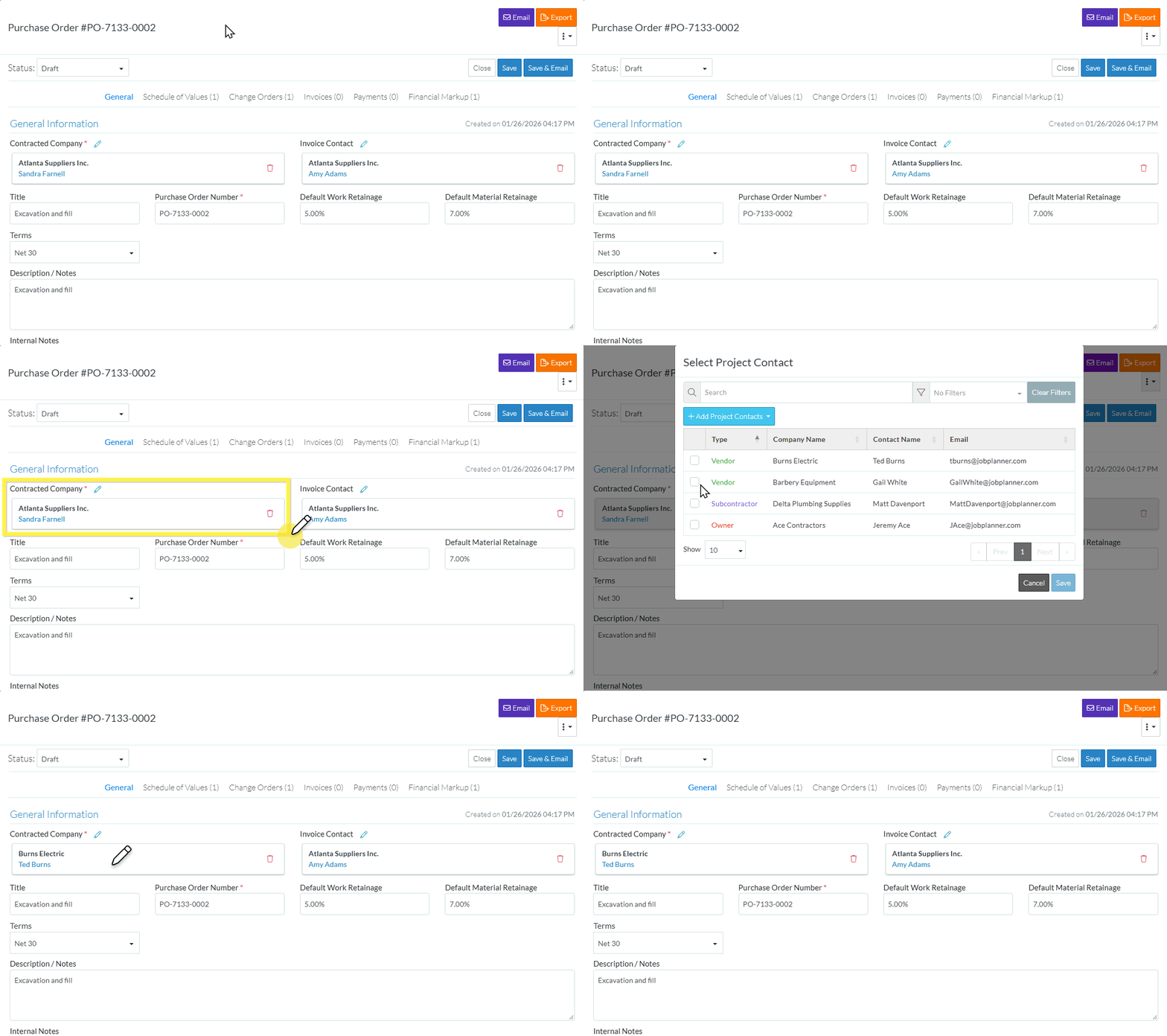
- Click the Save
 button to select it.
Note* The change is not yet saved until the entire Purchase Order is saved. - Optionally, the existing Contracted Company/Contact can be removed first.
Click here for steps for removing a Contract Company/Contact
Click the Remove
 button.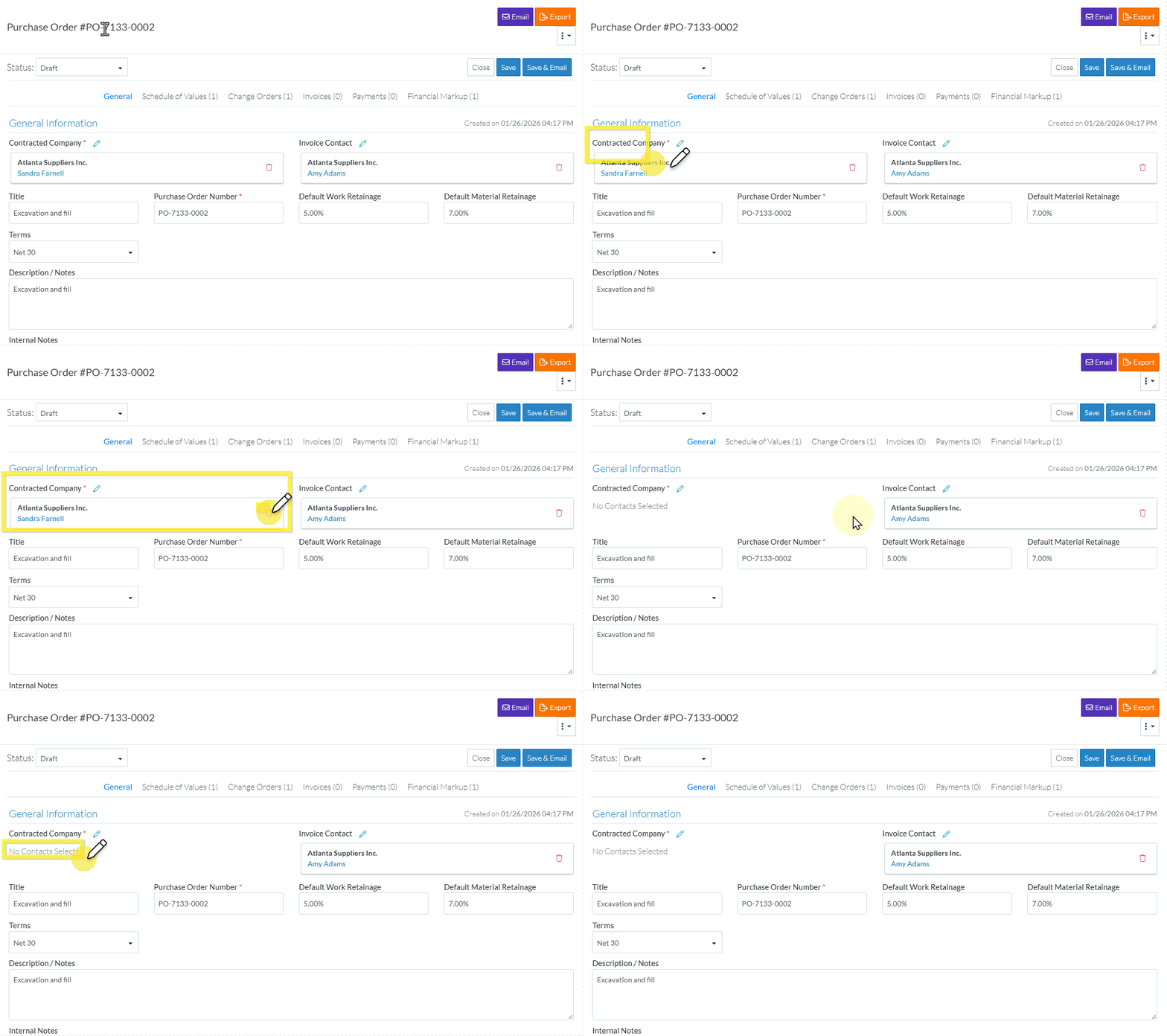
The current Contracted Company/Contact is removed.
Follow the steps above to select a different one (the same Company/Contact that was removed will now appear in the Select Project Contact list and can be reselected).
Enter or Change Other Information in the General Section
Click here for entering or changing other information in the General Section
To enter, change or remove the Invoice Contact, see Purchase Order - General - General Information - Invoice Contact.
To enter, change or remove the Title, see Purchase Order - General - General Information - Title.
To change or remove the Purchase Order Number, see Purchase Order - General - General Information - Purchase Order Number.
To enter, change or remove the Default Work Retainage, see Purchase Order - General - General Information - Default Work Retainage.
To enter, change or remove the Default Material Retainage, see Purchase Order - General - General Information - Default Material Retainage.
To enter, change or remove the Terms, see Purchase Order - General - General Information - Terms.
To enter, change or remove the Description/Notes, see Purchase Order - General - General Information - Description/Notes.
To enter, change or remove the Internal Notes, see Purchase Order - General - General Information - Internal Notes.
To enter, change or remove the Payment Terms, see Purchase Order - General - General Information - Payment Terms.
Enter or Change Other Information or Save, Close or Save & Email the Purchase Order
Add, Edit or View other information for the Purchase Order, see More Information below.
OR
If available/applicable, click the Save  button (at the top or bottom of the form) to save the Purchase Order and close the form.
Click here for more information on the Save function.
The Save function saves the Purchase Order including any information on the General, Schedule of Values and Financial Markups Components (if applicable).
The Purchase Order - View/Maintain form is closed and the list the function was invoked from displays. See Next Steps below.
OR
If available/applicable, click the Save & Email  button (at the top or bottom of the form) to save the Purchase Order and email it.
Click here for more information on the Save and Email function.
The Save & Email button saves the Purchase Order including any information on the General, Schedule of Values and Financial Markup components (if applicable) and sends an email with a link to the Purchase Order in JobPlanner (and optionally include the Purchase Order as a PDF attachment in the email). The Email can be sent to any Project Contacts. The Email Commitment form displays, see Email Commitment.
OR
Click the Close  button (at the top or bottom of the form) to close the form.
Click here for more information on the Close function.
If information was changed, then an additional prompt displays indicating there were changes and additional prompts on what to do.
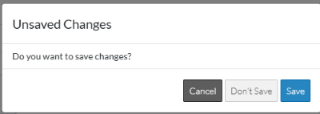
Click the Cancel
 button to cancel the Close action and return to the Purchase Order - View/Maintain form (see the steps above)
OR
Click the Don't Save
 button to cancel changes to the Purchase Order. The list the function was invoked from displays, see Next Steps below.
OR
Click the Save
 button to save the Purchase including any information on the General, Schedule of Values or Financial Markups components (if applicable). The list the add or edit function was invoked from displays, see Next Steps below.
More Information
When creating a new Purchase Order, see New Purchase Order (Overall Steps)
OR
When editing an existing Purchase Order, see Purchase Order - View/Maintain (Overall Steps)
