New Purchase Order (Initiate)
 Updated
Suggested Prior Reading
Things to do before you add a Commitment
New Purchase Order
This is help for adding a new Purchase Order when only Purchase Orders (not Subcontracts) can be created. See Adding New Commitments for more information.
To Add a New Purchase Order
- Access the project, see Project - Accessing.
- Access the Commitments List, see Commitments List - Accessing.
For more information on the layout of the Commitments List, see Commitments List - Layout. - Click the New Purchase Order
 button.
Click here for an example for a User with full functionality and permissions
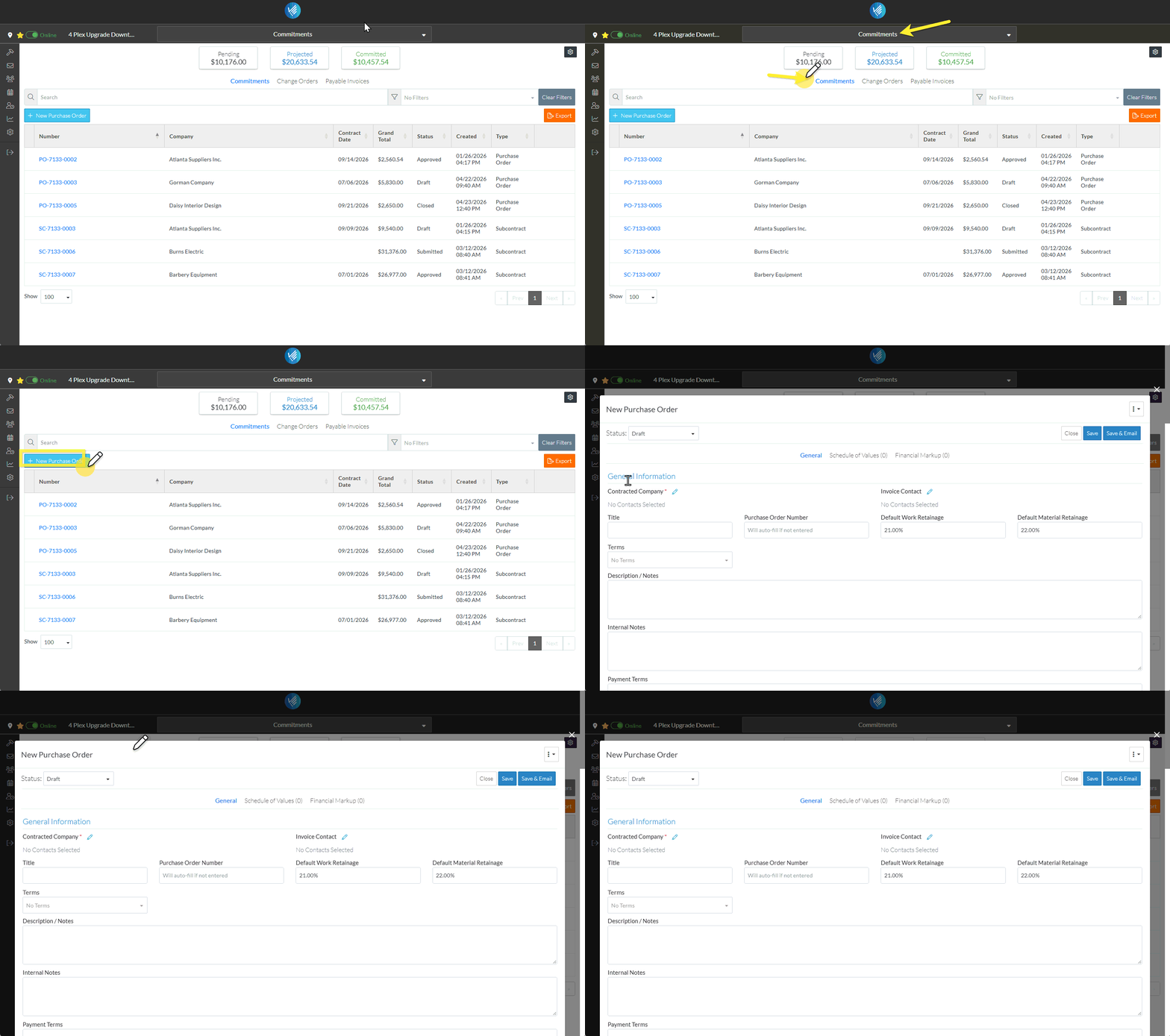
Click here for an example for a User with Add permissions
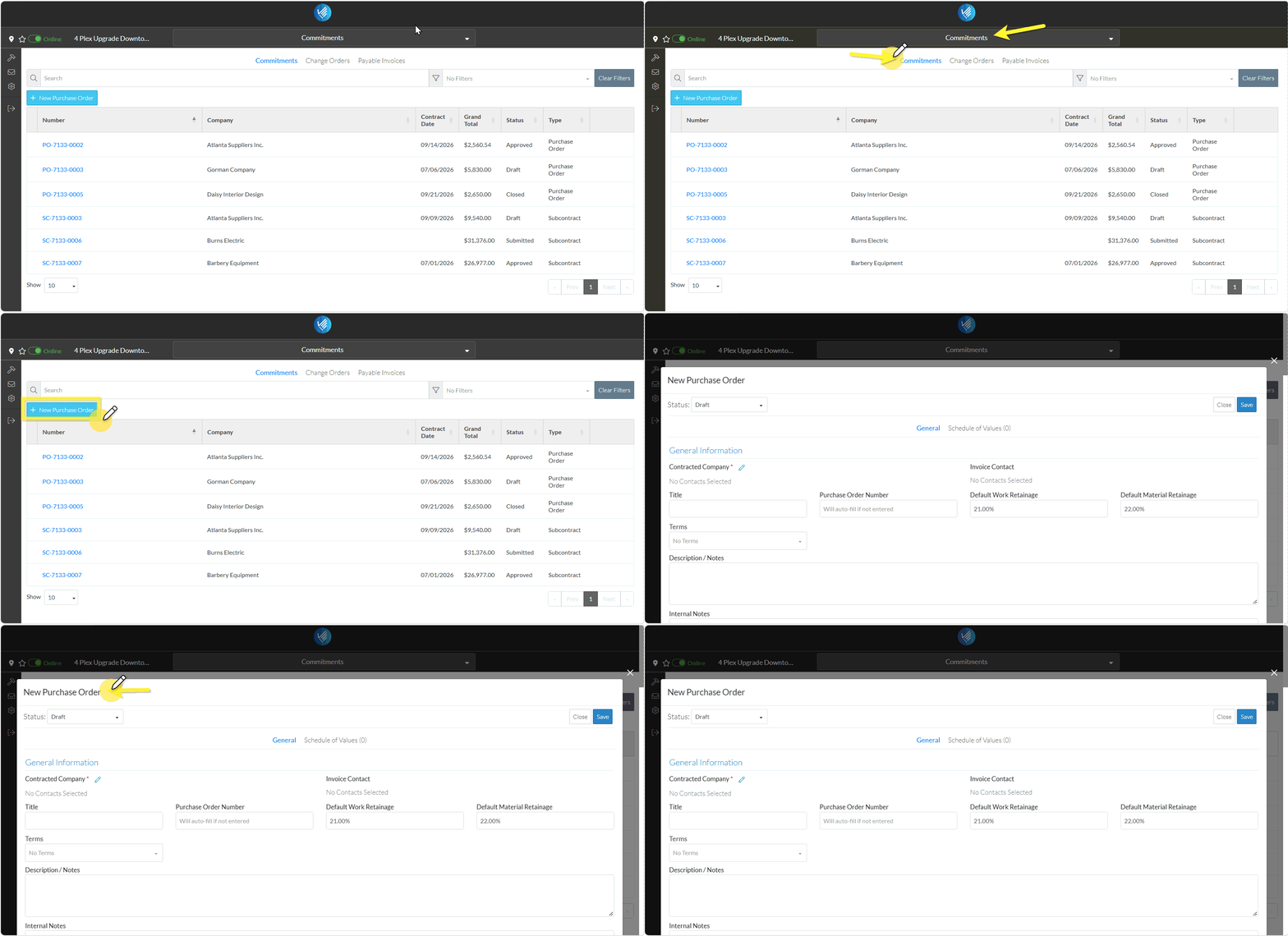
The New Purchase Order form displays.
More Information
For more information on the layout of the New Purchase Order form, see New Purchase Order – Form Layout.
For more information on navigating the New Purchase Order form, see New Purchase Order – Form Navigation.
Next Steps
For overall steps for adding a new Purchase Order, see New Purchase Order (Overall Steps).
For information overall about the General Component on the New Purchase Order form, see New Purchase Order - General Component (Overview).
To enter the general information about the new Purchase Order, see New Purchase Order - General Component (Examples & Steps).
To create the Schedule of Values, see Commitment - Schedule of Values (Overview).
To create Financial Markups, see Commitment - Financial Markups (Overview).
