Commitments List - Accessing
 Updated
Suggested Prior Reading
To access the Commitments List
- Access the project, see Project - Accessing.
- Click on the Project Menu Options bar.
- From the Project Menu Options bar in the Job Costing section, click Commitments.
Note* Depending on the size of the form and permissions for the user, the Project Menu Options bar may appear different.
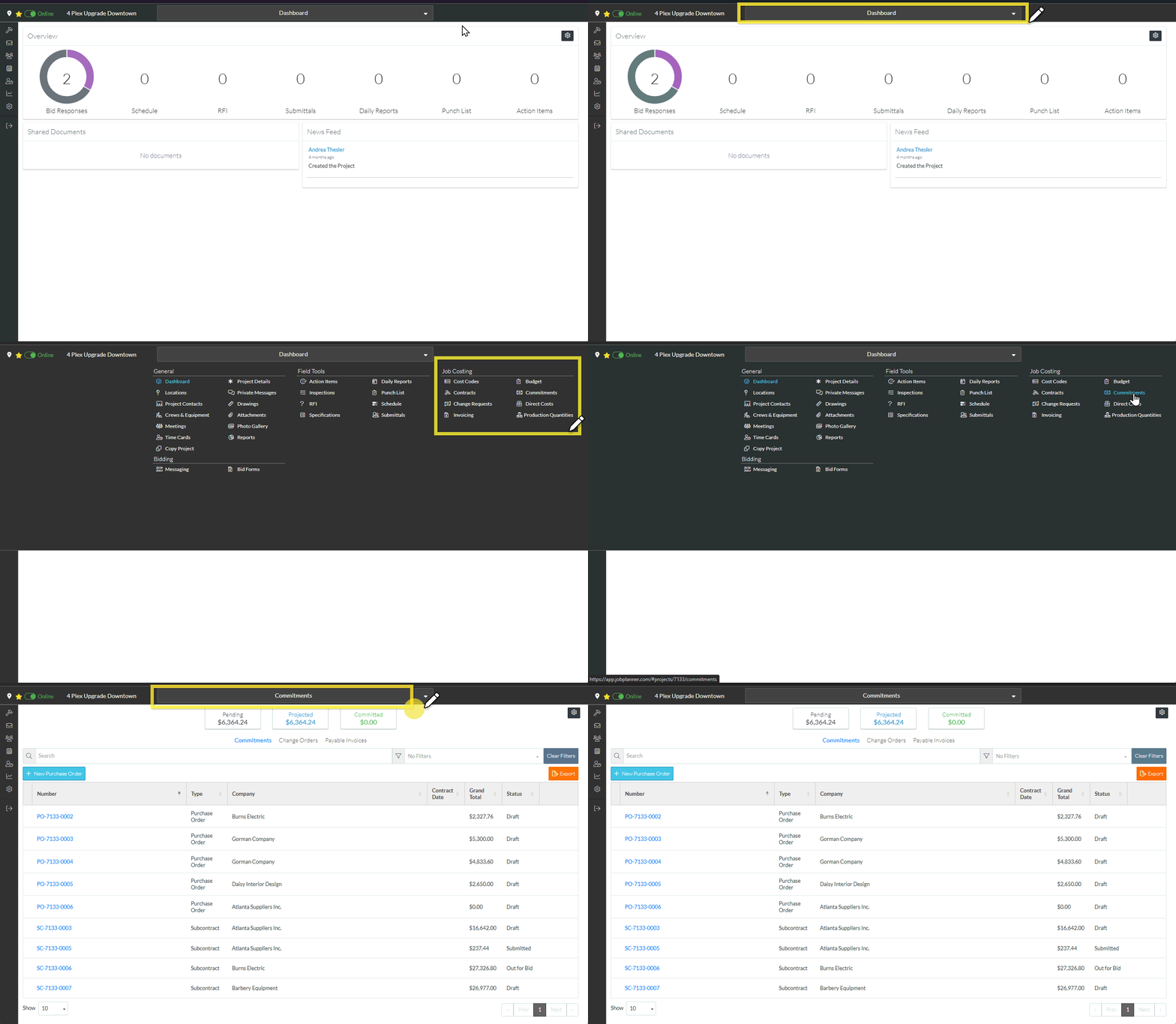
The Commitments List displays.
More Information
For more information on the Commitments List, see:
Next Steps
To view a Commitment (including the Schedule of Values and Financial Markups) and maintain the Commitment if applicable, see Commitments - View.
Click here for next steps for Subcontracts
Add a Subcontract, see New Subcontract.
Delete a Subcontract, see Subcontract - Delete
Email a Subcontract, see Subcontract - View/Edit - Email.
Export a Subcontract, see Subcontract - View/Edit - Export.
Click here for next steps for Purchase Orders
Add a Purchase Order, see New Purchase Order
Delete a Purchase Order, see Purchase Order - Delete.
Email a Purchase Order, see Purchase Order - View/Edit - Email.
Export a Purchase Order, see Purchase Order - View/Edit - Export.
View and maintain Commitment Change Orders, see Commitment Change Orders - Overview.
View and maintain Commitment Invoices, see Commitment Invoices - Overview.
Export the full list of all the Commitment, see Commitments List - Export.
Change the Settings for the display of the list of Commitment, see Settings - Commitments - Commitment Settings.
