Commitments List – Navigation
 Updated
Suggested Prior Reading
Commitment List - Navigation
The Commitments List displays all the Subcontracts and Purchase Orders for the Project.
For more information on the layout of the Commitments List, see Commitments List – Layout.
There are various ways to navigate the Commitments List:
- Search and Filter the Commitments List
- Sort the columns in the list
- Navigate the pages of the list
- Switch between different lists; Change Orders and Payable Invoices
Once a Commitment appears on the page on the list, it can be viewed to see more detail or to maintain it.
Search and Filter the List
The Commitment list may be the full list of Commitments or it could be a sub-set of Commitments if search criteria or filters have been applied.
Note* Users with ADMIN permissions can set default Filters that are applied each time the list displays. For other users, no Filter will be applied when the list displays. In both cases, the filters can be changed and apply to that session (until the list is closed and re-opened).
To narrow the Change Requests List by entering search criteria or setting filters on the Status. See Commitments List - Search and Filter.
Click the Clear Filters  button to remove any search or filter settings.
Sort the Columns in the List
The list can have the columns sorted to display the list in different orders. see Commitments List - Sort Columns.
Navigate the Pages of the List
If there are a large number of Commitments to display, they appear in pages on the list.
Users with ADMIN permissions can set the default number of rows that display on each page each time the list displays. For other users, the number of rows per page defaults to 10. In both cases, the number of rows per page can be changed and apply to that session (until the list is closed and re-opened).
To change the number of rows displayed for this session
- Click the Show drop down in the bottom left of the form (below the Commitment List).
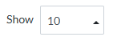
- Set the number of rows per page to display
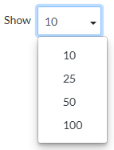
The display of the list will update to show the new number.
To navigate the pages
Use the Prev, Next, <, > and Page number buttons to navigate through the pages of information.

See Page Navigation for more information.
Switch between Lists
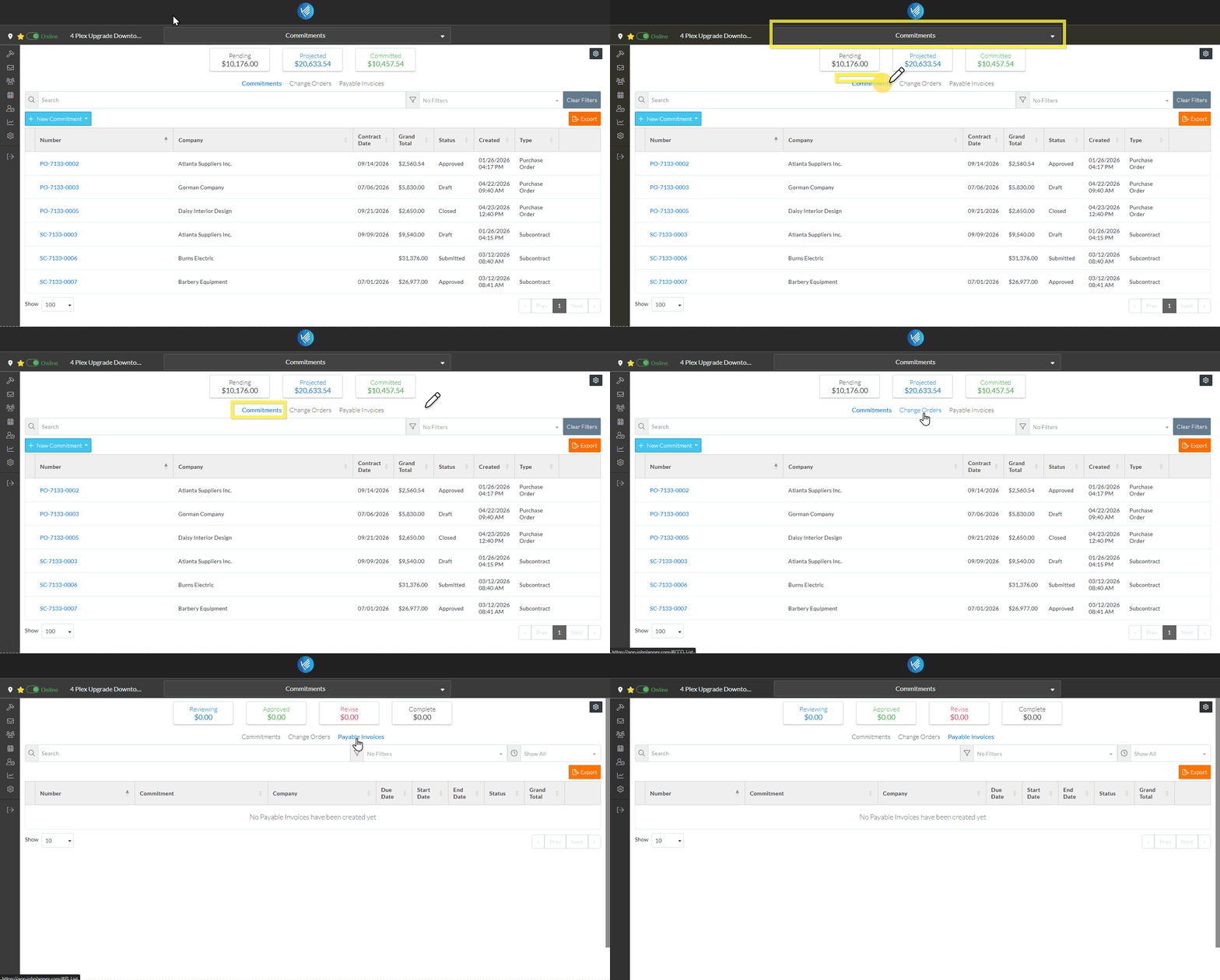
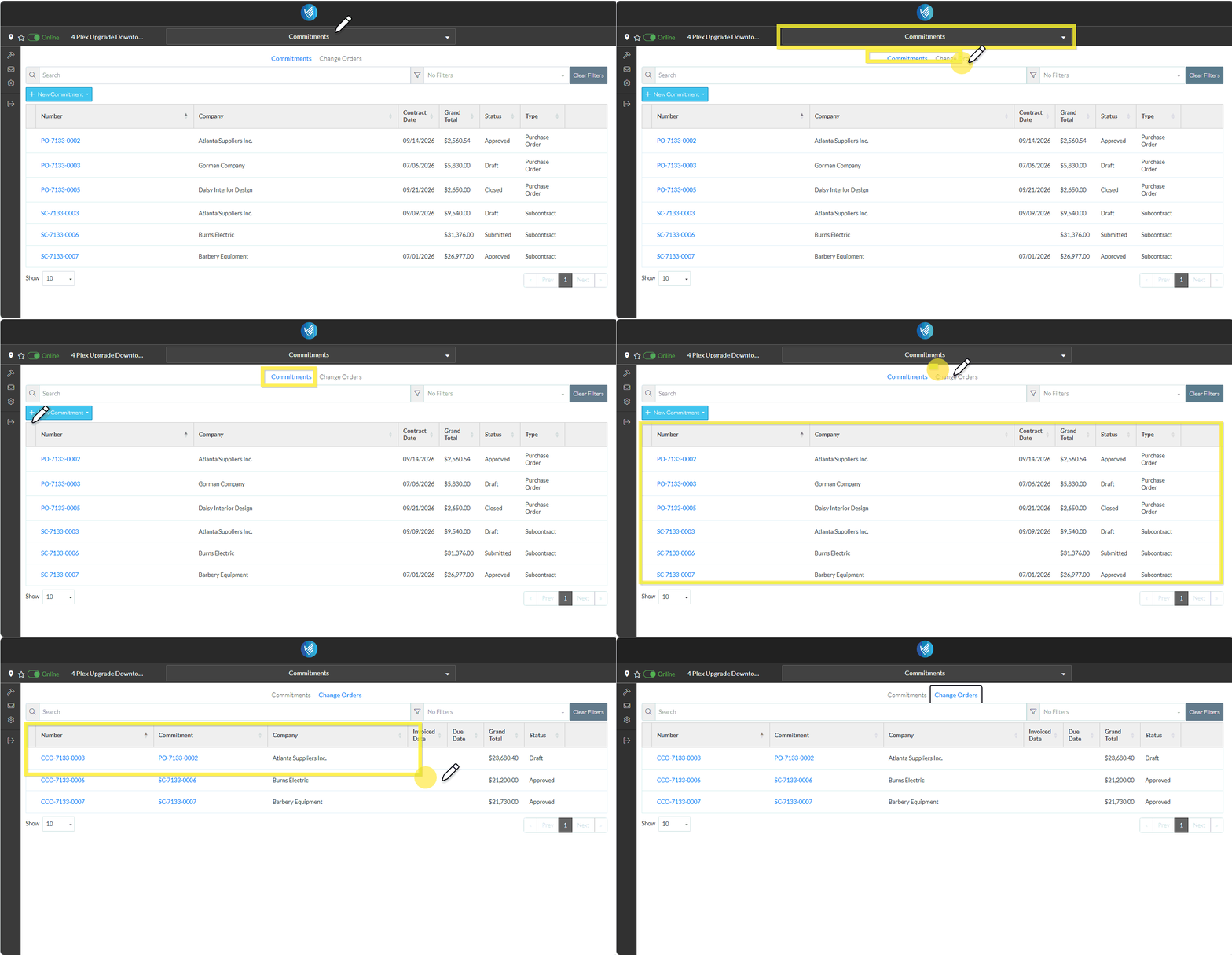
If the User has permissions to access Commitments Change Orders and/or Payables Invoices, the Lists Navigation menu can be used to switch between the Commitments list and those lists.
The Lists Navigation menu options display near the top of the form and is text that can be clicked on to switch between lists.
There are three different lists that can be accessed (if the user has permissions to access them, they will appear as menu options and if not, they won't appear)
- Commitments - the Commitments List. This is also where Commitments can be added and/or viewed (then from the View/Edit form, Commitments can be viewed, edited, deleted, emailed or exported to PDF. The Commitments List displays by default. See Commitments - Overview.
- Change Orders - the list of all Change Orders for all Commitments. This is also where Change Orders can be viewed (then from the View/Edit form, Change Orders can be viewed, edited, deleted, emailed or exported to PDF. For more information on the Commitment Change Orders, see Commitment Change Orders - Overview.
- Payable Invoices - the list of all Payable Invoices for all Commitments. This is also where Invoices can be viewed (then from the View/Edit form, Invoices can be viewed, edited, deleted, emailed or exported to PDF. For more information on the Commitment Invoices, see Commitment Invoices - Overview.
The currently selected list is in blue text.
To switch between the lists, click on the text.
Click here for an example of switching between lists for a user that has full permissions and functionality
Click here for an example of switching between lists with View only permissions on Commitments and at least view permissions for Change Orders (and no permissions for Payable Invoices)
Note* Accessing the Change Orders or Invoices from the List Navigation Menu options, shows all Change Orders for all Commitments or all Invoices for all Commitments (although filters can still be applied on those lists). From each individual Commitment, just the Change Orders and Invoices for that Commitment can be viewed as well. See see Commitments - View/Maintain for more information.
View More detail about the Commitment
From this list, more details about the Commitment can be viewed and the Commitment can be maintained (if the user has permissions to edit and delete it).
See Commitment - View for more information.
Next Steps
To view a Commitment (including the Schedule of Values and Financial Markups) and maintain the Commitment if applicable, see Commitments - View.
Click here for next steps for Subcontracts
Add a Subcontract, see New Subcontract. Delete a Subcontract, see Subcontract - Delete Email a Subcontract, see Subcontract - View/Edit - Email. Export a Subcontract, see Subcontract - View/Edit - Export.
Click here for next steps for Purchase Orders
Add a Purchase Order, see New Purchase Order Delete a Purchase Order, see Purchase Order - Delete. Email a Purchase Order, see Purchase Order - View/Edit - Email. Export a Purchase Order, see Purchase Order - View/Edit - Export.
View and maintain Commitment Change Orders, see Commitment Change Orders - Overview.
View and maintain Commitment Invoices, see Commitment Invoices - Overview.
Export the full list of all the Commitment, see Commitments List - Export.
