Contract Change Order - Schedule of Values - Maintain when existing updated from Change Request
 Updated
Suggested Prior Reading
Change Request - Schedule of Values - Bulk Actions - Contracts - New Change Order
OR
All Change Request Lists - Bulk Actions - Contracts - New Change Order
Maintain the Schedule of Values - Line Items added from Change Requests
This help pertains to maintaining the Schedule of Values for an existing Contract Change Order that had Line Items added from a Change Request (see the above Suggested Prior Reading).
The Line Items that were added from any Change Request will have a blue asterisk in the first column next to the Line Item Number.
Note* The Line Items with an asterisk could be added during this session or they could be added during a previous session from the same or a different Change Request.
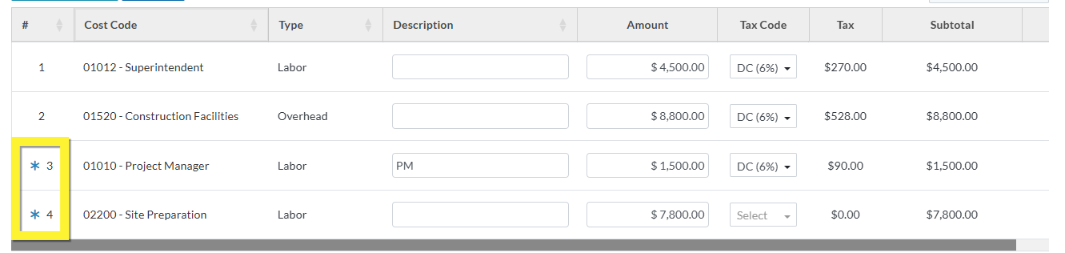
Click here to see the information copied from the Change Request
The Sub Job (if used), the Cost Code and Cost Type are copied from the Change Request Schedule of Values Line Item and can not be changed. Note* The above example does not show Sub Jobs but if they were used they would display as the first column after the Line Number (see Sub Jobs - Overview
The Description is copied but can be changed.
The Revenue is copied into the Amount but can be changed.
If the Change Request Schedule of Values is Amount Based and the Contract Change Order Schedule of Values is Amount Based, the Revenue is copied to the Amount on the new Line Item. The Amount can be changed.
If the Change Request Schedule of Values is Unit-Qty Based and the Contract Change Order Schedule of Values is Unit-Qty Based, the Quantity, Unit of Measure and Unit Price are copied to the new Line Item. The Quantity and Unit Price can be changed.
If the Change Request Schedule of Values is Amount Based and the Contract Schedule of Values is Unit-Qty Based, the Quantity is set to 1, the Unit of Measure must be manually set and the Unit Price is set to the Revenue for the new Line Item. The Quantity and Unit Price can be changed.
If the Change Request Schedule of Values is Unit-Qty Based and the Contract Schedule of Values is Amount Based, the Revenue is copied to the Amount on the new Line Item. The Amount can be changed.
The Tax Code is copied but can be changed (the Tax is calculated automatically based on the Tax Code).
Financial Markups from the Contract (which will also have been copied automatically to the Change Request), are not copied to an existing Contract Change Order (Financial Markups that previously existed on the Contract Change Order are not impacted)
The Schedule of Values and the Line Items added are not yet saved. This is a working session and the Save or Save & Email function must be invoked to save the new Line Items added.
The information can be saved at this point or the Schedule of Values can be maintained.
Maintain the Schedule of Values
- Edit a Line Item created from the Change Request (i.e. those with a blue asterisk), see Contract Change Order - Schedule of Values - Edit Line Items created from a Change Request.
- Edit other Line Items not created from a Change Request:
- To edit Line Items added during this session, see Contract Change Order - Schedule of Values - Edit Line Item (before Save).
- To edit Line Items added during a previous session, see Contract Change Order - Schedule of Values - Edit Line Items (after Save).
- Add a Line Item, see Contract Change Order - Schedule of Values - New Line Item.
- Delete a Line Item, see Contract Change Order - Schedule of Values - Delete Line Item.
Save the Schedule of Values (and end this session)
- Click the Save
 button (at the bottom of the form) to save the Contract Change Order.OR
Click here for more information on the Save function.
This saves the Contract Change Order including any information on the General, Schedule of Values and Financial Markups Components.
This list the function was invoked from displays. See Next Steps below.
Click the Save & Email button (at the bottom of the form) to save the Contract Change Order and email it.OR
Click here for more information on the Save and Email function.
This saves the Contract Change Order including any information on the General, Schedule of Values and Financial Markup components and sends an email with a link to the Contract Change Order in JobPlanner (and optionally include the Contract Change Order as a PDF attachment in the email). The Email can be sent to any Project Contacts. The Email Contract Change Order form displays, see Email Contract Change Order.
Click the Close button (at the bottom of the form) to close the form without saving the Contract Change Order.
Click here for more information on the Close function.
If no information was changed or entered, the list the add or edit function was invoked from displays, see Next Steps below.
If information was changed, then an additional prompt displays indicating there were changes and additional prompts on what to do.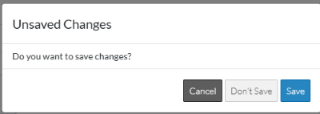
Click the Cancel button to cancel the Close action and return to the Contract Change Order View/Edit form (see the steps above)
OR
Click the Don't Save button to cancel changes to the Contract Change Order. The list the add or edit function was invoked from displays, see Next Steps below.
OR
Click the Save button to save the Contract Change Order including any information on the General, Schedule of Values or Financial Markups components. The list the add or edit function was invoked from displays, see Next Steps below.
More Information
To copy Financial Markups from the Contract, see Change Request - Financial Markups - Copy from Contract.
Setup Financial Markups if required, see Contract Change Order - Financial Markups.
To view/edit the General information, see Contract Change Order - General.
Next Steps
See the help below for the view applicable either Grouped List View or Simple List View (see Change Requests - Multiple Lists and Views for which one is applicable) and for the list the function was initiated from:
Click here for Grouped List View
OR
