All Change Request Lists - Bulk Actions - Commitments - New Change Order
 Updated
Suggested Prior Reading
Commitment Change Order - Overview
All Change Request Lists - Bulk Actions
All Change Request Lists - Bulk Actions - Select Line Items
All Change Requests Lists - Bulk Actions - Commitments
Bulk Actions - Commitment - New Commitment Change Order
Change Requests that are in any Status except Void or Rejected, can have their Schedule of Values Line Item(s) created on a new Commitment Change Order. See All Change Requests Lists - Bulk Actions - Commitments.
To create a new Commitment Change Order (for either a Subcontract or Purchase Order) and add the selected Change Request Schedule of Values Line Item(s) to that new Commitment Change Order:
- If not already selected, access one of the Change Request Lists and select one or more Line Items, see All Change Request Lists - Bulk Actions - Select Line Items.
Note 1* Do not select any Line Items that have already been created on a Commitment or Commitment Change Order i.e. the Commitment column has a green check mark and a Commitment or Commitment Change Order displayed.
Note 2* Do not select any Line Items that belong to Void or Rejected Change Requests. - Click the Bulk Actions
 button.
 - Click the Commitment menu option.
Click here for more information on why the Commitments menu on the Bulk Actions Option may not be available
If the Commitments menu option is grayed out and not available:
One or more Line Items may have already been created on a Commitment or Commitment Change Order (i.e. the Commitment column has a
 green check mark and a Commitment or Commitment Change Order displayed).
OR
One or more Line Items selected belong to a Void or Rejected Change Request.
Unselect those Lines Items already created on a Commitment or Commitment Change Order or that belong to a Void or Rejected Change Request then invoke the Commitments menu option again.
If a Commitment is displayed but there is no green check mark, it is a reference only and the Line Item can still be selected and created on a Commitment or Commitment Change Order. The current Commitment will be replaced by the Commitment or Commitment Change Order the Line Item is created on.
- Click the New Change Order option.
Click here for steps on the Change Requests List
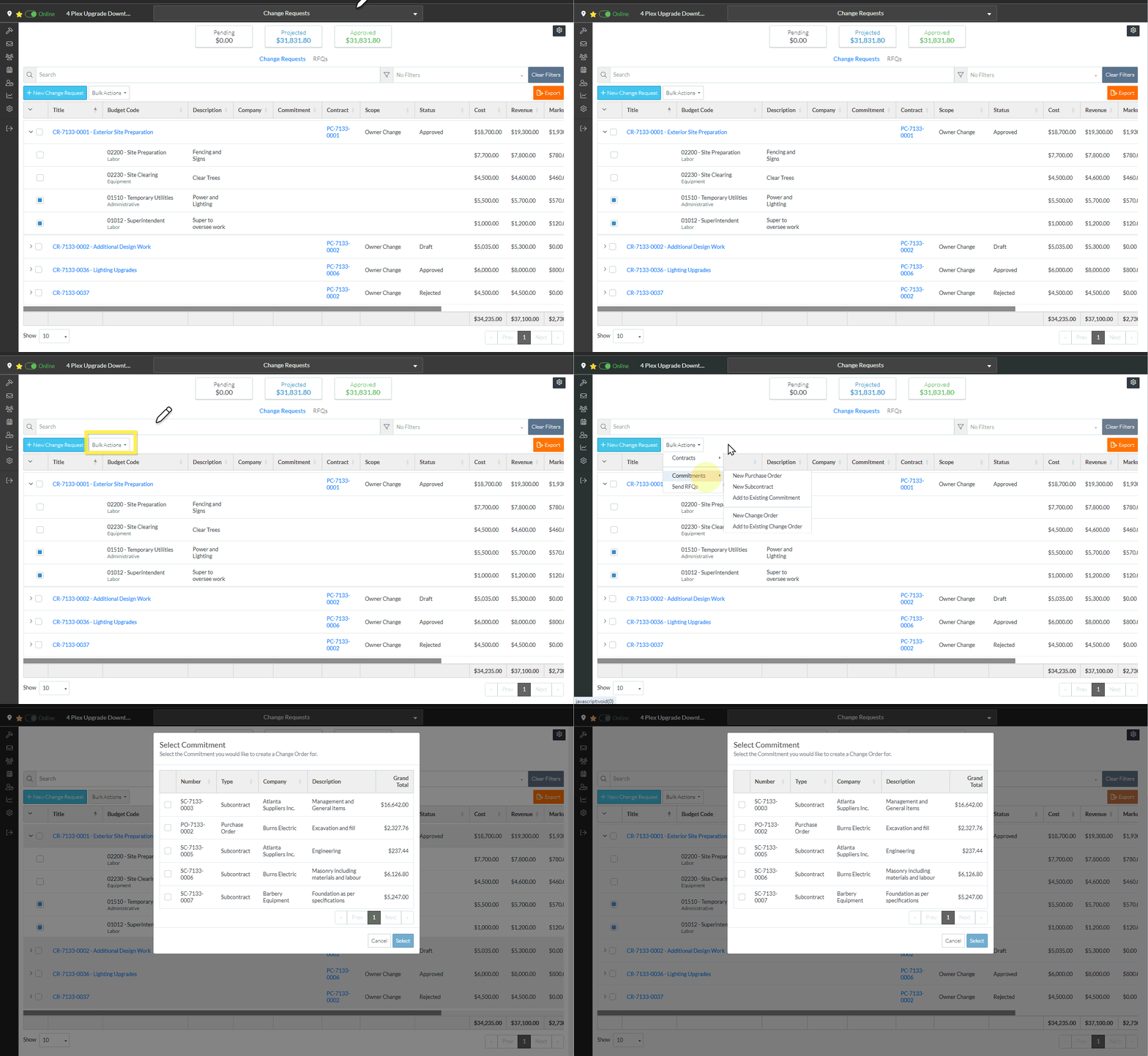 The Select Commitment form displays.
Click here for steps on the Contract - List of All Change Requests
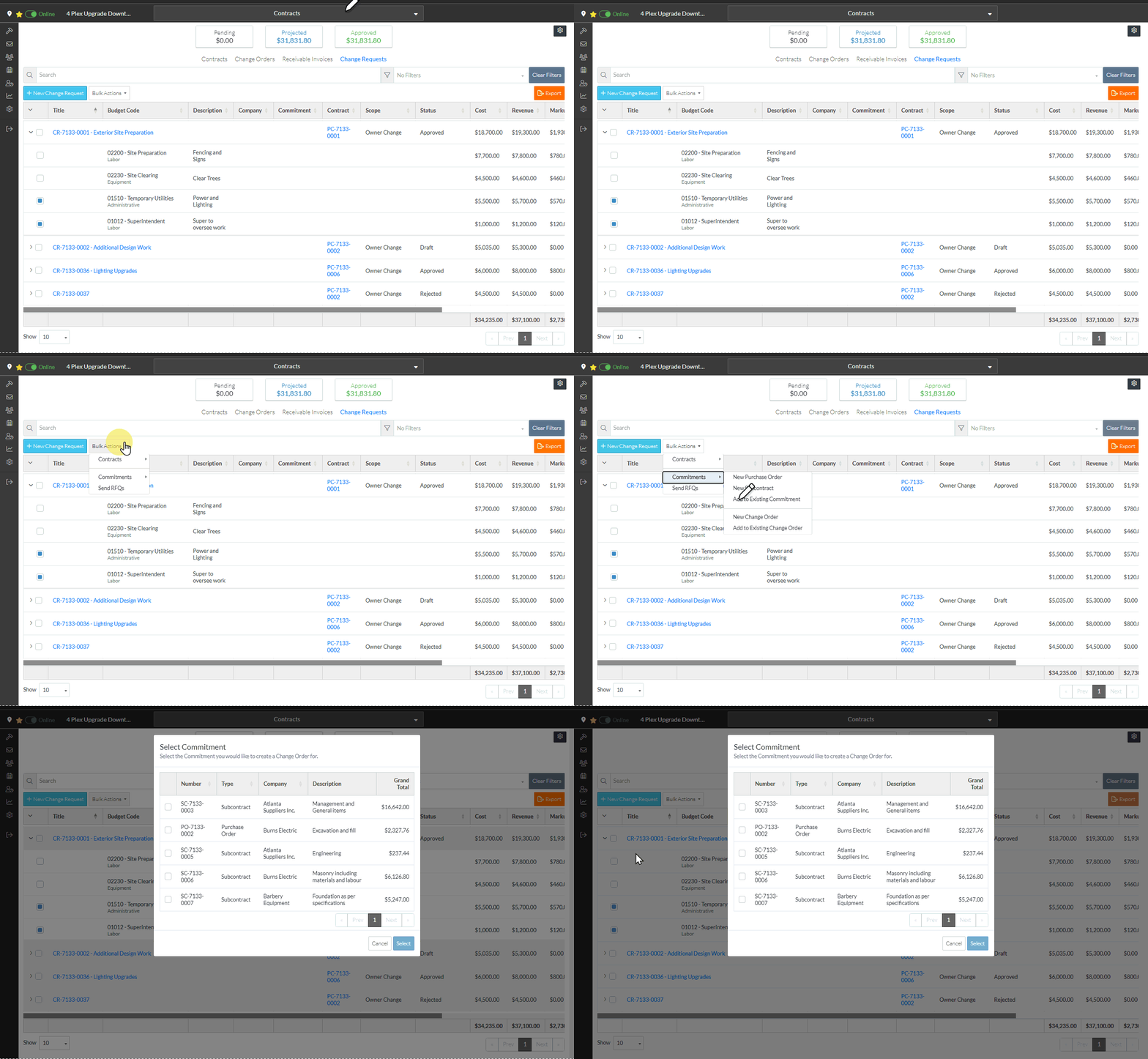
From the Select Commitment form, the Commitment (Purchase Order or Subcontract) that the Change Order is being added to is selected.
Only Commitments that are in an Approved Status display (i.e. a Change Order can only be added to an Approved Purchase Order or Subcontract).
The Commitment Number, the Type of Commitment (Purchase Order or Subcontract), Company, Description and Grand Total all displays.
The first column is a selection column.
If a Commitment was entered on the Schedule Request Schedule of Values Line Item, and that Commitment was Approved, that Commitment will be automatically selected but can be changed. Note* If there are Line Items with different Companies, the first one will be used. - Click in the box in the column for the Commitment (Purchase Order or Subcontract) to select. The box turns from white to blue.
- To unselect a Commitment, click on the blue box. It turns white again.
- To select a different Commitment, than the one selected, click on a different Commitment. The newly clicked Commitment will be selected (the box turned blue) and the previously selected Commitment selection box gets automatically unselected (set to white).
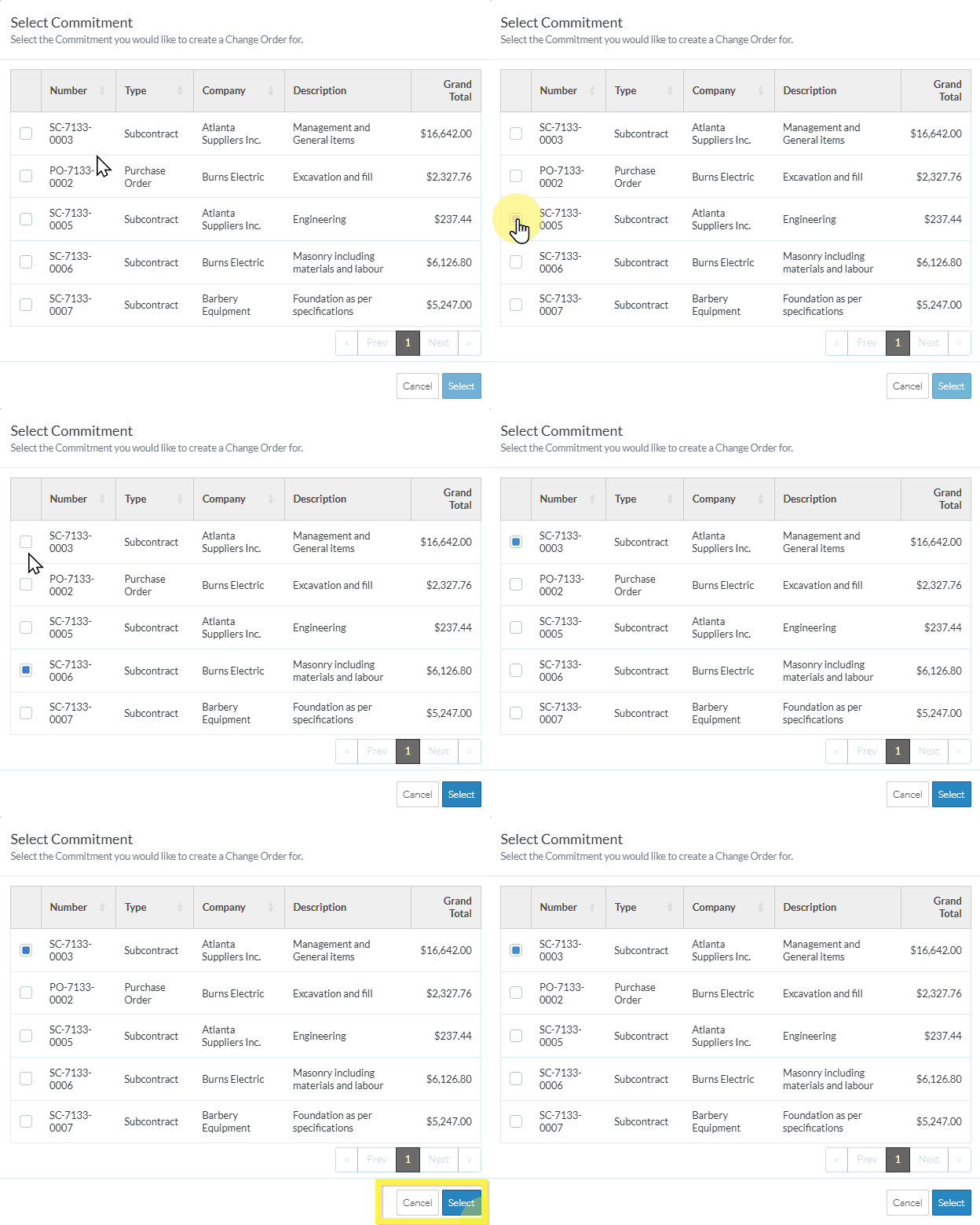
- Click the Select
 button to select the Commitment (with the blue box). The New Commitment Change Order form displays. See Next Steps below.
OR
Click the Cancel button to cancel the selection. The list from which the form was invoked displays, see Contracts - List of all Change Requests List - Overview (Grouped List View) OR Contracts - List of all Change Requests - Overview (Grouped List View).
Next Steps
To add the new Commitment Change Order information including maintaining the Schedule of Values, see Change Request - Schedule of Values - Bulk Actions - Add Line Items to New Commitment Change Order.
