Change Request - Financial Markups - Accessing and Viewing
 Updated
Suggested Prior Reading
Change Request - Financial Markups - Overview
Accessing and Viewing the Financial Markups
- Initiate the add of a new Change Request
OR
Initiate the edit of an existing Change Request
See the help below for the view applicable either Grouped List View or Simple List View (see Change Requests - Multiple Lists and Views for which one is applicable) and for the list the function was initiated from:
Grouped List View
Click here for help creating a new Change Request
Click here for help for editing of an existing Change Request
Simple List View
Click here for help for creating a new Change Request
Click here for help for editing of an existing Change Request
The New Change Request form displays. See Change Request – Add - Form Layout and Navigation.
OR
The Change Request View/Edit form displays. See Change Request – View/Edit - Form Layout and Navigation.
- Click Financial Markups on the Form Navigation Menu Options on the form.
The Financial Markups component for the Change Request displays.
Click here for accessing Financial Markups for a New Change Request
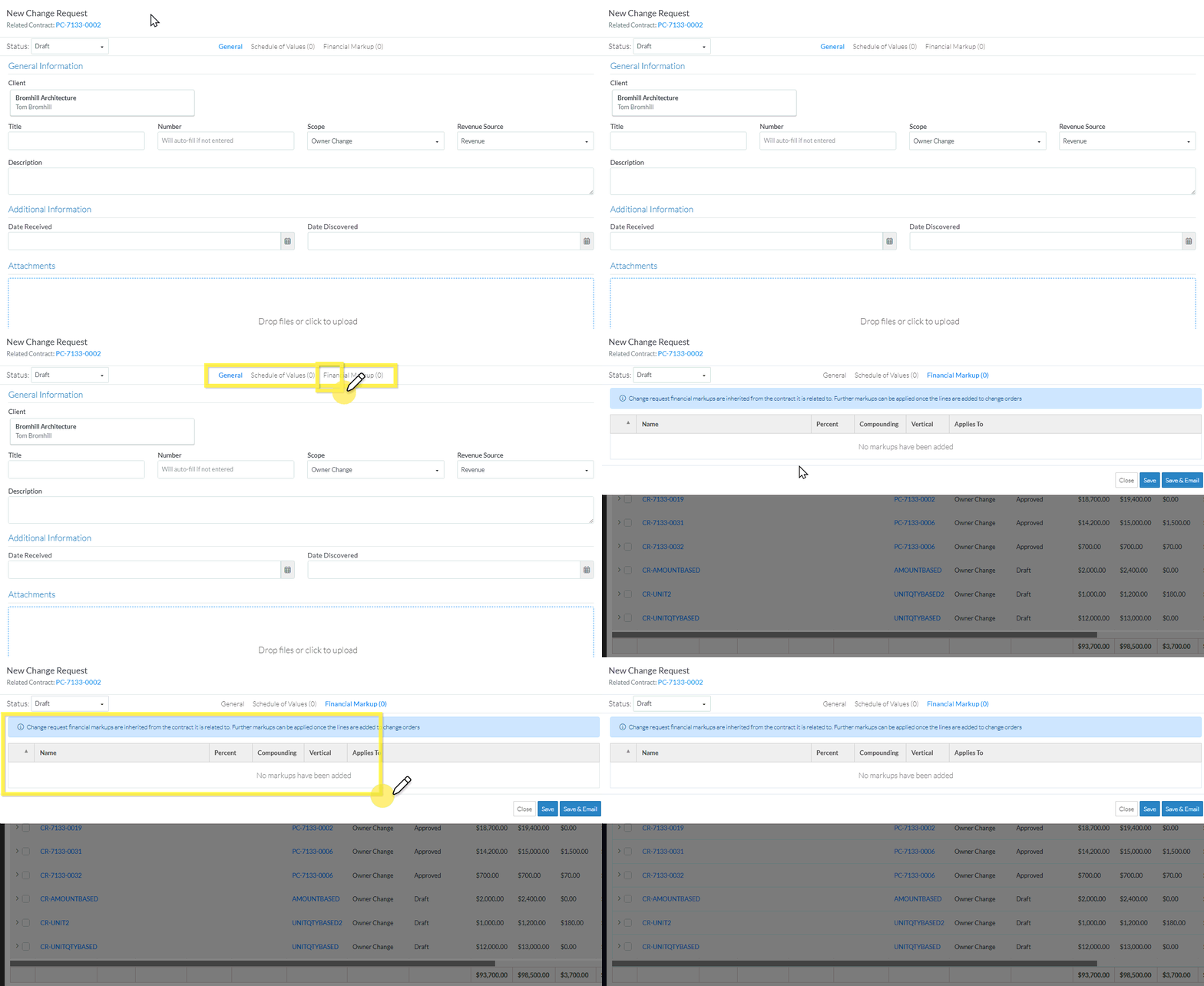
Click here for accessing Financial Markups for an existing Change Request
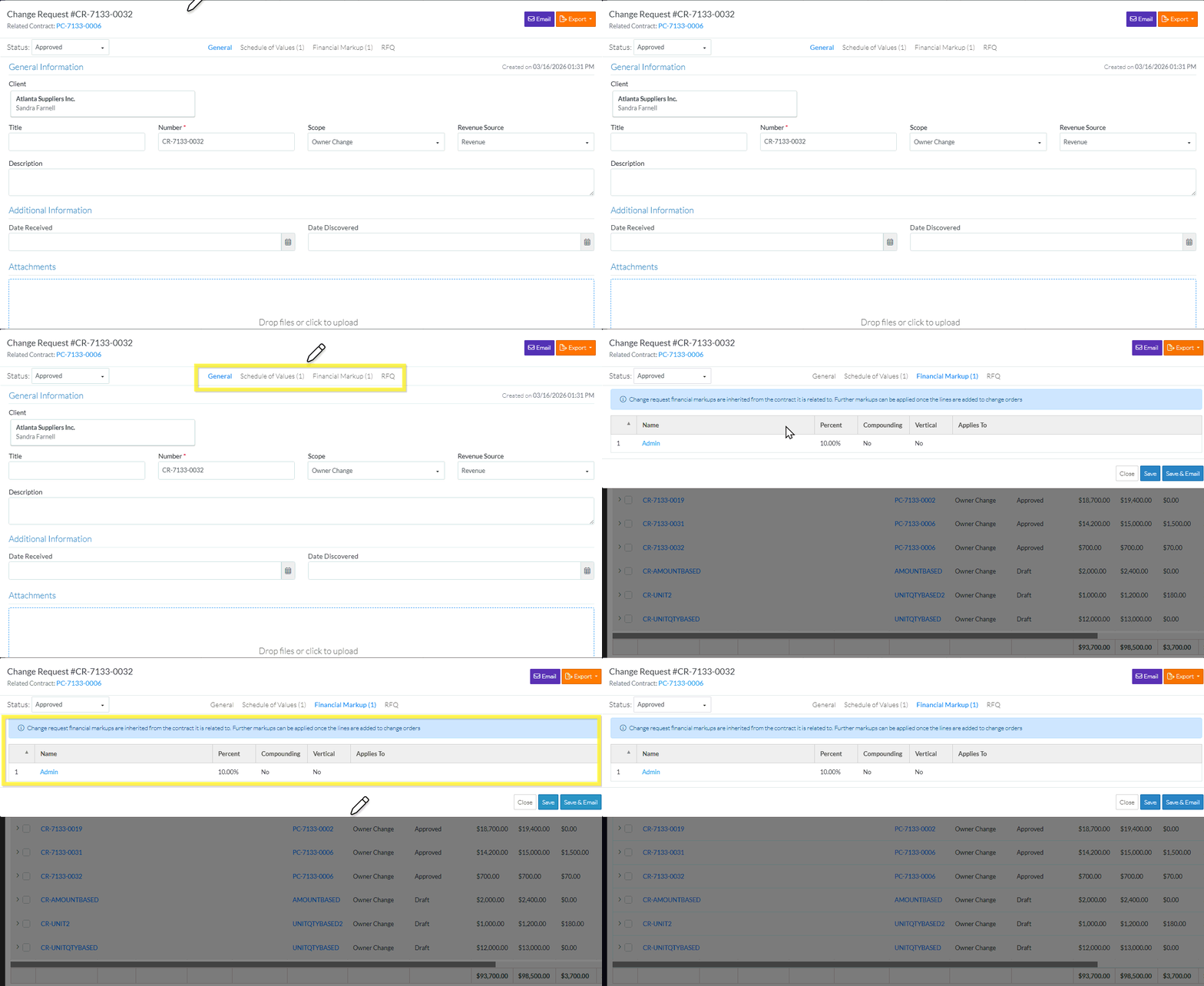
Next Steps
To view more information on the layout and navigation, see Change Request - Financial Markups - Layout and Navigation.
To maintain Financial Markups if applicable, see Change Request - Financial Markups - Maintaining.
