RFQ Response - Update Response Entered - Switch from no cost to cost
 Updated
Suggested Prior Reading
RFQ Response - Update Response Entered
Response Submitted by Subcontractor/Vendor
This is help on the RFQ Response form for updating a previously entered Response to switch it from no cost associated with the scope change to a cost for the scope change.
Switching from no cost associated with the Scope change to a cost
- If not already displayed, display the RFQ Response form, see RFQ Response - Update Response Entered.
- To switch a previously entered response from no cost to a cost, click the Yes
 button.
It will be filled in blue and the form changes to display Quote Amount, Comments and Attachments.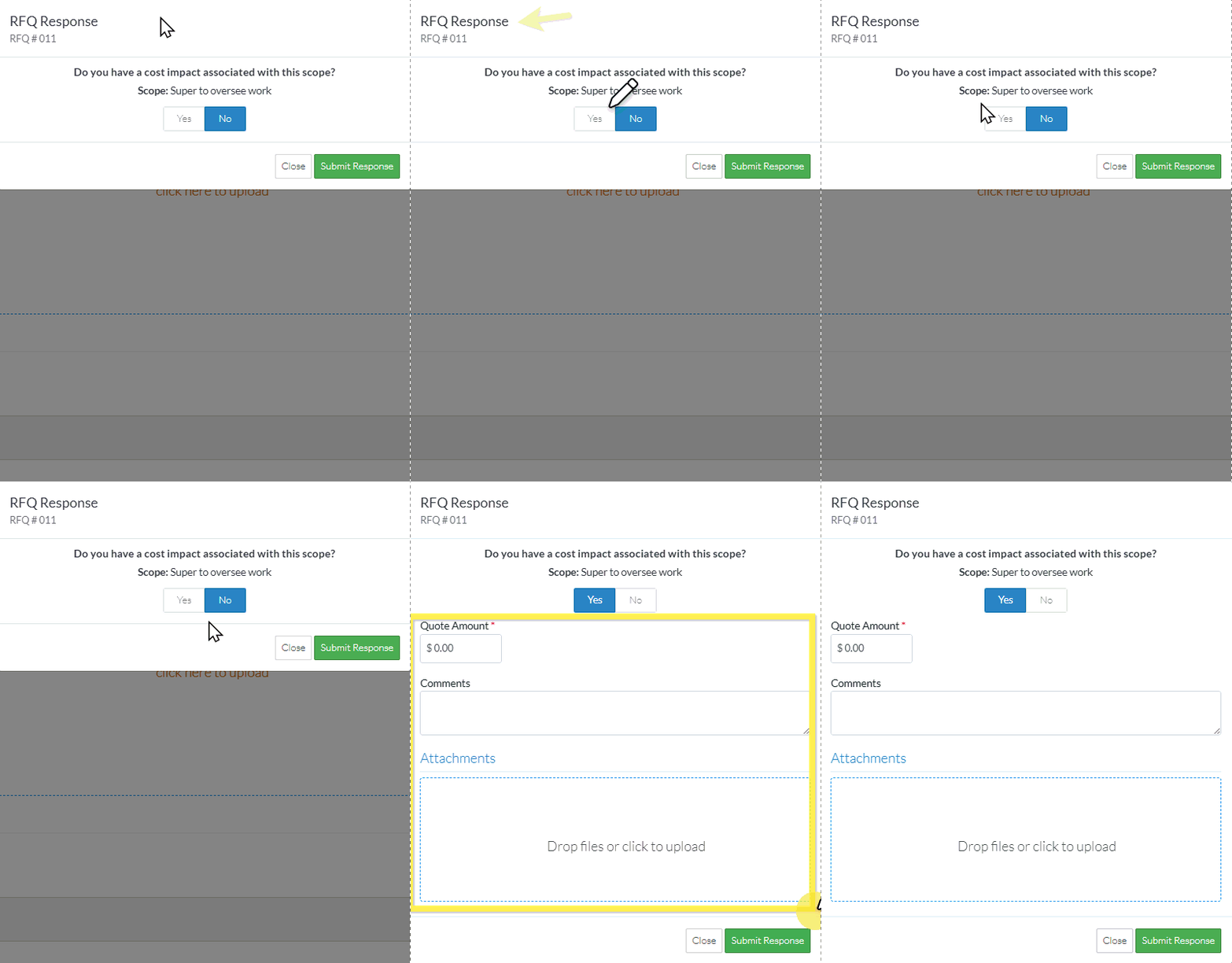
- Enter the Quote Amount. This shouldn't include Taxes or Markups. It is the direct cost from the Subcontractor/Vendor.
- Enter Comments as required.
- Upload Attachments as required.
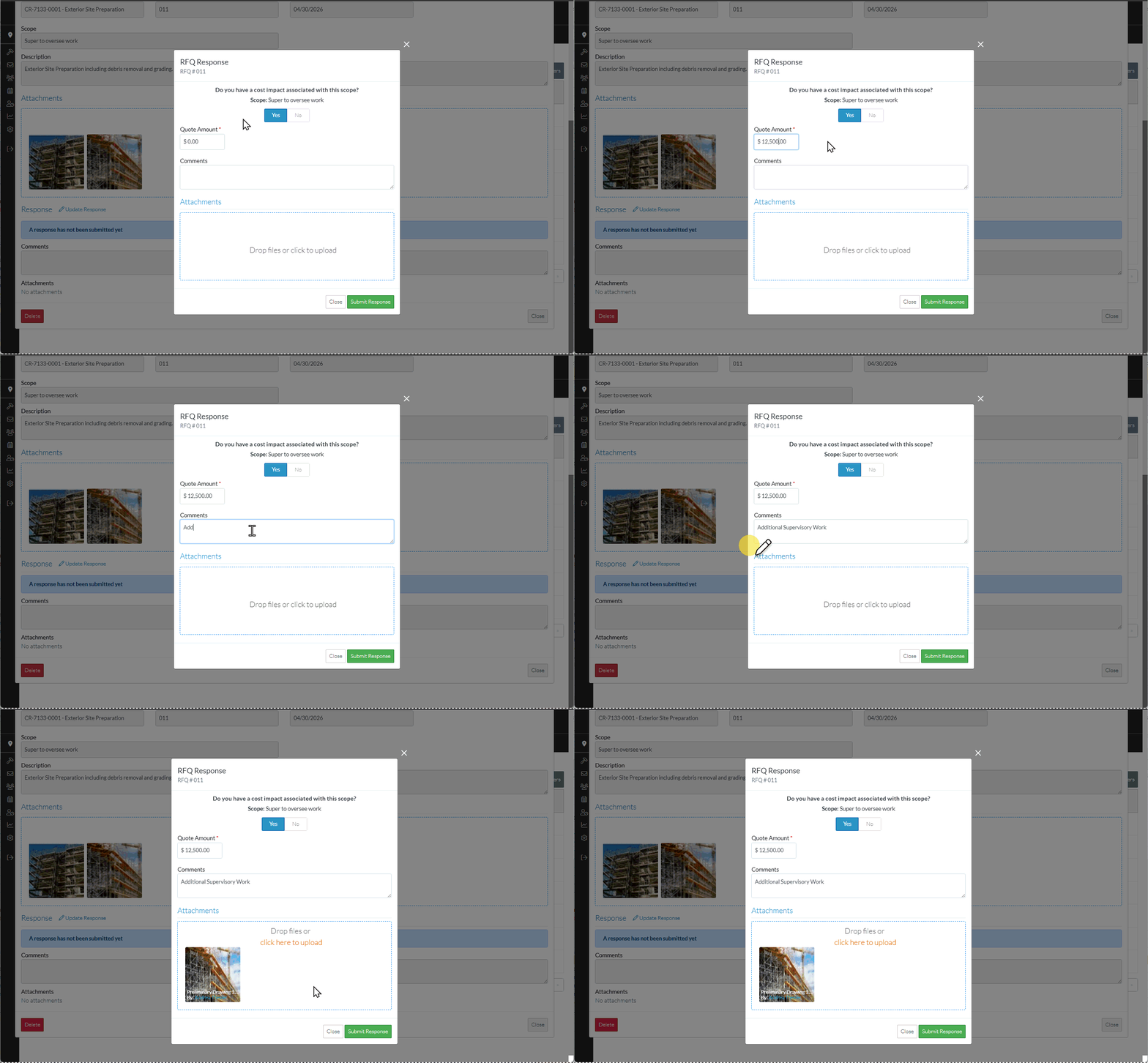
- Click Submit Response
 button to submit the Response to do the RFQ scope for additional costs. The RFQ is saved with the Response information (it doesn't have to be saved again).
The RFQ - View/Edit form displays (see RFQ - View/Edit - Layout and Navigation - Reviewing Status for more information).
The Status will be automatically set to Reviewing.
The Response displays the Quote Amount, Comments and Attachments entered.
See RFQ - View/Edit - Reviewing Status for next steps.
OR
Click the Close button to cancel updating of the Response.
Click here for more information on the Close function
If the Close button is invoked, a message displays confirming that the response or changes to the Response should be cancelled.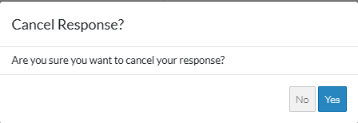
Click the No button to return to entering or updating the Response. See RFQ Response - Update Response Entered.
OR
Click the Yes button to cancel entering or updating the Response. See Next Steps below.
Next Steps
Click here for more information on the Next Steps depending on the Status the RFP
For RFQs in a Draft Status, see RFQ - View/Edit - Draft Status for more information.
For RFQs in a Pricing Status, see RFQ - View/Edit - Pricing Status for more information.
For RFQs in a Reviewing Status, see RFQ - View/Edit - Reviewing Status for more information.
For RFQs in a Revise Status, see RFQ - View/Edit - Revise Status for more information.
For RFQs in an Approved Status, see RFQ - View/Edit - Approved Status for more information.
For RFQs in a Closed Status, see RFQ - View/Edit - Closed Status for more information.
