This is help for editing the information for a Request before creating and sending it to the Company/Contact entered. This pertains to the Requests section on the Send RFQs form (see the above Suggested Prior Reading for more information).
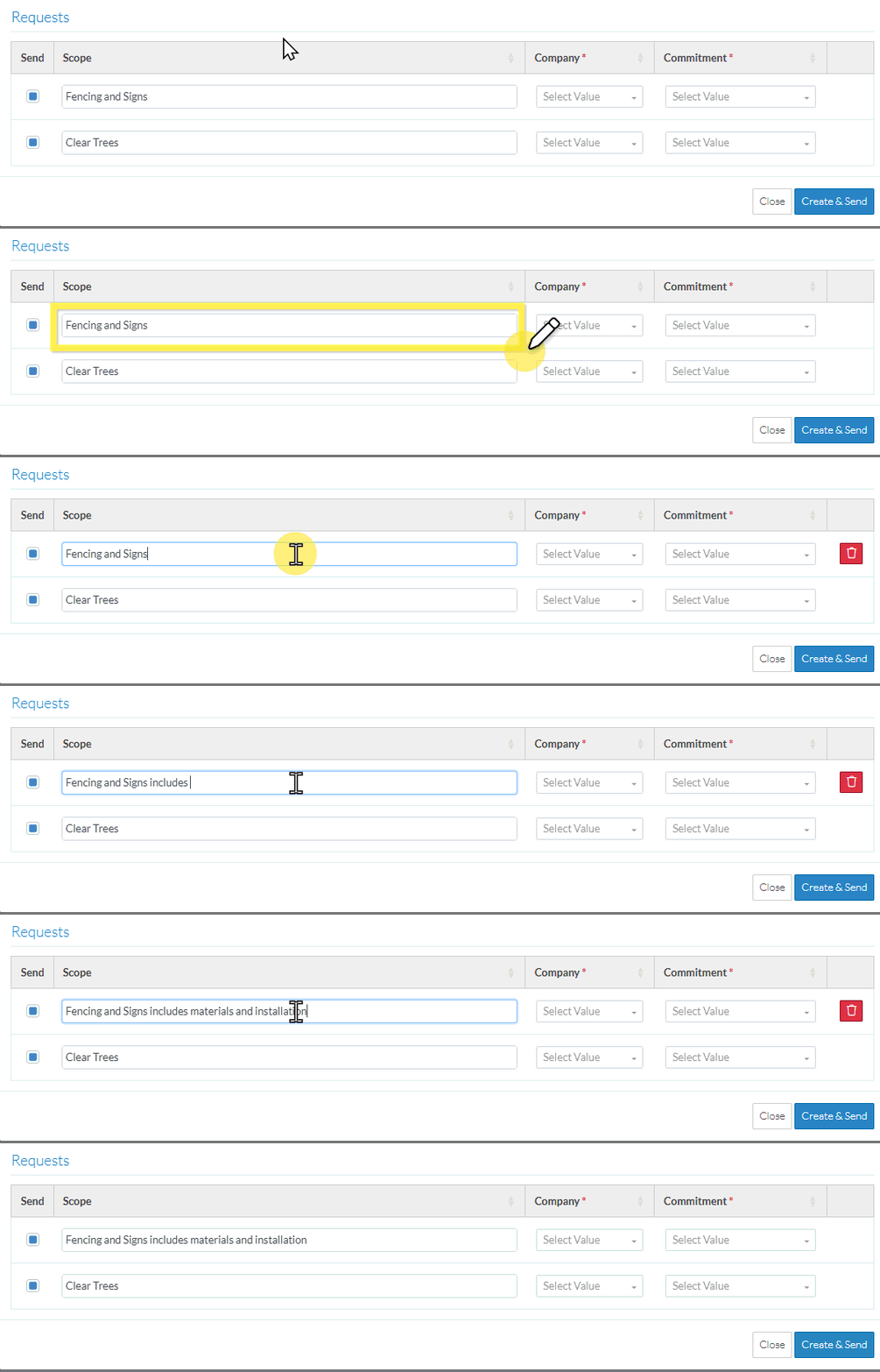
Enter or maintain the Scope if required. This is set to the Description from the Change Request Line Item. This is optional and it can be changed. Note* If this is changed, it does not change the Description on the Change Request Line Item. Therefore, they will no longer match if looking at the Change Request Schedule of Value Line Item and the RFQ Scope.
Enter or change the Company if required. This is set to the Company from the Change Request Schedule of Values Line Item (if one was entered) and is displayed, otherwise the field is blank. The Company field is required. Once the RFQ is created with this Company, the Company can not be changed (the RFQ would need to be deleted and re-created). The Company can be selected in the Company drop down, but it will also be automatically populated if a Commitment is selected i.e. it will display the Company from the selected Commitment. If the RFQ is Approved, the Company will be automatically updated to the Change Request Line Item. The Company also includes the associated Contact as that is who the RFQ is sent to (although the Contact is not listed). Note* The Commitment drop down is just another way to select the Company. The Commitment is not saved after the RFQ is created. To select a Company from the Company drop down
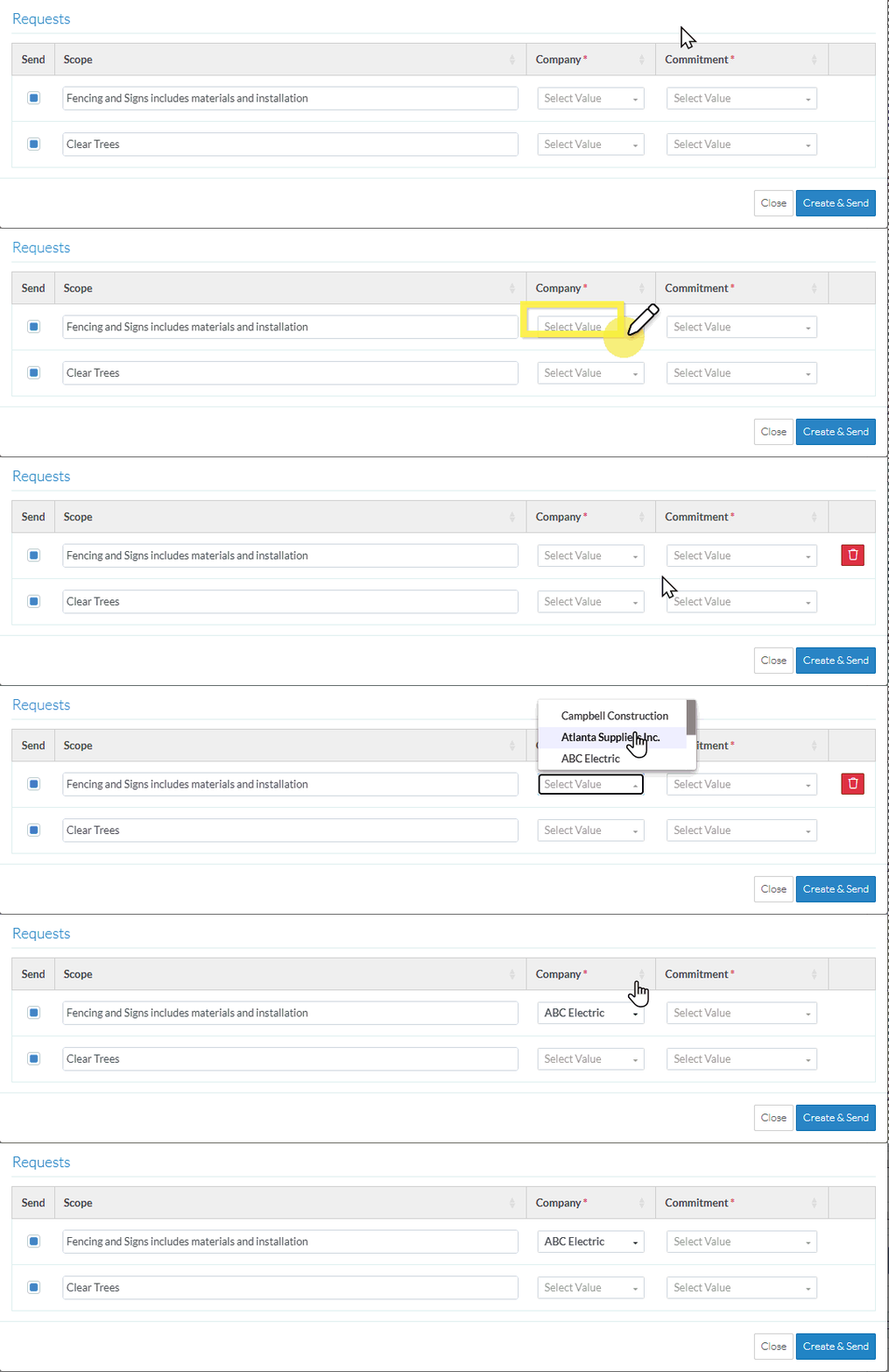
To enter or change the Company, click in the Company drop down. All the Companies for which Subcontracts or Purchase Orders have been created for the Project are listed and can be selected (regardless of the Status of the Subcontract or Purchase Order). Note* The same Company could be listed more than once if they have more than one Subcontract or Purchase Order.
Select the Company.If a Commitment was entered and the Company is changed, the Commitment will be removed and needs to be re-entered.
To select a Company/Contact by selecting a Commitment
Enter or change the Commitment if required. This is set to the Commitment from the Change Request Schedule of Values Line Item (if one was entered) and that displays, otherwise the field is blank. The Commitment field is optional. The Commitment field is just another way of selecting the Company/Contact.
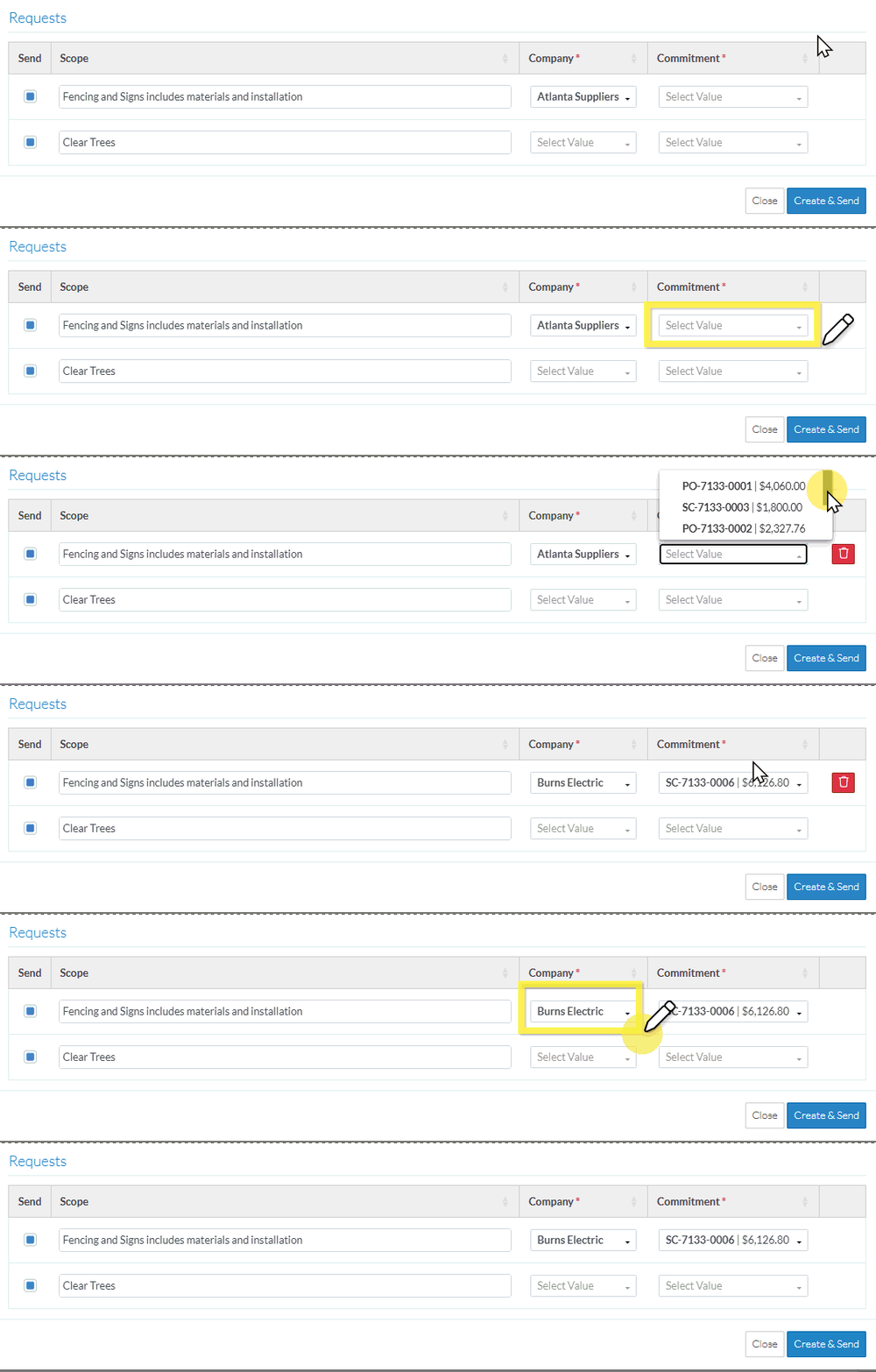
To enter or change the Commitment, click in the Commitment drop down. All the Subcontracts or Purchase Orders that have been created for the Project are listed and can be selected (regardless of the Status of the Subcontract or Purchase Order). The Amount of the Purchase Order or Subcontract is also displayed.
Select the Commitment.The Company for the Commitment is displayed in the Company field. If the Commitment selected is for a different Company than the one displayed, the Company will be automatically updated with the Company (and Contact) for that Commitment.
Repeat for each Request that is to be sent and needs the information modified.
To create all the Requests with the Send box filled, and to send each to the Contact for the Company if one is entered, click the Create & Send button.Click here for more information on the Create and Send function
A separate RFQ will be created for each Line Item in the Requests section.
The RFQ information is set as follows: The Company/Contact will be set to the Vendor/Subcontractor Company for the RFQ. The Company/Contact or Commitment will also be set as the Assigned To for the RFQ. The Distribute To will be set to the Project Manager or Estimator who created the RFQ. The Title is set to the Title. The Number will be automatically generated. The rest of the General Information Title, Due Date and Description will be automatically populated into all RFQs and be the same for all RFQs created. The Scope is set to the Scope for that Line Item. Any Attachments entered will be copied to all RFQs created.
If the Send option is filled in blue and a Company/Contact is entered, the Request for Quote will be automatically sent to the Company/Contact.
The list of RFQs specific to the Change Request displays, see Next Steps below. OR Click the Close button to cancel creation of the RFQs.Click here for more details on the Close function.
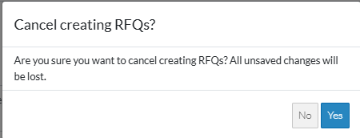
If the Close button is invoked, a message displays with a prompt to ensure that the creation of the RFQ should be cancelled.
If No is clicked, the Send RFQ form displays. See the steps above for maintaining the Requests.
 Updated
 button.The list of RFQs specific to the Change Request displays, see Next Steps below.
 button to cancel creation of the RFQs.