Schedule of Values - Line Item - Description
 Updated
Suggested Prior Reading
Schedule of Values - Add Line Item
OR
Schedule of Values - Edit Line Item (before Save)
OR
Schedule of Values - Edit Line Item (after Save)
Description
The Description is always displayed but is optional.
How and where columns display on Line Items depends on various factors, see Things to review for Job Costing.
The Description can be entered during the initial add as well as added or changed after the form has been saved.
To Enter a Description
- During the initial add of a line item, the Description column is automatically selected after the Cost Type is entered (see Schedule of Values - Line Item - Cost Type).
OR
If the line item is being edited and is not automatically selected, click in the Description column on the row of the line item.
- Enter the Description.
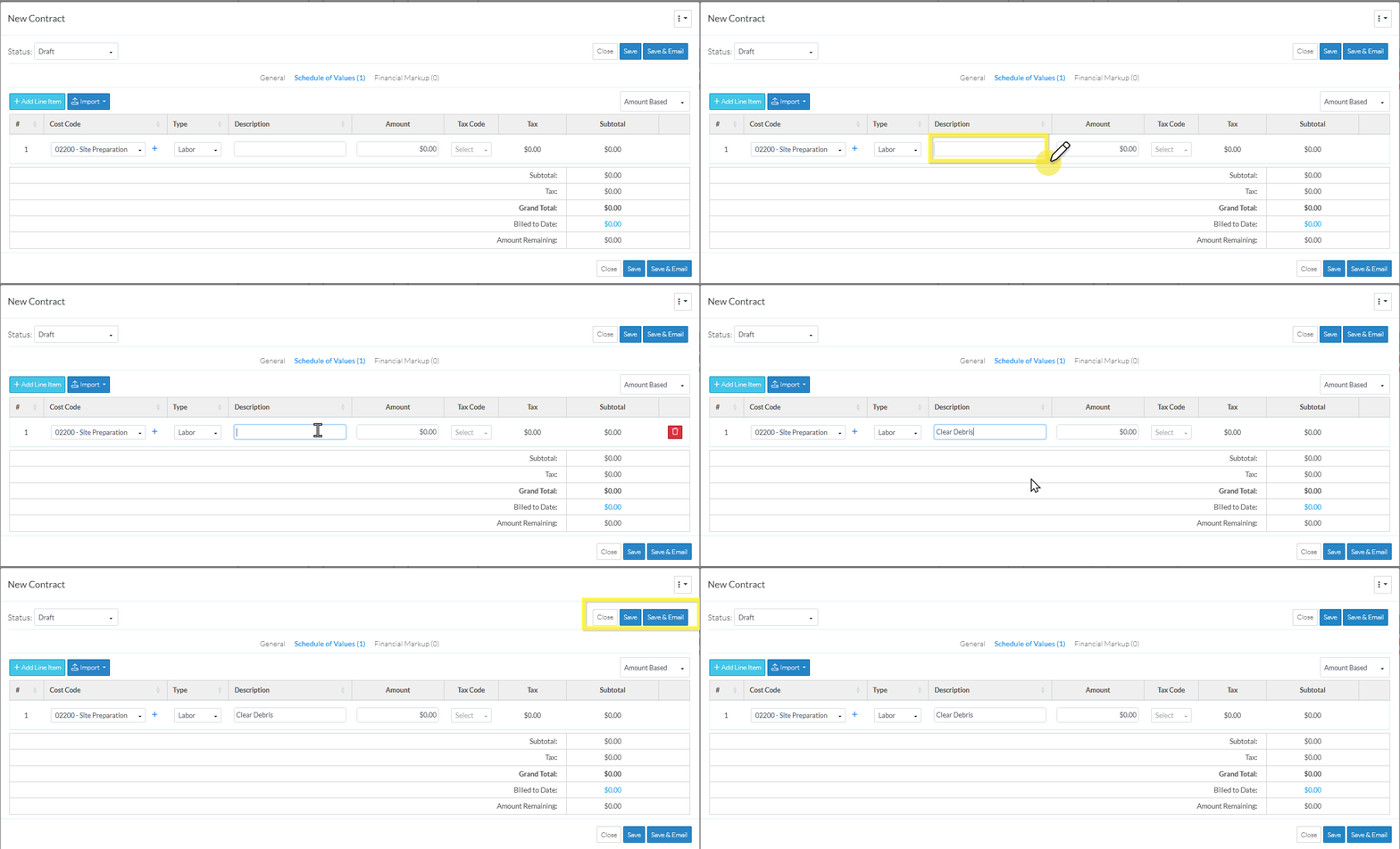
- Enter additional Line Item information as outlined in Next Steps below.
OR
Click the Save  button to save the information on all the components.
OR
Click the Save & Email  button to save the form and send an email with the form as an attachment and a link to the item in JobPlanner.
OR
Click the Close  button to close the form without saving the information.
Next Steps
Enter the Amounts for the Line Item, see Schedule of Values - Line Item - Amount.
Set the Tax for the Line Item, see Schedule of Values - Line Item - Tax.
Review Financial Markups on the Line Items, see Schedule of Values - Line Item - Financial Markups.
