RFQ - View/Edit - Resend Revised Request
 Updated
Suggested Prior Reading
Change Request Specific RFQs - View/Edit
OR
Change Requests - List of all RFQs - View/Edit
RFQ - View/Edit - Revise Status
Resend Request
The Resend Request function is available if the RFQ is in a Revise Status. See RFQ - View/Edit - Revise Status for more information.
To resend a request for a revise quote to the Company/Contact entered:
- View or Edit the RFQ, see the following for the appropriate list the view/edit is being invoked from:
Change Request Specific RFQs - View/Edit
OR
Change Requests - List of all RFQs - View/Edit
The RFQ - View/Edit form displays. See RFQ - View/Edit - Layout and Navigation - Revise Status for more information. - Click on the Resend Request
 button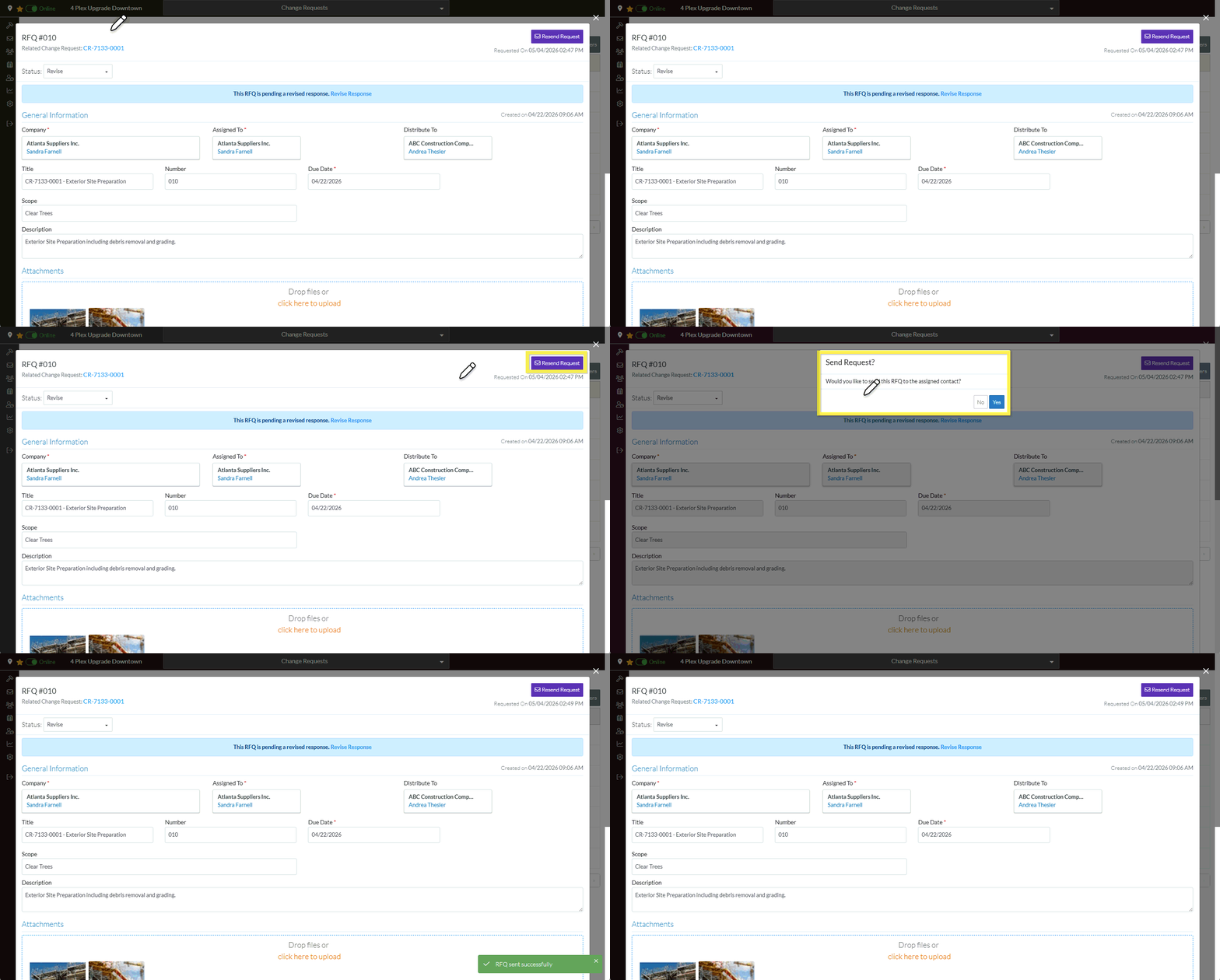
- A prompt appears confirming that the request should be sent to the Company/Contact.
Click Yes to send the Request.
OR
Click No to cancel sending of the Request.
The Request - View/Edit form displays.
If the Request was sent the Requested On will be updated with the date and time it was sent.
Messages also display indicating the status.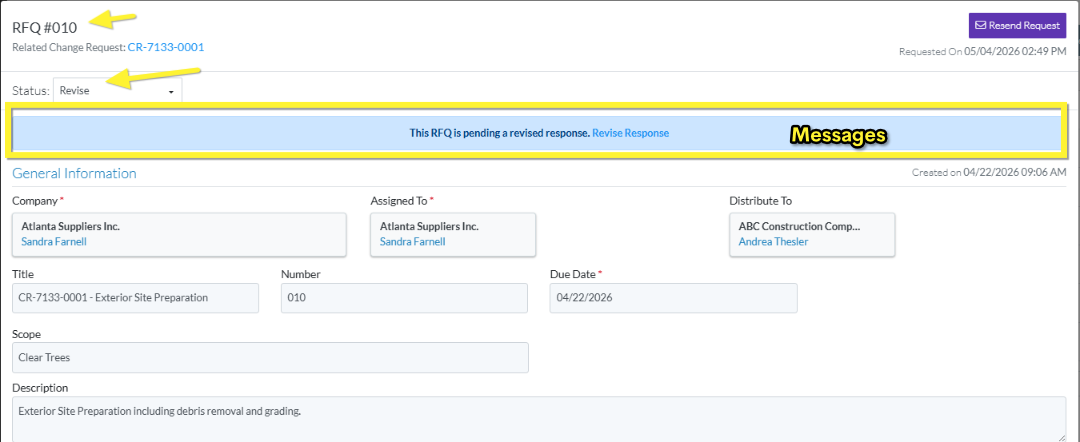
- Continue editing the RFQ, see More Information below.
OR
Click the Close button to close the RFQ form, see Next Steps below.
More Information
Receive the Response from a Subcontractor/Vendor, see RFQ - View/Edit - Receive Response from Subcontractor/Vendor.
Manually update the Response, see RFQ - View/Edit - Update Response.
Manually set the Status of the RFQ to another Status
Set the Status to Draft, see RFQ - View/Edit - Edit Status to Draft
Set the Status to Reviewing, see RFQ - View/Edit - Edit Status to Reviewing
Set the Status to Revise, see RFQ - View/Edit - Edit Status to Revise
Set the Status to Approved, see RFQ - View/Edit - Edit Status to Approved
Set the Status to Closed, see RFQ - View/Edit - Edit Status to Closed
Delete the RFQ, see RFQ - Delete.
Next Steps
The list the View/Edit was invoked from displays.
- If it was invoked from the Change Request - View/Edit form via the RFQs component, see Change Request Specific RFQs - Overview.
- If it was invoked from the Change Requests on the Project Navigation Menu and via the RFQs in the Lists Navigation Menu, see Change Requests - List of all RFQs - Overview
