All Change Requests Lists - Layout - Rows (Grouped List View)
 Updated
Suggested Prior Reading
Change Requests - Multiple Lists and Views
Click here for Change Requests List
OR
Click here for Contracts - List of all Change Requests
Change Requests Lists - Layout - Grouped List View - Rows
If the Grouped List View is turned on, the Change Requests List and the Contracts - List of all Change Requests have two different row types and each has different columns of information. (See Change Requests - Multiple Lists and Views for more information).
The Rows are:
- Change Request Row - is the top level row that shows the general Change Request Information.
- Schedule of Values Line Item Row - There is one row for each Line Item on the Change Request Schedule of Values.
By default when the Change Requests List are accessed, the information displays in a collapsed mode with just the Change Request rows displayed.
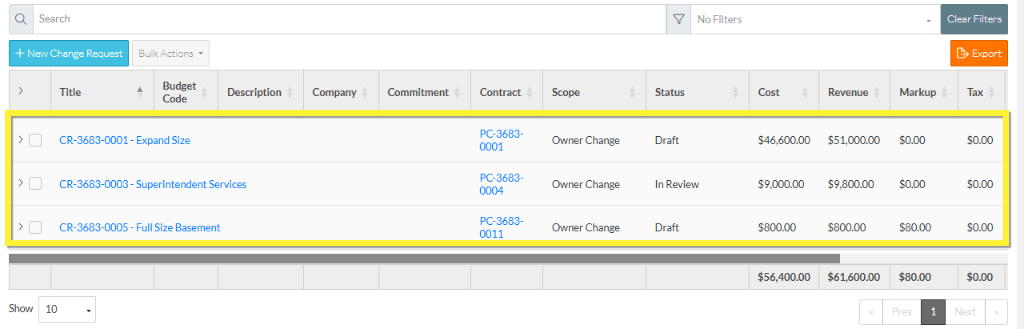
The Change Request Rows can be expanded to show the Schedule of Value Line Item rows.
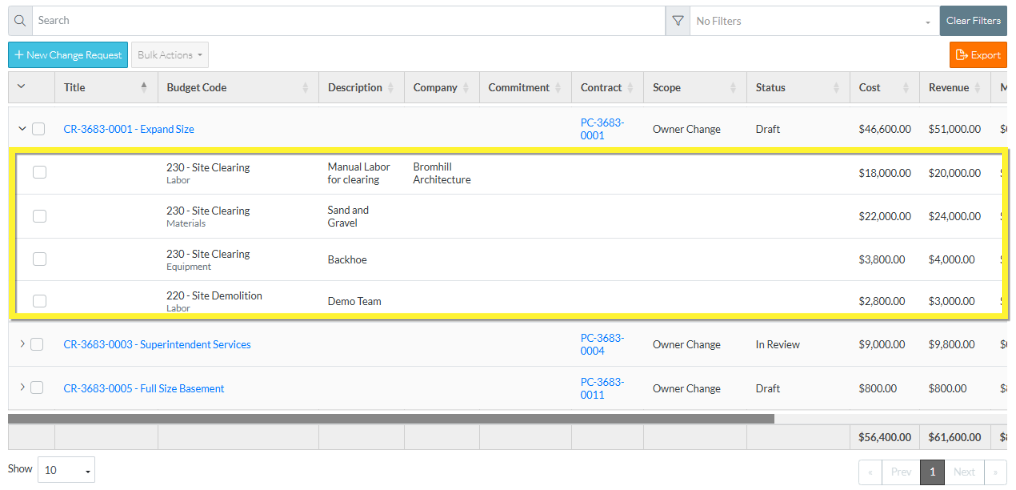
The Schedule of Values Line Item rows are also expanded automatically when any searching of filtering is done (see All Change Requests Lists - Search and Filter (Grouped List View).
The labels for the columns are for both the Change Request Row and the Schedule of Value Line Item rows.
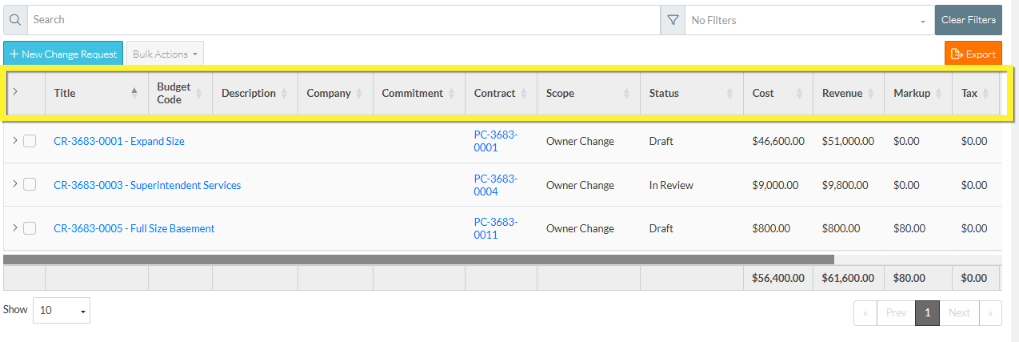
However, not all the columns are populated, it depends on the Row Type:
The columns that are populated for the Change Request Rows are:
- Title
- Contract
- Scope
- Status
For more information on the Change Request Rows, see Change Request - Add/Edit/View - General Information and Change Request - Status.
The columns that are populated for the Schedule of Value Line Item rows are:
- Budget Code (Cost Code, Cost Code Name and Cost Type)
- Description
- Company
- Commitment
The columns that are populated for both the Change Request Rows and the Schedule of Value Line Item rows are:
- Cost
- Revenue
- Markup
- Tax
- Total
- Over/Under
A value for each of the above is displayed for each Line Item, then all Line Items are summed to give the total value for the Change Request.
In addition, the first column is a function column, it is used to expand and collapse rows or select rows:
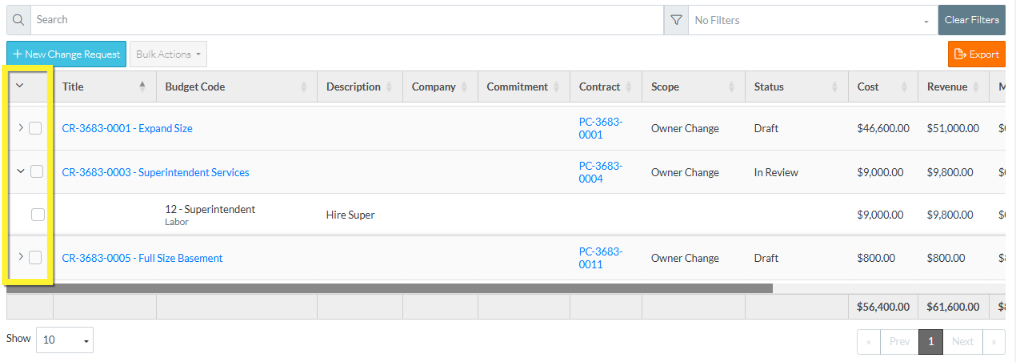
More Information
To expand and collapse rows, see All Change Requests Lists - Navigation - Rows (Grouped List View).
Next Steps
Click here for next steps for the Change Requests List
To create a new Change Request, see Change Requests List - New Change Request (Grouped List View).
To view/edit an existing Change Request, see Change Requests List - Change Request - View/Edit (Grouped List View).
To select Change Request Line Items and create them automatically on Contract Change Orders, Commitments or Commitment Change Orders or Send RFQs, see Change Requests List - Bulk Actions.
To delete a Change Request, see Change Requests List - Change Request - Delete (Grouped List View).
To email a Change Request, see Change Requests List - Change Request - Email (Grouped List View).
To export a single Change Request, see Change Requests List - Change Request - Export (Grouped List View).
To view and manage RFQs, see RFQs - Overview.
To change Settings for the list display, see Change Requests List - Settings (Grouped List View).
To export the full list of Change Requests, see Change Requests Lists - Export (Grouped List View).
Click here for next steps for Contracts - List of all Change Requests
To create a new Change Request, see Contracts - List of All Change Requests - New Change Request (Grouped List View).
To view/edit an existing Change Request, see Contracts - List of All Change Requests - Change Request - View/Edit (Grouped List View).
To select Change Request Line Items and create them automatically on Contract Change Orders, Commitments or Commitment Change Orders or Send RFQs, see Contracts - List of all Change Requests - Bulk Actions.
To delete a Change Request, see Contracts - List of All Change Requests - Change Request - Delete (Grouped List View).
To email a Change Request, see Contracts - List of All Change Requests - Email (Grouped List View).
To export a single Change Request, see Contracts - List of All Change Requests - Export (Grouped List View).
To change Settings for the list display, see Contract - List of all Change Requests - Settings (Grouped List View).
To export the full list of Change Requests, see Change Requests Lists - Export (Grouped List View).
