Financial Markup - Add/Edit/View - Details
 Updated
Suggested Prior Reading
OR
Add or Editing Financial Markups
This is the help for adding and editing Financial Markups.
The information that can be entered and edited will depend on different factors.
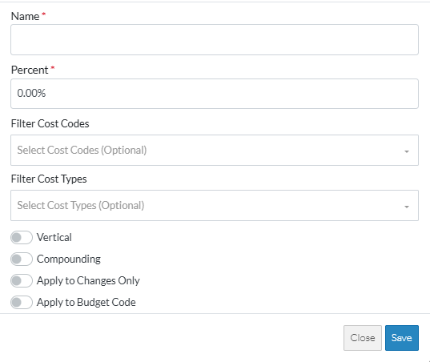
If an item can't be changed, it will have gray text and can't be clicked or the drop down will be light gray and not clickable. For the Rules on when Financial Markups information can be changed, see Financial Markup - Add/Edit - Rules.
To add or change a Financial Markup:
The following help assumes all the information can be entered. The examples are based on adding a new Financial Markup but are the same for editing.
- Enter or change the Name of the Financial Markup. This should be a short name or abbreviation as it appears as the column header or row label. This is a required field. This can always be added or edited.
- Set the Type of Financial Markup. There are two options; Markup or Margin. This is used for categorizing the Financial Markup. Click in the drop down and select the type.
- Enter or change the Financial Markup Percentage if required. This is a percentage and percentage formatting is automatically applied. This is a required field. This can always be added or edited.

- Financial Markups can be set to apply to only certain Cost Codes. Turn on or off, Filter by Cost Codes if required and/or which Cost Codes to filter by:
To set the filter by Cost Codes when Sub Jobs are turned off, see Financial Markup - Filter Cost Codes (Sub Jobs Off).
OR
To set the filter by Cost Codes when Sub Jobs are turned on, see Financial Markup - Filter Cost Codes (Sub Jobs On) - Financial Markups can be set to apply to only certain Cost Types. Turn on or off, Filter by Cost Types if required and/or which Cost Types to filter by, see Financial Markup - Filter Cost Types.
- To change the display the value of this Financial Markup i.e. either vertically in the total row or not vertically so that it is a column on the Line Item), toggle the Vertical option on. See Financial Markup - Vertical.
- To turn on or off compounding for this Financial Markup, so that it calculates the Markup Amount for this including the markup value from the previous Financial Markup, toggle the Compounding option on. See Financial Markup - Compounding.
- To turn on or off applying this Financial Markup to apply only to Change Orders and Change Requests or not, toggle the Apply to Changes Only option on. See Financial Markup - Apply to Changes Only.
- To turn on or off display of this Financial Markup appear as a separate Line Item, toggle the Apply to Budget Code option on. See Financial Markup - Applies to Budget Code. If it is turned on, multiple drop downs appear to select the Sub Job (if applicable, Cost Code and Cost Type to use for the Line item created.
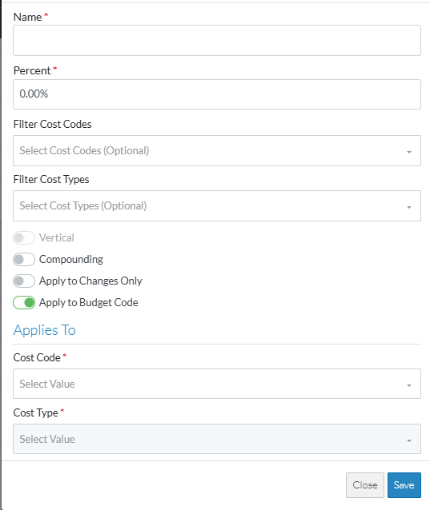
- Click the Save
 button to save the Financial Markup in the Financial Markup component. Note* it is not yet saved until the entire item is saved (see below).
OR
Click the Close button to close the form without saving the information.
The Financial Markups component displays. The entire item must be saved before any of the Financial Markup changes are saved. - Maintain the Financial Markups further as required (see More Information below).
OR
Click the Save button to save all the information about the Item including the Financial Markup(s).
OR
Click the Save & Email button to save all the information to save all the information about the Item including the Financial Markup(s) and send an email with a link to the item in JobPlanner. The Item is also added as an attachment in PDF format.
OR
Click the Close button to close the form without saving the information.
See Financial Markup - Navigation and Layout for more information on the Save, Save & Email and Close buttons.
More Information
Add Financial Markup, see Financial Markup - Add.
Edit Financial Markups, see Financial Markup - Edit.
Set the order the Financial Markups display or are used in Compounding, see Financial Markup - Setting the Order.
Delete a Financial Markup, see Financial Markup - Delete.
Next Steps
If maintaining Financial Markups for Contracts, see Contract List - Overview.
If maintaining Financial Markups for Contract Change Orders, see Contract Specific Change Orders List - Overview.
