Change Request - Schedule of Values - Line Items
 Updated
Suggested Prior Reading
Change Request - Schedule of Values - Overview
Change Request - Schedule of Values – Create - Layout and Navigation
Change Request - Schedule of Values – Maintain - Layout and Navigation
Line Items on the Change Request Schedule of Values
The information that displays and is entered for Line Items on the Change Request Schedule of Values will vary depending on:
- Whether the Accounting Method is Amount Based or Unit Based, see Schedule of Values - Accounting Method.
- If Tax Codes have been setup, see Settings - Tax Codes.
- If Financial Markups have been applied that display on each Line Item, see Financial Markups.
- If Sub Jobs have been turned on for the project, see Sub Jobs - Overview.
Scrolling
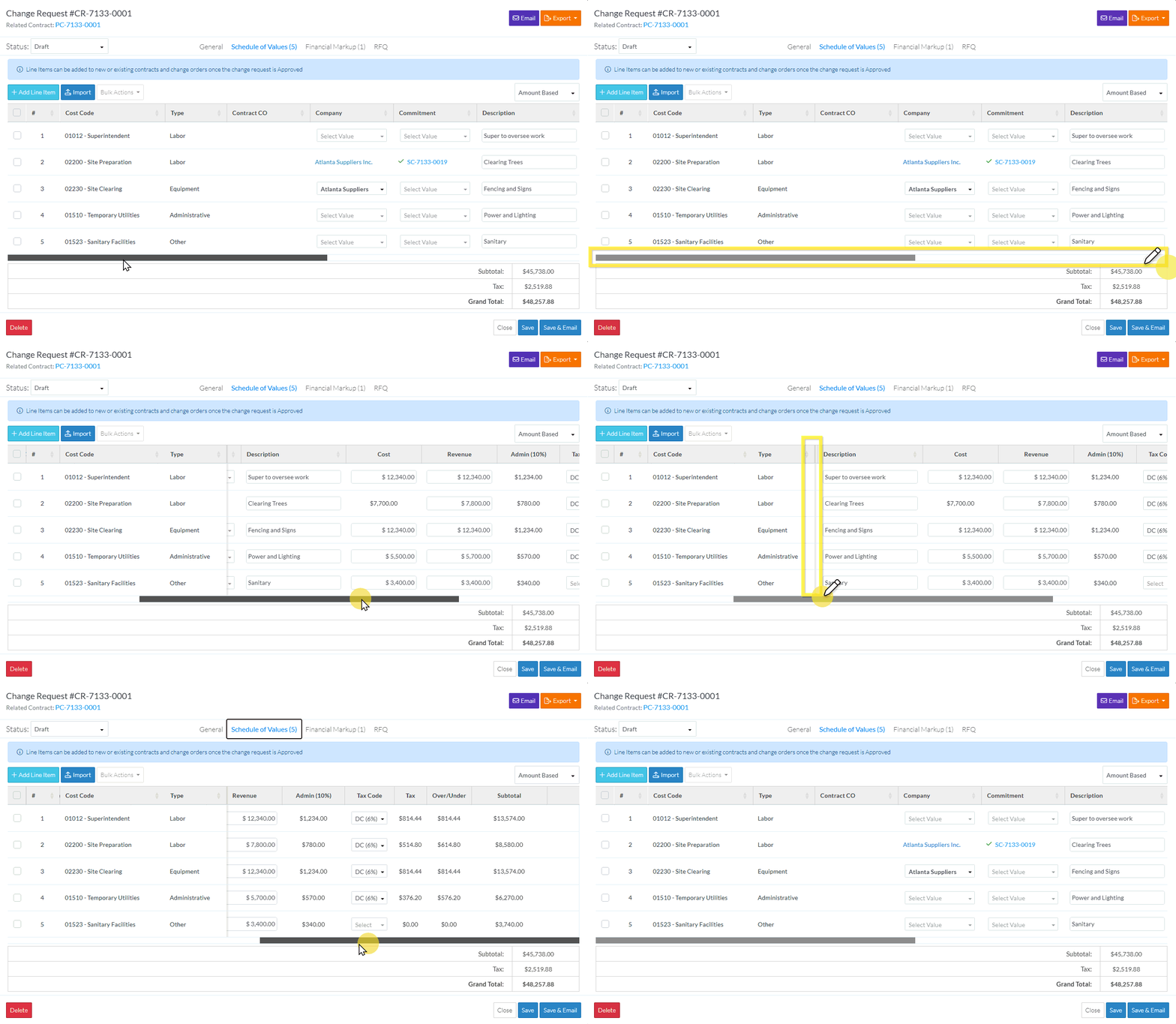
The Change Request Schedule of Values has a large number of columns and scrolling will likely be required to see all of them.
When scrolling, the columns are frozen up to the Cost Type (i.e. so the selection column, Line #, Sub Job, Cost Code and Cost Type always display)
Selection Column
The first column is a selection column. This is where individual Line Items or All Line Items can be selected to perform Bulk Actions on such as:
- Adding the Line Item to an existing or new Contract Change Order
- Adding the Line Item to an existing or new Purchase Order or Subcontract
- Adding the Line Item to an existing or new Commitment Change Order
- Sending an RFQ to a Vendor or Subcontractor for the Line Item
Clicking in the box in the header row selects or unselects all Line Items.
Click in the box for an individual Line Item, selects or unselects that Line Item.
See Change Request - Schedule of Values - Bulk Actions - Select Line Items OR All Change Request Lists - Bulk Actions - Select Line Items for more information.

If a Change Request is Void or Rejected, there will not be a selection column:

Line Item #
The second column is the Line Item number. This is automatically generated by the system and can not be changed.
Note* the examples below show a Schedule of Values with Sub Jobs turned on. The Sub Job column would just not display if they were turned off.

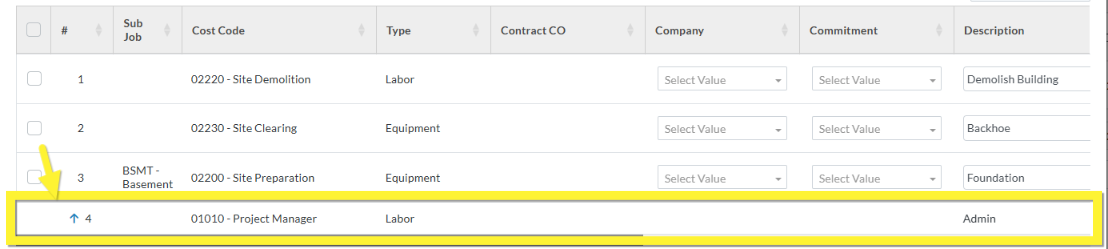
If the Schedule of Values has Financial Markups, and a Financial Markup has been set to Apply to Budget Code, the Line Item is automatically created for that Financial Markup. A blue up arrow appears appears to the left of the Line Item# to indicate that it was created from a Financial Markup and that Line Item can't be edited or deleted. See Financial Markup - Applies to Budget Code for more information.
Sub Jobs
If Sub Jobs have been setup, a Sub Job column appears as the next column and is where either the Parent Job or the Sub Job is selected and displays.
Before the Schedule of Values is saved (and if the line item was added during this session), the Sub Job is both a display and a drop down, where the Sub Job is displayed if one is selected and it is also where it can be entered or changed.
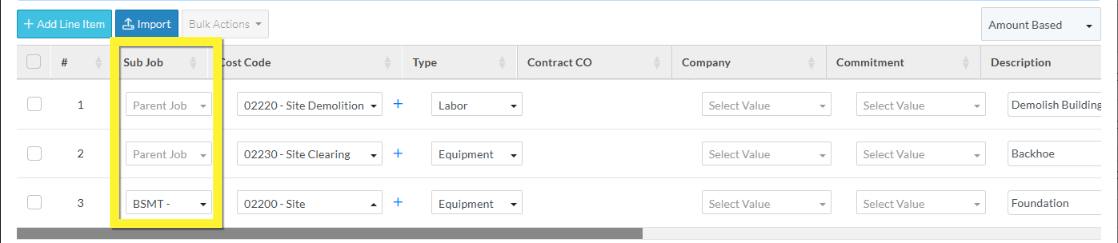
The Sub Job is a required field, however, if it is left blank it defaults to the Parent Job. Once the Schedule of Values is saved, the Sub Job can not be changed (as it is connected to Budget information).
The following is an example of a Saved Schedule of Values with Sub Jobs where the information is display only.

For more information, see Change Request - Schedule of Values - Line Item - Sub Job.
Cost Code, Cost Type
There will always be the Cost Code and Cost Type.
Before the Schedule of Values is saved (and if the line item was added during this session), the Cost Code and Cost Type are both displays and drop downs, where the Cost Code and Type is displayed if one is selected and it is also where it can be entered or changed.
The following is an example of a Schedule of Values that has not yet been saved with Sub Jobs:

The following is an example of a Schedule of Values that has not yet been saved without Sub Jobs:

Cost Code and Cost Type are required fields and once the Schedule of Values is saved, they can not be changed (as they are connected to Budget information).
The following is an example of a Saved Schedule of Values with Sub Jobs:

The following is an example of a Saved Schedule of Values without Sub Jobs:

For more information, see Change Request - Schedule of Values - Line Item - Cost Code with Sub Jobs OR Change Request - Schedule of Values - Line Item - Cost Code.
Contract CO
The Contract CO (Change Order) column on the Change Request Schedule of Values displays the Contract Change Order that the Line Item has been created on.
This is a display only. It can not be edited from the Schedule of Values. It is created on a Contract Change Order through the Bulk Actions. For more information, see Change Request - Schedule of Values - Line Item - Contract CO.
Note* The following is an example of a Change Request without Sub Jobs and in an Approved Status where the Cost Code and Cost Type display together as the Budget Code. The Display changes from a separate Cost Code and Cost Type column to a combined Budget Column for Change Requests in Statuses that can not be edited.

Company
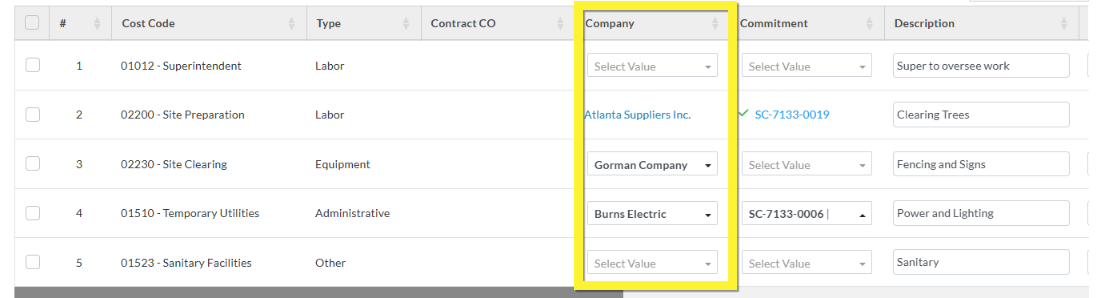
The Company column is where the Subcontractor or Vendor for a Commitment (Purchase Order or Subcontract) can be selected and/or viewed.
The Company column can be either a display and a drop down or just a display. The following is an example of both a display and drop down and just a display.
See Change Request - Schedule of Values - Line Item - Company for more information.
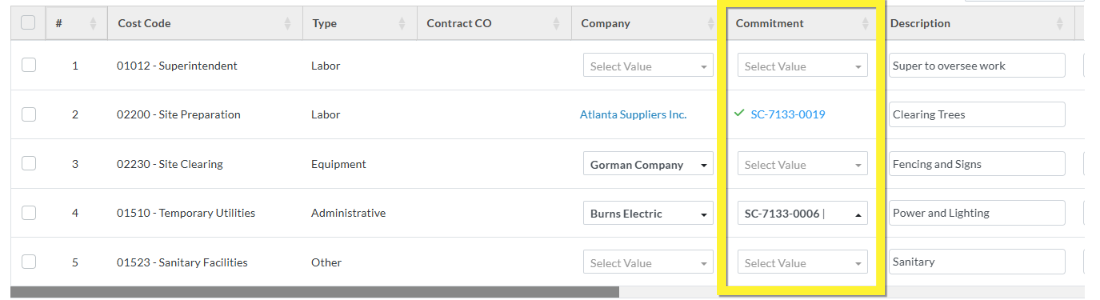
Commitment
The Commitment column is where the Commitment (Purchase Order or Subcontract) can be selected and/or viewed.
The Company column can be either a display and a drop down or just a display. The following is an example of both types.
See Change Request - Schedule of Values - Line Item - Commitment and/or Change Request - Schedule of Values - Line Item - Commitment - Display for more information.
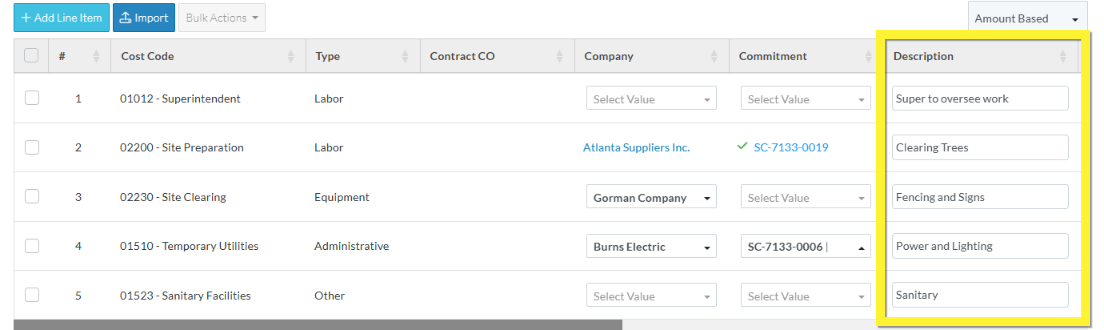
Description
The Description is optional and can be changed (as long as the Status enables edits).
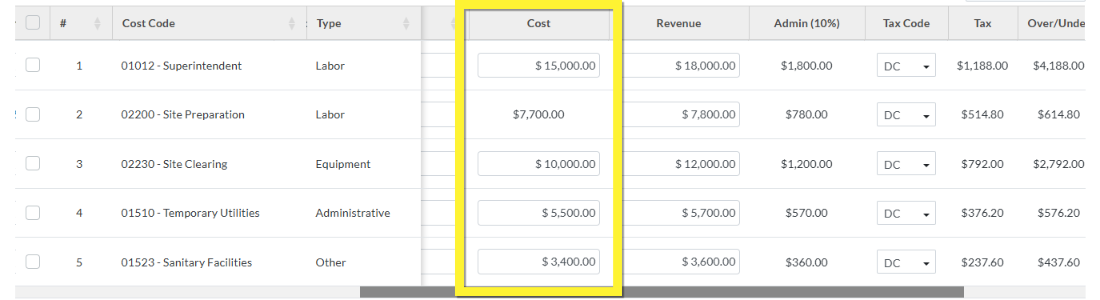
Cost
How the Cost amounts are entered for Line Items depends on the Accounting Method set. See Change Request - Schedule of Values - Accounting Method for more details.
If the Change Request is in a Status that enables editing and the Line Item has not been created on a Commitment or Commitment Change Order, the Cost columns can be edited. Otherwise, they are display only.
If Line Items are created n Commitments or Commitment Change Orders, the Cost will be automatically populated on those Line Items. See Assign Change Request Line Items to Contracts and Commitments - Cost and Revenue for more information.
For more information on entering the Costs and the display, see Change Request - Schedule of Values - Line Item - Cost (Quantity/Unit/Price).
Amount Based
If the Accounting Method is set to Amount Based, the line items will have a Cost column. This is the Cost for that Line Item (excluding taxes or Financial Markups).
Note* Line Items 1, 3, 4 and 5 are editable, while Line Item 2 is not.
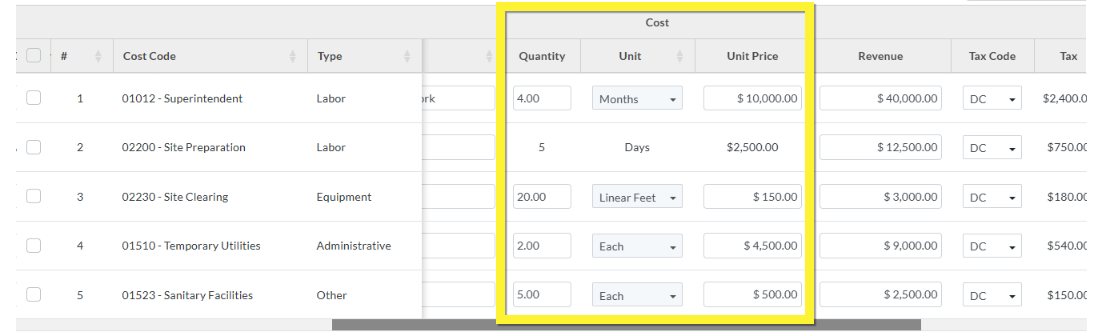
Unit Quantity Based
If the Accounting Method is set to Unit-Qty Based, the line items will have a Quantity, Unit and Unit Price.
The Quantity and Unit Price can be set as $0. The Unit is required. The Cost of that Line Item is automatically calculated by multiplying the Quantity x Unit x the Unit Price.
Note* Line Items 1, 3, 4 and 5 are editable, while Line Item 2 is not.
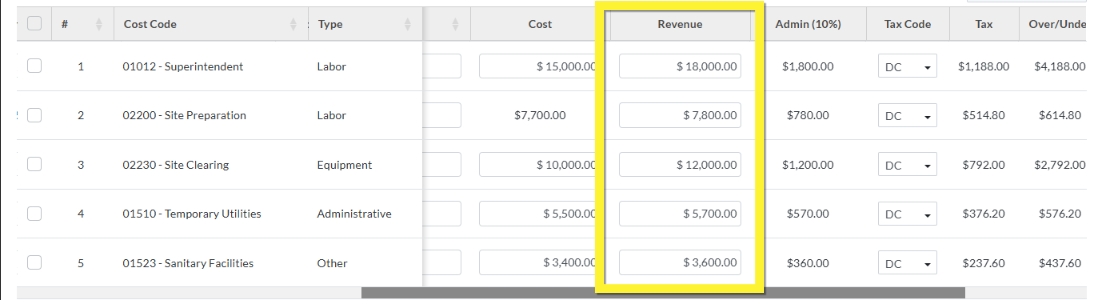
Revenue
This is the Revenue expected from this Change Request Line Item. It may be automatically populated, if the Revenue Source is set to Cost, see Change Request - Add/Edit/View - General Information for more details on setting the Revenue source.
It can be set to $0.
If Line Items are created Contract Change Orders, the Revenue will be automatically populated on those Line Items. See Assign Change Request Line Items to Contracts and Commitments - Cost and Revenue for more information.
If the Change Request is in a Status that enables editing the Revenue column can be edited. Otherwise, it is display only.
The Revenue Amounts plus any Financial Markups that appear on the Line Item show in the Subtotal both for the Line Item and for the entire Schedule of Values.
Financial Markups
If Financial Markups have been setup and configured to appear on each Line Item, there will be a column with the Financial Markup name and Markup Percentage and in the line item field, there will be the automatically calculated Markup amount.
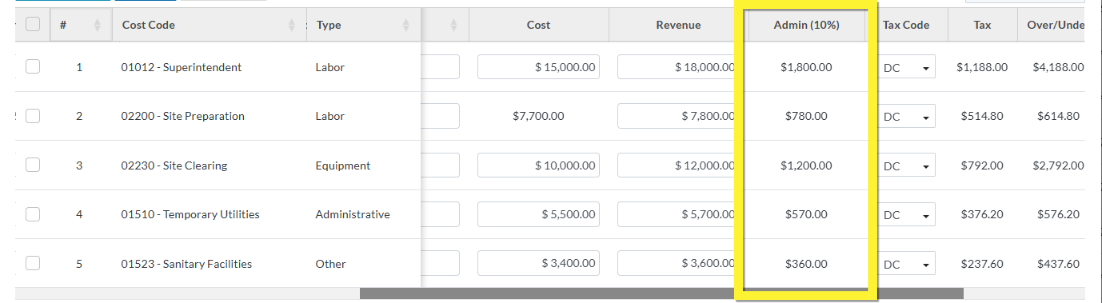
Depending on the setting for Financial Markups, they may be added into the Line Item Subtotal or they do not get added in the Line Item Subtotal. They are instead all added together and appear in the Summary and Total Sections in a specific Financial Markup row.
Tax Code and Tax
If Tax Codes have been setup, there will be a Tax Code drop down to choose the Tax Code to apply. Then there is also a Tax column that automatically displays the Tax amounts.
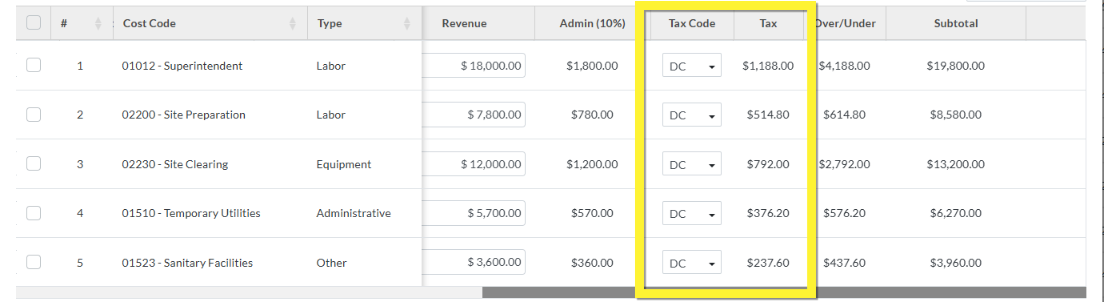
The Tax Amounts for each Line Item do not get added in the Line Item Subtotal. They are instead all added together and appear in the Summary and Total Sections in the Tax row.
Over/Under
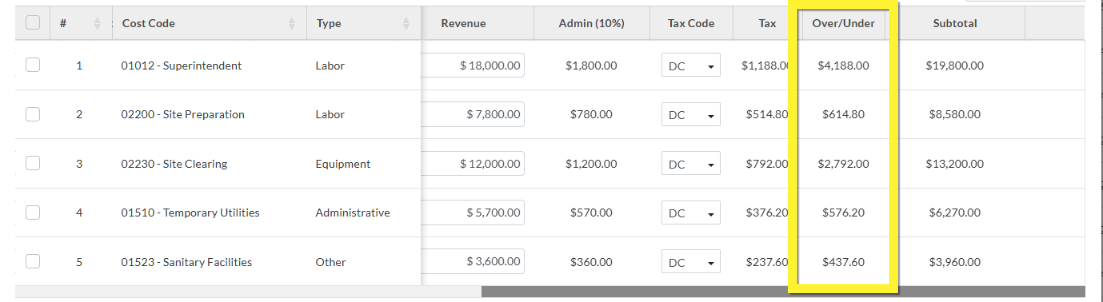
The Over/Under column is the Revenue minus the Cost.
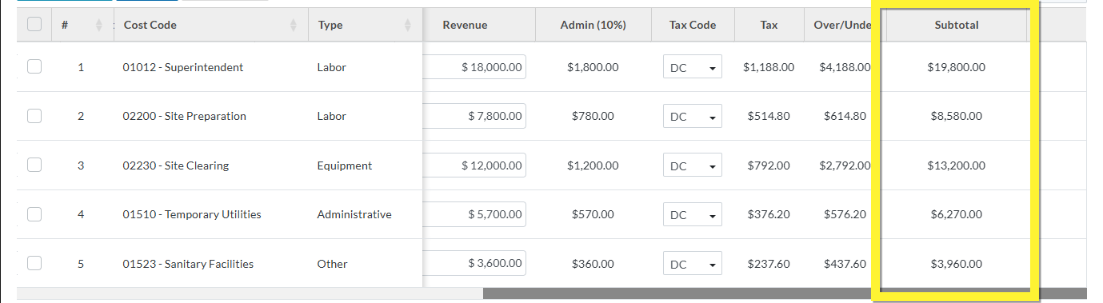
Subtotal
Each line item has a Subtotal. The values in the Subtotal are the Revenue plus any Financial Markups that display on the Line Item.
Next Steps
Set the Default Accounting Method for the Schedule of Values, see Change Request - Schedule of Values - Accounting Method.
Add a Schedule of Values Line Item, see Schedule of Values - Add Line Item.
Bulk Import Schedule of Values Line Items, see Schedule of Values - Import.
Edit a Schedule of Values Line Item before the Line Item has been saved, see Schedule of Values - Edit Line Item.
Edit a Schedule of Values Line Item after the Line Item has been saved, see Schedule of Values - Edit Line Item.
Delete a Schedule of Values Line Item, see Schedule of Values - Delete Line Item.
