Change Request - Schedule of Values - Line Item - Commitment
 Updated
Suggested Prior Reading
Change Request - Schedule of Values - Add Line Item
OR
Change Request - Schedule of Values - Edit Line Item (before Save)
OR
Change Request - Schedule of Values - Edit Line Item (after Save)
Change Request - Schedule of Values - Line Item - Company and Commitment
Entering a Commitment
Having a Commitment (or Commitment Change Order) for a Change Request Schedule of Values Line Item supports the process of the Subcontractors or Vendors being hired to do the change work, that work can be managed and then the Vendor or Subcontractor can be paid for the work.
Each Line Item on the Change Request Schedule of Values can be managed and populated for a Commitment or Commitment Change Order in different ways:
- If the Line Item from the Change Request is created on a Commitment or a Commitment Change Order Schedule of Values, the Commitment is automatically populated with the Commitment or Commitment Change Order and can't be changed. It can only be viewed.
- A Commitment can be selected from a list of all the Commitments created for the Project. This association is entered as a reference and is used in some functions, see Change Request - Schedule of Values - Line Item - Company and Commitment. It can be changed as long as the Change Request is in a Status that enables editing. This is different than above as the Line Item is associated with the Commitment or Commitment Change Order, however the Line Item is not actually created on a Commitment or Commitment Change Order.
See below for more information on each way the Commitment is populated.
When a Commitment is entered, the Company is automatically populated with the Contracted Company (and Contact) for that Commitment.
If a Company is entered, only Commitments for that Company display in the Commitment drop down (if the Commitment can be changed).
Note* How columns display for the Line Items on the Schedule of Values display depends on various factors, see Change Request - Schedule of Values – Layout and Navigation.
Creating the Line Item on a Commitment or a Commitment Change Order Schedule of Values
If the Line Item is created on a Commitment or a Commitment Change Order Schedule of Values:
- The Commitment or Commitment Change Order is updated here (overwriting any previous entries) and can not be edited or changed, it is display only.
- The Commitment will display with a green check
 mark in this scenario, see Change Request - Schedule of Values - Line Item - Commitment - Display for more information.
Click here for more information on creating the Line Item from a Change Request on a Commitment or a Commitment Change Order Schedule of Values
Associating the Line Item from a Change Request to a Commitment
If the Line Item has not been created on a Commitment or Commitment Change Order and is in a Status that enables editing, it is display and a drop down. If it is a display and drop down the Commitment can be entered during the add of a new Line Item or it can be edited on existing Line Items (see Suggested Prior Reading above).
If the Line Item is associated to a Commitment i.e. it is manually entered in the Change Request Schedule of Values (and is not actually created on a Commitment or Commitment Change Order):
- The Commitment displays but there is no green check mark
When the Commitment is a drop down, the Line Item can be associated to a Commitment or the existing one changed by clicking on the drop down. The drop down displays:
- All Subcontracts
- All Purchase Orders
The Subcontract or Purchase Order must be created before it appears in this list.
The Status of the Subcontract or Purchase Order does not matter, it will display here in the drop down list regardless of the Status.
- It can be entered or changed in the drop down until:
- The Change Request Status is set to Approved, Rejected or Void (see Change Request - Status)
OR - Its created on a Commitment or Commitment Change Order (see above).
Then it becomes display only. (See Change Request - Schedule of Values - Line Item - Commitment - Display for more information).
Where the Commitment is Used
- The Change Request Status is set to Approved, Rejected or Void (see Change Request - Status)
RFQs
If an RFQ is created for the Line Item, the Commitment will automatically populate on the Send RFQ form (but can be changed). It is used on the Send RFQ form only to narrow the list of Companies/Contacts to send the RFQ to (it is not used in the actual creation).
Commitment or Commitment Change Order
- When adding the Change Request Line Item to an existing Purchase Order or Subcontract, it is used to automatically select the Purchase Order or Subcontract that as the default (but the Purchase Order or Subcontract can be changed before its saved). Note* This only applies if the Purchase Order or Subcontract is in a Status that enables editing of the Schedule of Values (see Purchase Order - Status or Subcontract - Status for more information).
- When creating a new Commitment Change Order, it is used to automatically select the Purchase Order or Subcontract that a new Commitment Change Order is being added for as the default (but the Commitment Change Order can be changed before its saved). Note* This only applies if the Purchase Order or Subcontract is in a Status that enables adding of Change Orders (see Purchase Order - Status or Subcontract - Status for more information).
Help
This help covers:
- Entering a Commitment when adding new Line Items
- Changing the Commitment for existing Line Items
- Entering other Line Item information or saving the Change Request
To Enter a Commitment when adding new Line Items
After the Company is selected the Commitment column may be automatically selected. See Change Request - Schedule of Values - Line Item - Company.
- If the Commitment column is not selected, click on it to select it.
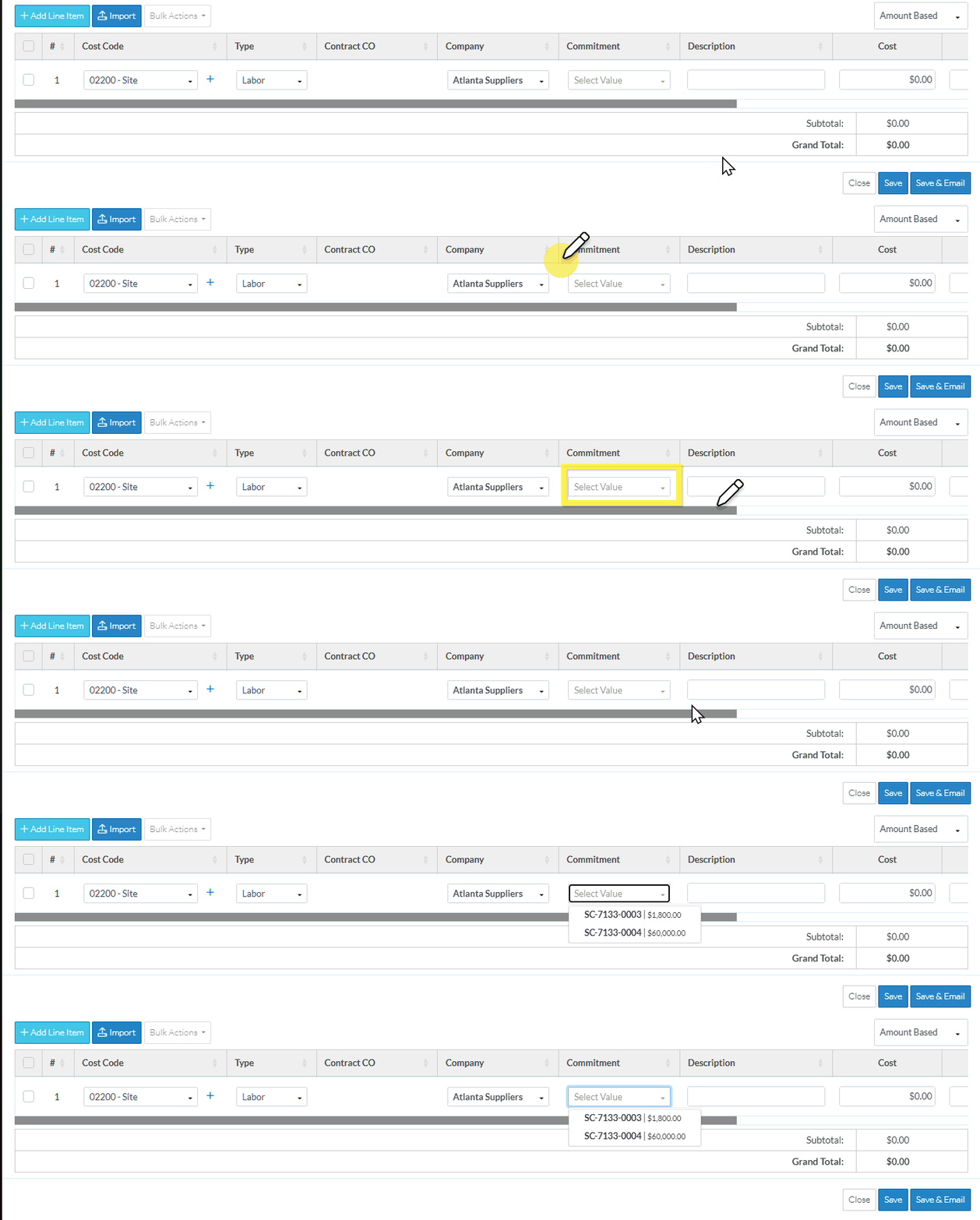
After the Commitment column is selected (either automatically or by clicking on it):
- The Commitment drop down displays.
- If a Company was entered, only Commitments and Commitment Change Orders for that Company display in the drop down
- If a Company wasn't entered, all Commitments and Commitment Change Orders display in the drop down (regardless of the Status of the Commitment or Commitment Change Order)
- The Commitment or Commitment Change Order displays as well as the Grand Total.
- Click on a Commitment in the list to select it.
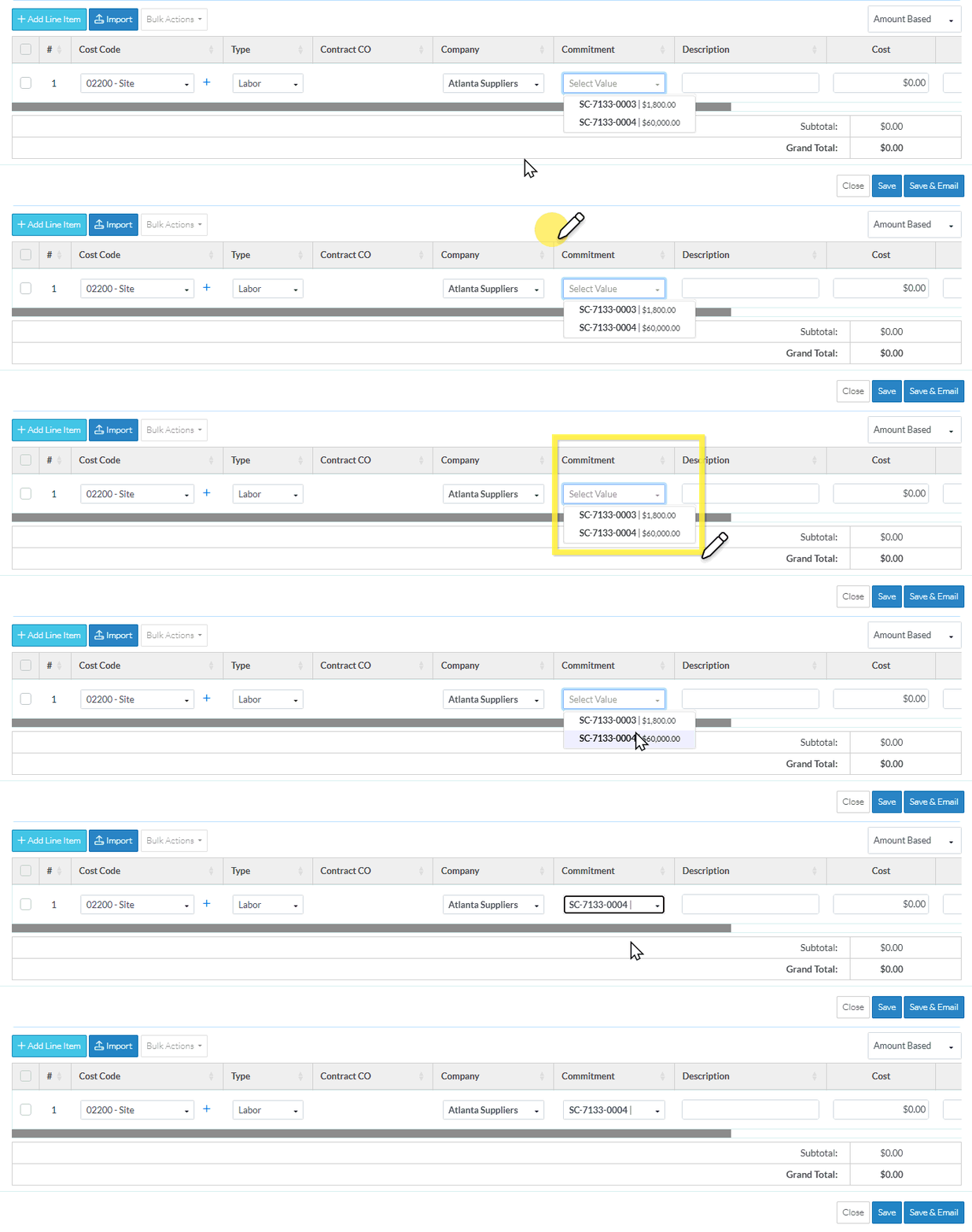
The Commitment displays in the field.
The Company is filled in automatically with the Company of the Commitment or Commitment Change Order that was selected (over writing any information that was there previously).
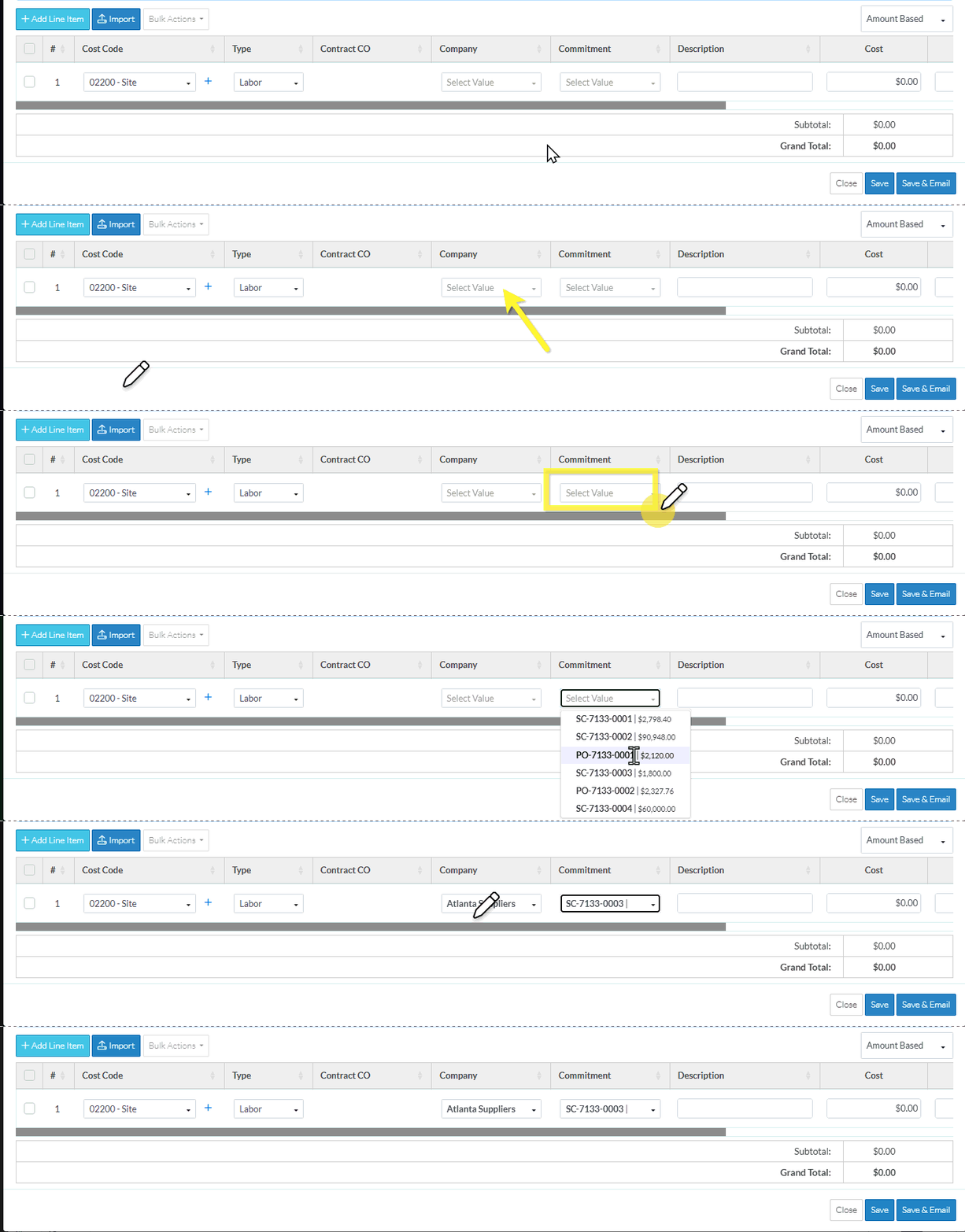
To Change the Commitment for existing Line Items
The Commitment can be changed as long as the Change Request Status is not Approved, Void or Rejected.
When it can be changed, it will appear as a drop down with any currently selected Commitment listed in the box.
To change the Commitment or enter it if left blank, follow the steps above.
Note* If a Company was entered and the Commitment is changed to a Commitment or Change Order with the same Company, the Company will not be changed. However, if the Commitment is changed to a Commitment or Change Order with a different Company, the Company will be changed to that new Company automatically.
Enter other Line Item Information or Save the Change Request (and end this session)
Enter other Line Item Information, see More Information below.
OR
Click the Save  button (at the bottom of the form) to save the Change Request.
Click here for more information on the Save function.
This list the function was invoked from displays. See Next Steps below.
OR
Click the Save & Email  button (at the bottom of the form) to save the Change Request and email it.
Click here for more information on the Save and Email function.
OR
Click the Close  button (at the bottom of the form) to close the form without saving the Change Request.
Click here for more information on the Close function.
If information was changed, then an additional prompt displays indicating there were changes and additional prompts on what to do.
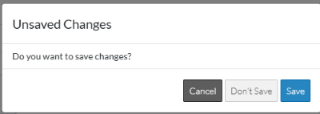
Click the Cancel
 button to cancel the Close action and return to the Change Request View/Edit form (see the steps above)
OR
Click the Don't Save
 button to cancel changes to the Change Request. The list the add or edit function was invoked from displays, see Next Steps below.
OR
Click the Save
 button to save the Change Request including any information on the General, Schedule of Values or Financial Markups components. The list the add or edit function was invoked from displays, see Next Steps below.
More Information
For more details on how the Commitment column displays, depending on the status and associations, see Change Request - Schedule of Values - Line Item - Commitment - Display.
Enter or review other Schedule of Values, Line Item information:
- Description - see Change Request - Schedule of Values - Line Item - Description.
- Cost - see Change Request - Schedule of Values - Line Item - Cost (Quantity/Unit/Price).
- Revenue - see Change Request - Schedule of Values - Line Item - Revenue.
- Over/Under - see Change Request - Schedule of Values - Line Item - Over/Under.
- Financial Markups - see Change Request - Schedule of Values - Line Item - Financial Markups.
- Tax Codes and Tax, see Change Request - Schedule of Values - Line Item - Tax Code and Tax.
- Subtotal - see Change Request - Schedule of Values - Line Item - Subtotal.
View, add or edit General Change Request information, see Change Request - Add - General OR Change Request - Edit - General.
Review all Financial Markups, see Change Request - Financial Markups - Overview.
If this is an existing Change Request (that was previously added and saved and is not Void or Rejected), review and manage RFQs, see RFQs - Overview.
Next Steps
Grouped List View
Click here for next steps for the Change Requests List (Grouped List View)
To create a new Change Request, see Change Requests List - New Change Request (Grouped List View).
To view/edit an existing Change Request, see Change Requests List - Change Request - View/Edit (Grouped List View).
To select Change Request Line Items and create them automatically on Contract Change Orders, Commitments or Commitment Change Orders or Send RFQs, see Change Requests List - Bulk Actions.
To delete a Change Request, see Change Requests List - Change Request - Delete (Grouped List View).
To email a Change Request, see Change Requests List - Change Request - Email (Grouped List View).
To export a single Change Request, see Change Requests List - Change Request - Export (Grouped List View).
To view and manage RFQs, see RFQs - Overview.
To change Settings for the list display, see Change Requests List - Settings (Grouped List View).
To export the full list of Change Requests, see Change Requests Lists - Export (Grouped List View).
Click here for next steps for Contracts - List of all Change Requests (Grouped List View)
To create a new Change Request, see Contracts - List of All Change Requests - New Change Request (Grouped List View).
To view/edit an existing Change Request, see Contracts - List of All Change Requests - Change Request - View/Edit (Grouped List View).
To select Change Request Line Items and create them automatically on Contract Change Orders, Commitments or Commitment Change Orders or Send RFQs, see Contracts - List of all Change Requests - Bulk Actions.
To delete a Change Request, see Contracts - List of All Change Requests - Change Request - Delete (Grouped List View).
To email a Change Request, see Contracts - List of All Change Requests - Email (Grouped List View).
To export a single Change Request, see Contracts - List of All Change Requests - Export (Grouped List View).
To change Settings for the list display, see Contract - List of all Change Requests - Settings (Grouped List View).
To export the full list of Change Requests, see Change Requests Lists - Export (Grouped List View).
Simple List View
Click here for next steps for the Change Requests List
To add a new Change Request, see Change Requests List - New Change Request (Simple List View).
To view/edit an existing Change Request, see Change Requests List - Change Request - View/Edit (Simple List View).
To delete a Change Request, see Change Requests List - Change Request - Delete (Simple List View).
To email a Change Request, see Change Request List - Change Request - Email (Simple List View).
To export a single Change Request, see Change Requests List - Change Request - Export (Simple List View).
To view and manage RFQs, see RFQs - Overview.
To change Settings for the list display, see Change Requests List - Settings (Simple List View).
To export the full list of Change Requests, see Change Requests Lists - Export (Simple List View).
Click here for next steps for Contracts - List of all Change Requests
To add a new Change Request, see Contracts - List of All Change Requests - New Change Request (Simple List View).
To view/edit an existing Change Request, see Contracts - List of All Change Requests - Change Request - View/Edit (Simple List View).
To delete a Change Request, see Contracts - List of All Change Requests - Change Request - Delete (Simple List View).
To email a Change Request, see Contracts - List of All Change Requests - Email (Simple List View).
To export a single Change Request, see Contracts - List of All Change Requests - Export (Simple List View).
To change Settings for the list display, see Contract - List of all Change Requests - Settings (Simple List View).
To export the full list of Change Requests, see Change Requests Lists - Export (Simple List View).
