RFQ - View/Edit - Approve and Update Change Request with Quote
 Updated
Suggested Prior Reading
Change Request Specific RFQs - View/Edit
OR
Change Requests - List of all RFQs - View/Edit
RFQ - View/Edit - Approved Status
Approve RFQ and Update Change Request Quote
Once a Response has been submitted either by a Subcontractor/Vendor themselves, via responding to the Email that was sent, or manually by the Project Manager/Estimator, the RFQ can be manually set to Approved and the Quote Amount will automatically update the Cost, Revenue (if applicable) and Company on the Change Request Schedule of Values Line Item.
The Cost on the Change Request Line Item will be updated with the Quote Amount. If the Change Request Schedule of Values Accounting Method is set to Unit-Qty based, the Quantity is set to 1 and the Unit Price is set to the Quote Amount (see Change Request - Schedule of Values - Accounting Method for more information).
If the Revenue Source for the Change Request is set to Cost, the Quote Amount will also be updated into the Change Request Line Item Revenue (see Change Request - Add/Edit/View - General Information for more details). Otherwise, if the Revenue Source is set to Manual, the Revenue Source will not be updated and must be updated manually.
If the Quote Amount is $0 or set to No Impact, neither the Cost nor the Revenue on the Change Request Line Item will be updated. It will be left set as what it was (see RFQ - View/Edit - Response for more information)
The Change Request Line Item Company will be updated with Company from the RFQ (regardless if the Quote Amount was set to $0 or set to No Cost).
If more than one RFQ was sent for the same Change Request Line Item, approving an RFQ will overwrite any previously approved RFQ information.
To approve an RFQ and update the amounts on the Change Request:
- View or Edit the RFQ, see the following for the appropriate list the view/edit is being invoked from:
Change Request Specific RFQs - View/Edit
OR
Change Requests - List of all RFQs - View/Edit
The RFQ - View/Edit form displays. The layout and navigation of the form will depend on the Status of the RFQ.Click here for more information on the Layout and Navigation of the form for each Status
For RFQs in a Draft status, see RFQ - View/Edit - Layout and Navigation - Draft Status for more information.
For RFQs in a Pricing status, see RFQ - View/Edit - Layout and Navigation - Pricing Status for more information.
For RFQs in a Reviewing Status, see RFQ - View/Edit - Layout and Navigation - Reviewing Status for more information.
For RFQs in a Revise Status, see RFQ - View/Edit - Layout and Navigation - Revise Status for more information.
For RFQs in a Reviewing Status, see RFQ - View/Edit - Layout and Navigation - Closed Status for more information.
The following example is for an RFQ in a Reviewing Status but the steps will be the same for any Status.
- To change the Status to Approved, click on the Status drop down.
- Click on Approved
A confirmation prompt appears, confirming that the RFQ is to be Approved and the related Change Request Line Item will have Revenue and Cost updated to the Quote Amount.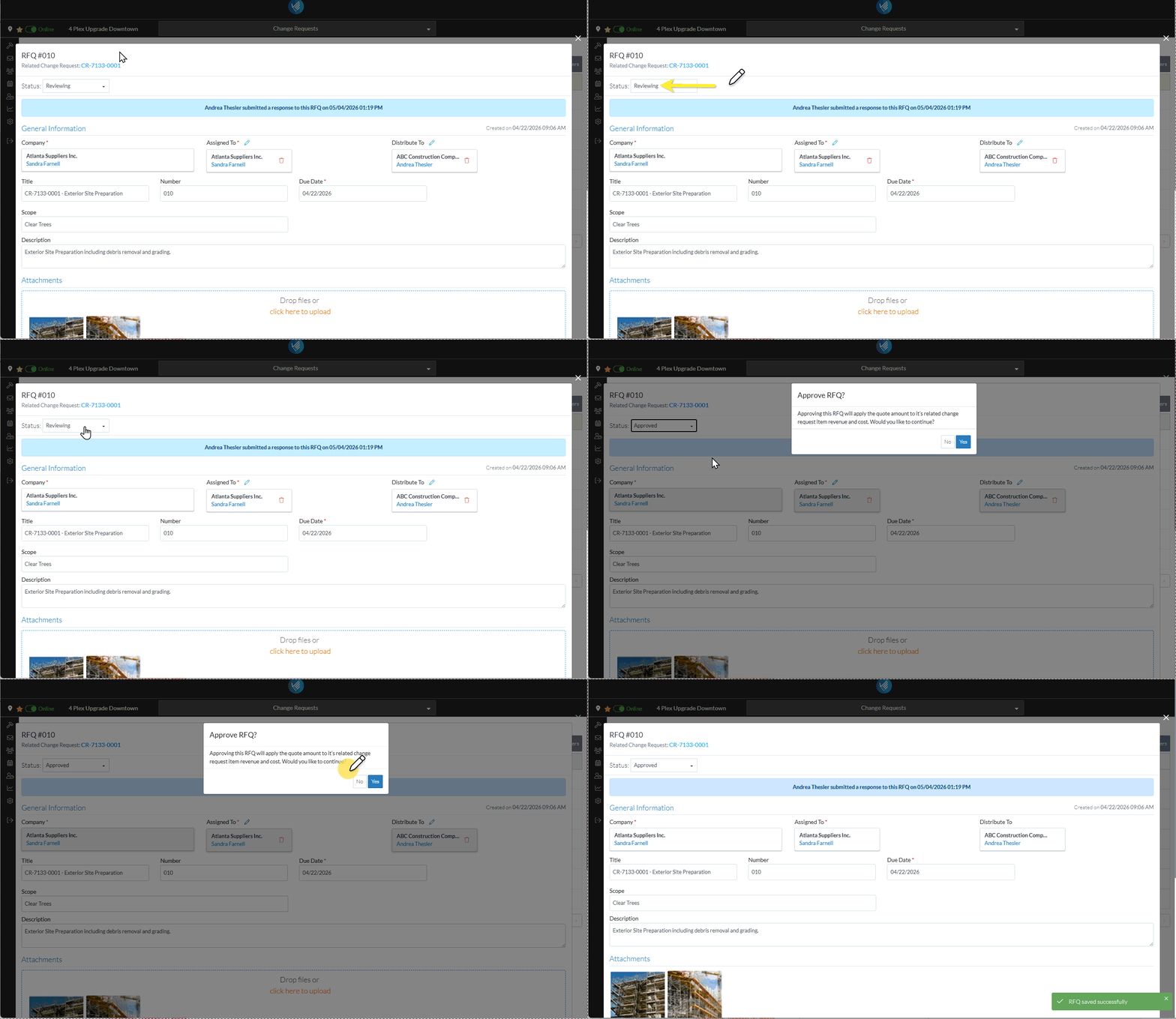
- Click Yes
 to Approve the RFQ and update the Change Request Line Item amount.
OR
Click No to cancel the status changes.
The RFQ - View/Edit form displays. See RFQ - View/Edit - Layout and Navigation - Approved Status for more information. - Continue editing the RFQ, see More Information below.
OR
Click the Close button to close the RFQ form, see Next Steps below.
More Information
Revise the Response received, see RFQ - View/Edit - Revise Response.
Close the RFQ, see RFQ - View/Edit - Close.
Manually set the Status of the RFQ to another Status
Set the Status to Draft, see RFQ - View/Edit - Edit Status to Draft
Set the Status to Reviewing, see RFQ - View/Edit - Edit Status to Reviewing
Set the Status to Revise, see RFQ - View/Edit - Edit Status to Revise
Set the Status to Approved, see RFQ - View/Edit - Edit Status to Approved
Set the Status to Closed, see RFQ - View/Edit - Edit Status to Closed
Delete the RFQ, see RFQ - Delete.
Next Steps
The list the View/Edit was invoked from displays.
- If it was invoked from the Change Request - View/Edit form via the RFQs component, see Change Request Specific RFQs - Overview.
- If it was invoked from the Change Requests on the Project Navigation Menu and via the RFQs in the Lists Navigation Menu, see Change Requests - List of all RFQs - Overview.
